
Create Customer Order
Not Supported: 


The POS Client supports two different functions for creating customer orders:
- Create Customer Order
- Select Delivery Options
Both functions can be used to enter customer orders and define the delivery options, but there are differences in some details.
To learn how to use these functions, see below.
Create Customer Order
This function is used for customer order entry. A down payment is entered depending on the delivery option. The customer order can be searched, displayed, canceled or extended at a later time.
To create a customer order, proceed as follows:
- On the bottom menu bar, press Customer Order to reate a customer order.
If no customer has been entered yet, the dialog for customer entry appears.
- Enter the customer card number manually or scan the customer card. If necessary, you can use Search to search for and enter the desired customer.
- A dialog is displayed to select a delivery option. The following delivery options can be selected: Immediate Pickup, Pickup Other Store, Delivery from Warehouse, Delivery from Store

- Select the desired delivery option.Note:If you select Pickup (Other Store), you have to enter a store number.
A dialog appears to enter the delivery date.
- Enter the desired delivery date.
- If the delivery date is invalid, a warning dialog appears.
Confirm with OK and reenter the date.
- If the date is valid, a dialog appears to enter the desired items.
Proceed with item entry, as usual.
- After you have entered all the items, select Order Complete to finish.
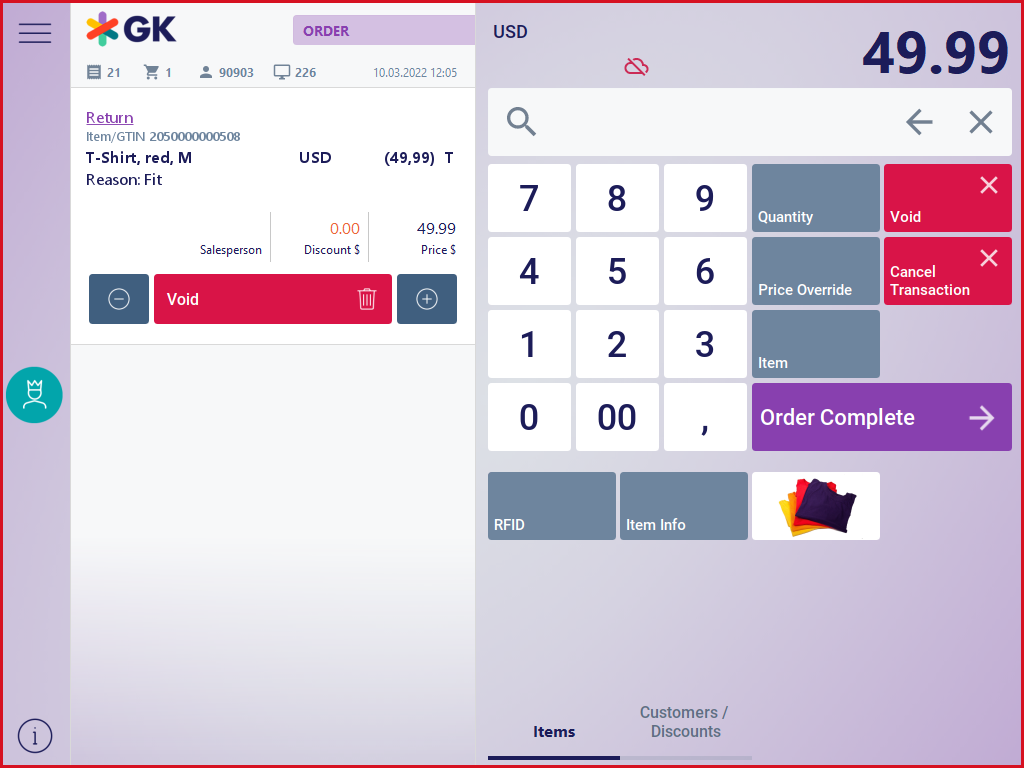
Item availability is checked. If some items are not available, these items will be shown in a table.
At this point, two options are available:
- a: You can change the customer order. In this case, you will return to order mode to cancel or add items.
- b: You can close the order. In this case, select OK.
- Enter the desired down payment amount.Note:Down payments are only made for customer orders with a delivery type other than immediate pickup.
A confirmation prompt is displayed asking whether or not to post the customer order.
At this point, two options are available:
- a: Select No. You will return to order mode to cancel or add items.
- b: Select Yes. The customer order is completed and you will return to the entry dialog.
The entry dialog allows you to create additional customer orders or enter more items.
Select Delivery Options
This function can also be used for customer order entry. The customer orders can be displayed and edited at a later time.
- To create a customer order using the function Select Delivery Options, press the corresponding button in the menu.
The mask for selecting delivery options is displayed:

The following delivery options are available by default: Immediate pickup, Delivery from store, Pickup other store, Delivery from warehouse
- If the customer wants to use the same delivery option for all items of the current transaction, press the button Select All.
- Otherwise, select the item in the receipt preview for which you want to store a delivery option.
Then, select the desired delivery option by pressing the corresponding button.
- The system now checks whether a customer has already been assigned to the transaction. If this is not the case, the dialog for customer entry will be displayed. Enter the customer card number manually or scan the customer card. If necessary, you can use Search to search for and enter the desired customer.Note:If the customer does not exist yet in the system, you can create a new customer here.
Further processing depends on the selected delivery option:
| Immediate Pickup |
|
| Delivery from Store / Delivery from Warehouse |
|
| Pickup Other Store |
|