 CMC Order Hierarchy
After you have completed and executed the initial selection screen the system displays the CMC: the order hierarchy is on the left, the order and operation data on the right, and the order information and tabstrips at the bottom of the screen.
The order hierarchy is in the form of a tree structure and provides you with information on user status, order codes, alert settings, warnings and statuses for orders/operations that meet your selection criteria.
The tree structure has five levels:
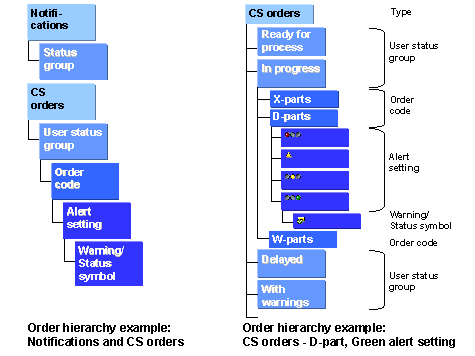
Type
This groups the order types or notifications. For example, if you select CS orders on the selection screen, the CMC displays a node headed CS orders. If you also select notifications, the CMC also displays a Notification node, and so on.
User Status
This level displays the possible CMC user statuses/user status groups (depending on the selection screen values) in folders depending on the settings defined in Customizing. For more information, see CMC User Statuses .
 Note
Note
The CMC includes a folder for orders in your selection that do not have a user status, and a folder for orders in your selection that have a different user status to those included in the selected CMC user status group.

Ensure that all user statuses in the CMC user status groups have user status numbers. If the user status of a selected order/operation does not have a number the CMC automatically places it in a folder named
No Status
.
Order codes
This level displays the order codes in folders that determine the business scenario of the order as defined in Customizing. For more information, see CMC Order Codes and Priority Settings .
 Example
In the diagram there are three possible order codes for CS orders: X-parts for express orders, D-parts for closed-loop (time-based) orders, and W-parts for open-loop (stock-based) orders.
Alert settings
This level has up to six possible folders represented by alert setting symbols. These symbols show the buffer situation of the selected operations. Dependent on the Customizing settings, the CMC decides at runtime in which folder to place the selected order operations.
Note
Express order codes do not have these alert setting symbols. The symbol that denotes an express order at this level of the order hierarchy is
 .
.
Alert setting |
Meaning |
|
Critical warning: Operation dates at risk |
|
Warning: Check whether operation dates at risk |
|
Pre-Warning: Operation end date not yet at risk |
|
OK: Operation end date can be met |
|
You have changed the order code, but you have not refreshed the CMC; or Customizing settings have been changed, deleted, or do not exist for your selection |
|
Buffer evaluation is not active |


The CMC displays a number in brackets beside the alert setting for folders that contain order/operation data. This number provides you with the number of entries in this folder. The number of lines that the CMC displays may be less than the number of actual operations, because in the compressed view the CMC bundles sequential operations that are in the same work center.
Warning / Status symbol
On this level of the
Order hierarchy
the CMC displays a symbol relating to the selected order/operation. This symbol is either a warning or a status message:
Symbol |
Meaning |
|
Impossible to finish order on time - remaining work The duration of the remaining work/operations exceeds the latest end date of the order. |
|
Possible to finish order on time - remaining work The duration of the remaining work/operations is lower than or equal to the latest date of the order. |
|
Possible to finish order on time - no remaining work All work/operations are completed. Final confirmation closes the order. |
|
Orders with relationship not corresponding to CMC handling You have not numbered the operations in the respective orders differently. If an operation in one linked order has the same number as an operation in another linked order, the CMC is unable to treat these linked orders as one. For more information, see Bundling of Orders with Relationships . |


To the right of the symbol the CMC displays the order short text. This short text is highlighted in red if an error occurs during buffer calculation. This error means that the working times have not been maintained correctly in the work center.
Context Menu
By right clicking on the warning/status symbol, a context menu appears. This context menu allows you to perform a variety of actions from within the CMC for the selected order:
You can call F1-help for specific fields by using the context menu.
Note
You call F1-help by right-clicking on the relevant field and selecting
F1-Help
.
You can display or change orders from here, as well as change order codes.
Note
If activated in Customizing, a
User verification
dialog box appears in which you have to enter your user name and password. The system checks whether the user name/password matches the user name and password of the user logged on to the system. If these match the CMC starts the selected action. Changing the order or the order code may affect scheduling and priority values, depending on the Customizing settings. If you change the order code, after Refresh or restarting the CMC, it automatically moves the affected order(s) to the correct folder in the order hierarchy.
If activated in Customizing, you can also display the CMC action log for the selected order. This log shows all CMC actions that have been performed on the order, the user(s) who performed the action, and when the action was performed. You can also display the Status log for the selected order. By selecting this option you go to the standard
Change Documents in Status Management
screen. You can also use the context menu to go to one of the tabstrips at the bottom of the CMC screen. The CMC automatically completes these tabstrips when you select one from the context menu.
Note
You can also complete the tabstrips by double-clicking on the order number in the Order/Operation data screen area.
If you have double-clicked on an order number and afterwards you change the order the CMC does not update the tabstrip information automatically. You must click
Refresh
in the application toolbar, and double-click on the order number again.
From the context menu, you can also call up a dialog box to get a description of the symbols used in the CMC.
See also: