 Structure of the Component Maintenance Cockpit
Use
The CMC screen is structured in such a way to provide you with as much information as possible on selected orders/operations, whether you use the single work center view or the general work center view.
Features
The following screen areas are available as you work with the CMC:
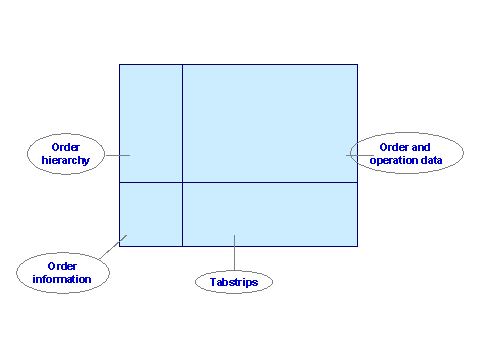
CMC Order Hierarchy
The order hierarchy is a tree structure with up to four levels: notification or order folder, user status folder, order code folder, alert setting folder, warning/status symbol for particular order/operation. The lowest level contains the actual data on the selected notifications, orders, or operations. A context menu is also available on this level by right-clicking on the symbol for the required order/operation. The CMC automatically opens the folders that contain data.
CMC Order and Operation Data
Here the CMC displays data from your selection in columns, such as priority value, order number, earliest/latest start and end dates, work center, buffer, and so on.
CMC Order Information and Tabstrips
If you click on an order number in the
CMC order and operation data
screen area, the CMC displays additional order details in these screen areas.
The
Order information
area displays information from the order hierarchy such as order number, order code, user status, and so on. Once you have double-clicked on an order number the CMC always displays this information irrespective of which tabstrip you select.
The
Tabstrip
area displays detailed information on a selected order. The available tabstrips are:
Order
,
Equipment
,
Material
,
Operations
,
Task Lists
, and
Warnings and Delays
.
CMC Layout and Display Options
You can change the layout and display of the CMC from the menu options:
Tree Variant
In the menu option
Tree Variant
you can change the layout of the CMC by deleting or adding columns to the order and operation data screen area. You do this by choosing

Tree

Variant
Hide/Show
 .
.
You can save different variants either specific to your user or globally by choosing
Tree Variant
Save User Variant
or
Save Variant
respectively.
 Note
Note
If you create a tree variant, the changes only become active if you reenter the CMC main screen from the selection screen.
From the menu option
Mail
, you can create and send a simple e-mail (
Mail
Mail
), receive e-mail (
Mail
Inbox
), and review mail that you have sent (
Mail
Outbox
) to/from other work centers that may be involved in the rotable process for the selected order/order group. For example, you can request that a work center forward a component so that you can start work on your operation.
Extras
In the menu option
Extras
, you can choose to display the CMC data in graphical form (
Extras
Overview
), or in list form (
Extras
List
). You also access the message log from here (
Extras
Message Log
).