
 Middleware Object Navigator
Purpose
This tool encompasses CRM Middleware server applications such as BDoc Modeler and Administration Console. The objects modeled using these applications, such as BDoc types, replication object, and publication object, are inherently dependent on each other. At present, you need to:
· Model these objects separately by using individual applications
· Manually define the dependency between them
However, the Middleware Object Navigator (MON) provides a single point of entry to the entire CRM Middleware development environment. This tool allows scenario based modeling and customization of all the design time objects. Therefore, you can realize the dependencies between design time objects as it provides an intuitive and step-by-step approach to customize CRM Middleware.
A scenario is a name assigned to a workflow defined in the repository. A workflow represents the complete sequence of modeling steps to perform a particular operation, such as data transfer from consolidated database (CDB) to the mobile client. The workflows are predefined as scenario templates in the repository along with the modeling sequence for each of them. There can be only static set of workflows as the modeling objects are limited. For more information, see Creating a Scenario and Processing Scenarios.

When you define a scenario, you must select one of the predefined workflows. However, one workflow may comprise of a combination of workflows. For example, data transfer from the CRM server to the mobile client is a static workflow. However, this workflow is a combination of two workflows, CRM server to CDB and CDB to mobile client.
If you want to group related scenarios, you can define a project. For more information, see Creating a Project and Modeling a Project.
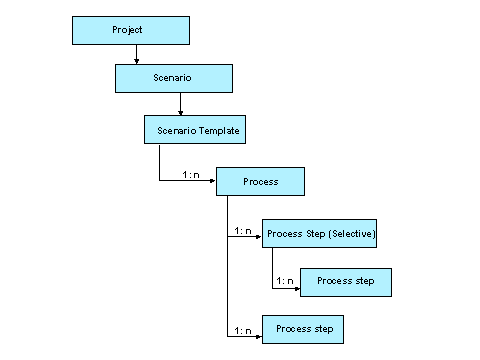
The scenario template, which is mapped to a scenario, comprises of processes that in turn comprise of process steps.
· Process – Comprises of process steps that perform a particular activity such as data transfer from CDB to the mobile client.
· Process Step – Corresponds to a specific activity that you perform by using a specific tool, such as modeling a BDoc by using the BDoc Modeler. For more information, see Types of Process Steps, Properties of a Process Step, Statuses of a Process Step, Assigning an Instance of an Object Type to a Process Step, and Completing an External Step.
The following figure illustrates the relationship between the above mentioned entities:
Features
· Generic tree
The generic browser displays all object instances corresponding to the selected object type (unique identifier of an object). In addition, it displays the dependent objects as child nodes.

If you select the Business Documents object type and then you select the ACTIVITY_OBJECT BDoc type, all objects, such as replication objects, segments, and maps that are dependent on the ACTIVITY_OBJECT BDoc type are displayed in the generic tree. You can then double-click on any of the dependent objects to call the corresponding application.
· Dynamic context menu
When you right-click on an object instance or folder, this tool identifies the corresponding application and displays the context menu applicable to the selected object instance.
When you right-click on the ACTIVITY_OBJECT BDoc type, this tool displays the context menu applicable to the BDoc type. However, when you right-click on the ACT_CONTACT segment, the context menu applicable to the segment is displayed.
· Extensive navigation
You can navigate to all the dependent objects (of an object), defined in the SPEED framework repository, by using this tool. In addition, you can navigate to BASIS objects, such as tables, data elements, and function modules.
· Graphical representation
You can graphically represent the dependency between objects during the design time. However, this is possible only after the object types and their relations are stored in the SPEED framework repository. If you double-click on any object instance that is graphically represented, this tool invokes the corresponding application. In addition, if you right-click on any object that is represented graphically, this tool identifies the corresponding application and displays the context menu applicable to the selected object.
BDoc type, segment, and map are objects of the BDoc Modeler. A segment is dependent on a BDoc type and map is dependent on a segment. You can graphically represent this dependency by using this tool.
· Where-used list: Allows you to locate the instances where a particular object has been used.
ACTIVITY_OBJECT is a replication object. A replication object is dependent on a BDoc type and publications are dependent on a replication object. You can use this option to find out the BDoc type and publications that are related to this replication object.
· Navigation stack: Maintains a history that enables you to locate the sequence of the navigation within the tool.
· Full screen on/off: Hides all the floating controls, such as the generic browser and navigation stack, and displays the application on the entire screen.