
Using Tableau Versions
You can use the version table on the right to create, edit or delete a tableau version.
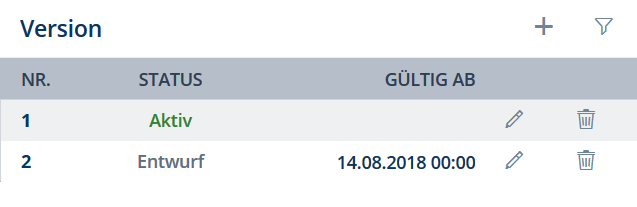
The following options are available in the version table:
New Version
To create a new tableau version, proceed as follows:
- Select the "+" button in the menu.
- The following dialog appears:
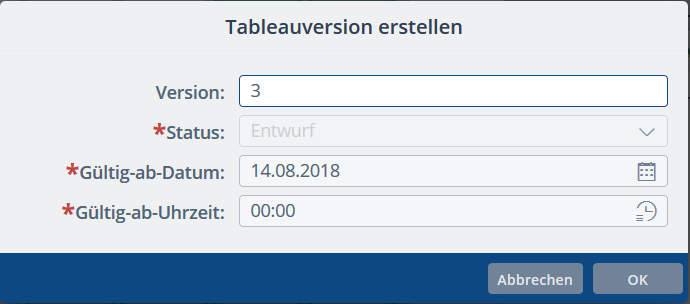
Version: The version name is set automatically.
Status: The status of the new version you are creating is set to "Draft" automatically.Valid-From Date / Valid-From Time: Select the date and time from which the tableau version should become valid.
Confirm the dialog with OK.
✓ A new tableau version is created.
The status "Draft" is automatically assigned to the new tableau version. You can change the status by editing the tableau version, as described in the section "Edit Version".
Edit Version
To edit a tableau version and change the version status, proceed as follows:
- Select the tableau version you want to edit.
- Click on the pencil icon in the line of the selected version.
- In the next dialog, change the version status or valid-from date/time, and confirm your changes with OK.
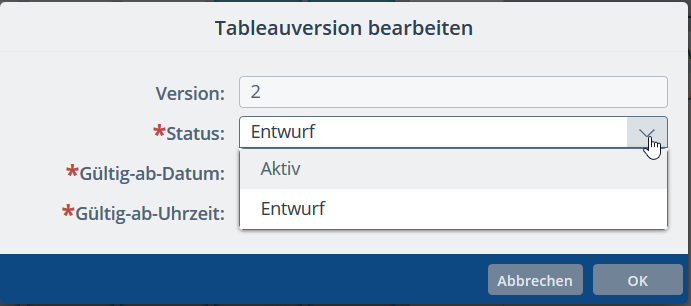
✓ The version status or validity data is changed.
Activating a version:
If the valid-from date of the version you are activating is in the past, the selected version will be activated immediately and the previous active version will be automatically set to expired.
If the valid-from date of the version you are activating is in the future, this version status will be temporarily set to pending. When the valid-from date is reached, the selected version is activated and the previous active version is set to expired.
This ensures that only one active version exists at any one time.
Delete Version
To delete a tableau version, proceed as follows:
- Select the tableau version you want to delete.
- Click on the trash icon in the line of the selected version.
- Select OK to acknowledge the confirmation prompt.
✓ The version is deleted.
Version List Sorting and Filtering
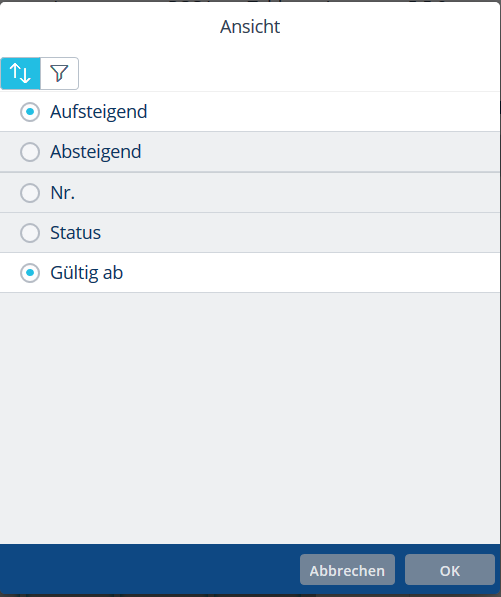
To filter and sort the version list, click on the filter icon above the version table.
Two options are available here:
- Version sorting by number, status or valid-from date, in ascending or descending order.
-
Version filtering using defined criteria
In the first step, select the filter criterion (currently only Status is available).

In a second step, select the value you want to filter for. The following values are available for the criterion Status: Active, Inactive and Draft.

If a filter is activated, this is indicated in the version list accordingly.

To reset the filter, click on the X icon.