
Starting the Menu Editor
The Menu Editor can be started from GK/Retail Storemanager or directly from GK Employee Hub.
Starting the Menu Editor from Storemanager
You can start the Menu Editor from a structure node in GK/Retail Storemanager.
Tableau editing is supported for the following structure nodes:
To start the Menu Editor from Storemanager, proceed as follows:
- Open the Main structure view in Storemanager.
- Highlight the structure node intended for tableau editing.
- Select the action Menu Editor either from the structure node's context menu or from the Actions menu under Editors:

A list of tableau groups relating to the available system types and versions is displayed on the screen.
- Select the system type and version you want to edit from the dropdown field POS version.

- Mark the menu you want to edit, and select Start editor to open the Menu Editor.
A list appears with all the menus of the selected POS version:

- When started, the Menu Editor displays a list of all available tableaus. Mark the tableau you want to edit, and confirm your selection with Edit.
The edit view of the selected tableau appears:

Starting the Menu Editor from GK Employee Hub
To start the Menu Editor from GK Employee Hub, proceed as follows:
- Start the GK Employee Hub.
- Go to the tab MENU EDITOR.

- Select the desired Menu Editor.
- Select the version (if the version is included in the GK Employee Hub call parameter, no version selection will be necessary).
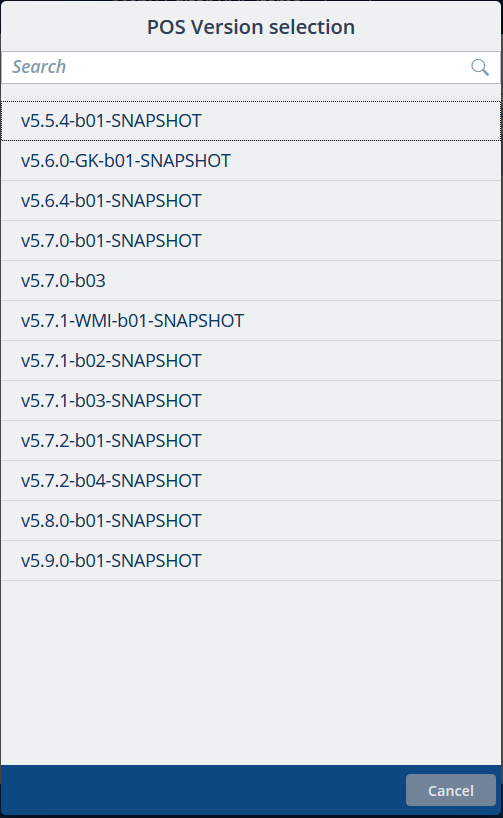
- Select the desired tableau.
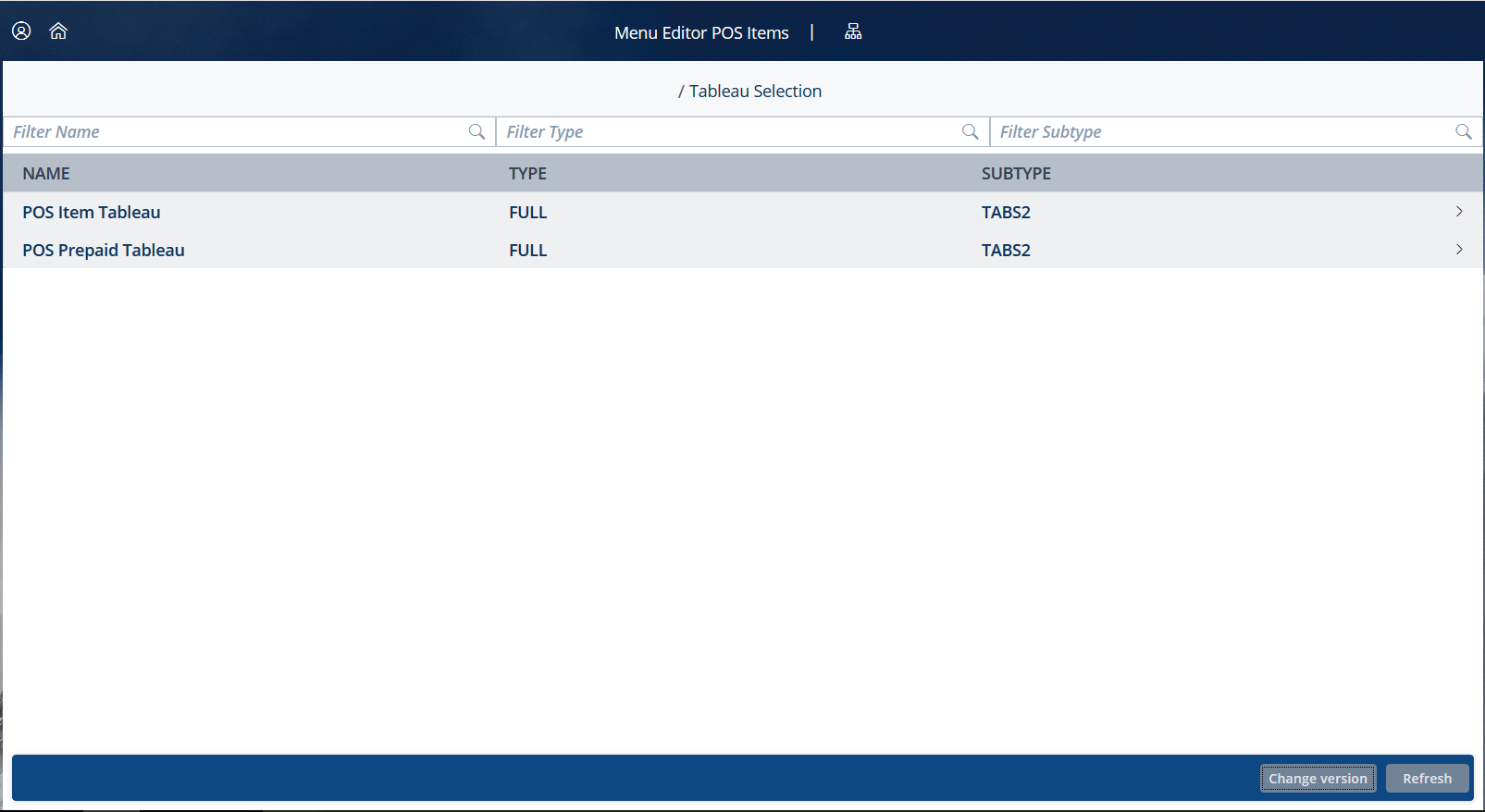
- After you have selected the tableau, the edit view opens.
