 Provisions Element
Definition
Assignment of a force element to a plant, MRP area, and storage location for managing the inventory of individual and bulk consumable goods.
Use
For a force element, you maintain material as a provision, which represents the individual and bulk consumable goods. This material is compared to the logistical requirements as actual.
Stockholding force element
A force element that is indicated as
stockholding
has its own MRP area (provisions MRP area) that includes the storage locations in which the material used by the force element is held.
Non-stockholding force element
This force element does not have its own MRP area. Its provisions are managed by another force element (also see Initial Supply ).
Structure
The following fields and pushbuttons are available in the
Structures Workbench
on the
Stock/Provisions
tab page in the
Provisions Element
screen area:
Plant
The plant to which the force element is assigned.
Stockpiling
Indicates that the force element is a stockholding force element for its own actual materials (individual and bulk consumable goods). If you set this indicator, you can create an MRP area for the force element with storage locations.
MRP Area
For the assigned plant of a stockholding force element, you create a provisions MRP area with the relevant storage locations and assign these to the force element.
You create an MRP area in much the same way as for a stock element . Differences:
In the detail view, you can assign a sales area (sales organization, distribution channel, division) to the storage location.
When the name is assigned, the suffix_Pis used.
On the
Stor.Loc.
tab page, you can choose
Ext.
Matl Group to navigate to
supply source determination for provisions material
.
A force element can have several storage locations for provisions management. In Materials Management, materials are planned for each MRP run in these storage locations.
You can also change the provisions MRP area for force elements that have the status
Active.
MRP Area
pushbutton
Once you have made these assignments, you can choose
MRP Area
to display the stock for the entire provisions MRP area of the force element in which provisions are managed. See also
Reports: Stock Levels and Provision Levels
.
Storage
The following provisions element data is stored in table /ISDFPS/FORCE:
Assignment to plant
Stockholding
indicator
Assignment to MRP area
Example
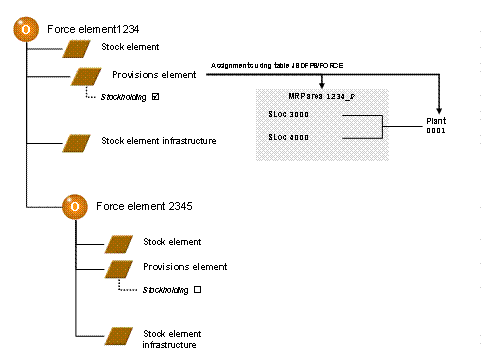
Provisions Element
This example displays the stockholding force element1234with one provisions MRP area and two assigned storage locations. The lower-level force element2345is not stockholding and therefore does not have its own storage locations.