 Stock Element
Definition
Assignment of a force element to a plant, MRP area, and storage location for managing the inventory of non-consumable goods.
Use
For a force element, you maintain material as a stock element, which represents the non-consumable goods. This material is compared to the authorized materials as actual.
Force element that is accountable for stock
A force element that is indicated as
accountable for stock
has its own MRP area (stock MRP area) that can include the following storage locations:
The storage location in which the material used by the force element is held in stock (stock storage location)
The storage locations that may be used as stock storage locations for lower-level force elements that are not accountable for stock
Force element that is not accountable for stock
This force element does not have its own MRP area. To manage the inventory, it uses a storage location from the upper-level force element that is accountable for stock.
Structure
The following fields and pushbuttons are available in the
Structures Workbench
on the
Stock/Provisions
tab page in the
Stock Element
screen area:
Plant
The plant to which the force element is assigned
Accountable
Indicates that the force element is accountable for the stock of its own actual materials, as well as the actual materials of lower-level force elements. If you set this indicator, you can create an MRP area for the force element with subsequent storage locations.
MRP Area
For the assigned plant of a force element that is accountable for stock, you create a stock MRP area with the relevant storage locations and assign these to the force element.
To create or change the MRP area, choose
Create
or
Display <-> Change
. If required, select an MRP area as a template. The template is displayed on the tab pages that then appear:
The following fields are displayed on the
MRP Area
tab page:
MRP Area
(The number of the MRP area.)
Type
(key that defines whether the MRP area is assigned to a complete plant or to a storage location. The MRP area types
Plant
and
Storage Location
are supported within inventory management for force elements. In the case of the type
Plant
, the MRP area is a whole plant. In the case of the type
Storage Location
the MRP area comprises one or more storage locations. This means that within the force element, one
Plant
MRP area type exists for each plant. This type contains all the storage locations that are not assigned to MRP areas with the type
Storage Location
)
Name
(description of the MRP area)
Plant
(key that describes the plant to which the MRP area is assigned.)
You can either assign an existing MRP area or define a new one.
On the
Stor. Loc.
tab page, you can specify the storage locations for the MRP area. You can either create new storage locations or copy existing storage locations as a template. Indicate a storage location as preferred. For the operational processes, you must enter additional data in the detail view for the storage location. To do so, choose
Details for Selected Stor.Loc.
You must also create a sales area (sales organization, distribution channel, division) for the storage location.
When you save the MRP area, the object ID of the force element and the suffix_Sare automatically assigned as the name. As a result, the MRP area is unique across all plants.
You can also change the stock MRP area for force elements that have the status
Active.
Stor. Loc
Stock storage locationin which the actual materials for the force element are held in stock. This makes it possible to compare the actual materials with the authorized materials.
For a force element that is accountable for stock, select a storage location that belongs to the MRP area of the force element.
For a force element that is not accountable for stock, select a storage location that belongs to the MRP area of the higher-level force element that is accountable for stock.
MRP Area
and
SLoc
pushbuttons
When you have made these assignments, you can:
Choose
MRP Area
to display the stock of actual materials for the entire MRP area of a force element that is accountable for stock.
Choose
SLoc
to display the stock of actual materials in the stock storage location of the force element.
See also Reports: Stock Levels and Provision Levels .
Storage
The following stock element data is stored in table /ISDFPS/FORCE:
Assignment to plant
Accountable
indicator
Assignment to MRP area
Assignment to stock storage location
Example
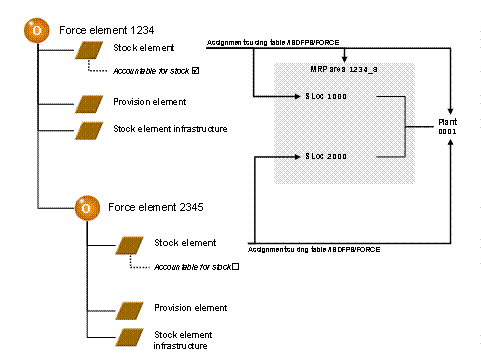
Stock Element
This example displays the accountable force element1234with one stock MRP area and two assigned storage locations. Storage location1000is the force element’s own stock storage location. Storage location2000is the stock storage location for the lower-level force element2345,which is not accountable for stock.