 Bundle Pricing Calculation
Using this process, under certain circumstances you can offer preferential prices to private or business customers who have multiple accounts at a bank.
When you implement the bundle pricing calculation
process and execute a combined settlement for master contracts, the system checks account-specific rules and if they apply, uses special conditions for the calculation and posting of the charges.
 Example
You would like to offer preferential conditions to customers who have both a checking account with regular salary deposits and a savings account at your bank. You want to reward a high average balance on the savings account with lower charges for the checking account.
To do this you group the two accounts into a master contract, define conditions and rules for it, and execute a combined settlement periodically.
If the average balance on the savings account exceeds a given amount for a period, the system credits the checking account with a fixed amount. In the best possible scenario, the credits cancel out the account maintenance charges for the checking account and the customer's account is free of charge.
Process Combinations
You can combine this process with other processes in Master Contract Management. For an overview of all combination options, see Master Contract Management (FS-MCM).
Prerequisites
Before you can use this process, you must install the following components:
Master Contract Management (FS-MCM)
with the following functions:Master Contract
Financial Condition
Payment Details
Product
Combined Settlement with the
Bundle Pricing Calculation
Feature
Account Management (FS-AM)
with the account function, or another account-managing system
For notes about the options for using external systems, see Communication Between Logical Systems.
Settings in Customizing for Master Contract Management (FS-MCM)
Under 
Product Management

Product Definition
Master Contract Products
Create Master Contract
 or
or Change Master Contract Product
you have defined a master contract product for which the following feature attributes are active and the corresponding settings have been made:
Combined settlement
Bundle pricing calculation
Relationship attributes
Relationship attribute category
Calculation type
General attributes
Cross-track attributes
Combined settlement tracks
Time periods
Contract relationships
Participation conditions
Functions
Financial conditions
Condition groups
Execute Combined Settlement
Note the prerequisites for reports Execute Combined Settlement
and Execute Combined Settlement - Mass Run
described in the system documentation.
Process
Define condition calculation type (mandatory)
In Customizing for
Master Contract Management
, choose Master Contract Applications
Combined Settlement
Calculation Types for Bundle Pricing Calculation
Define Condition Calculation Types
and define the condition calculation types on the basis of the condition calculation categories. ExampleIf you want the system to include the average balance of an account in the calculation, create a condition calculation type on the basis of the condition calculation category
Combined Average Balance
.For more information, see the documentation for the Customizing activity.
End of the example. Note
NoteYou can also define result calculation types in addition to condition calculation types.
For more information, see the documentation for the Customizing activity
Define Result Calculation Type
.End of the note.Define condition types
In Customizing for
Master Contract Management
, choose Product Management
Financial Conditions
Define Condition Type
and define a condition type for bundle pricing calculation on the basis of the condition category 150010 Bundle Pricing Calculation Charge
that is supplied by SAP.We recommend you create the condition type with the following values:
Field
Value
Calculation category
2010 Account maintenance charge
Posting type
73 Credit - combined settlement
Posting +/- sign
Credit
Balancing method
Total
Balance category
Total balance
Balance basis
Period balance
Period category
Total period
Determination time for condition
Use conditions at time of calculation
Calculation procedure for bonus
No bonus calculation
Assign one of the two amount categories supplied by SAP
150010 bundle pricing calculation charge
or150020 flexible bundle pricing calculation charge
to this condition type.For more information, see the documentation for the Customizing activity.
Define condition group types
In Customizing for
Master Contract Management
, choose Product Management
Financial Conditions
Maintain Condition Group Types
and create a condition group type for bundle pricing calculation
on the basis of the condition group category5 Combined Settlement
that is supplied by SAP. Assign the condition type just created to the new condition group type.For more information, see the documentation for the Customizing activity.
Define condition group
On the
SAP Easy Access
screen, choose Master Contract Management
Current Settings
Financial Conditions
Condition Group
Edit Condition Group
and create one (or more) condition groups for bundle pricing calculation on the basis of the condition group type just created, under which you can group together all the standard conditions.Define standard conditions
Create one or more standard conditions for bundle pricing calculation on the basis of the condition group and condition group type just created. Do this by carrying out the following steps on the
Calculation
tab page in the group boxesBundle Pricing Calculation Charge
orFlexible Bundle Pricing Calculation Charge
:Choose the number of rules to be checked.
If the condition formula is to consist of only one rule, choose the
Single Rule
entry in theTier/Interval
field.. In this case, you can only store one rule for each condition in the formula editor (see step 6Define Condition Rule
) that the system checks. If this rule applies, the system uses it (meaning it posts the corresponding amount). Otherwise, the system ignores the rule.If the condition formula is to consist of multiple rules, choose the
Multiple Rule
entry in theTier/Interval Calculation
field. You can then define multiple rules and amounts for each condition that the system checks one after the other, and uses if they apply.If the first rule applies, the system uses it, meaning it posts the corresponding amount. The other rules are not checked.
If the first rule does not apply, the system checks the second rule. The system continues checking until it finds a rule that applies, and then uses it.
ExampleYou want to link the charge for a checking account to the average balance of the savings account.
If the average balance of the savings account is EUR 3,000 or more, the customer receives a credit of EUR 3 on the credit card account.
If the average balance of the savings account is EUR 2,000 or more, the customer receives a credit of EUR 2 on the credit card account.
If the average balance of the savings account is EUR 1,000 or more, the customer receives a credit of EUR 1 on the credit card account.
End of the example.
Define amount
If you want the system to post an amount (such as EUR 3.50) if the rule applies, enter this in the
Amount
field.If you are working in the group box
Flexible Bundle Pricing Calculation Charge
, you can make settings in theResult Calculation Type
field:If you leave the
Result Calculation Type
field empty, theAmount
field is available to you. Enter the fixed amount, such as EUR 3.50, which is to be debited or credited if the rules applies.If you choose a result calculation type in the
Result Calculation Type
field, thePercentage
field is available to you. Enter the percentage for the result calculation type, such as the turnover class, which is to be debited or credited if the rule applies.
If you are working in the group box
Bundle Pricing Calculation Charge
, the only field available to you is theAmount
field. NoteYou set whether an amount is to be credited or debited in Customizing for the condition types.
If you wish to credit or debit the contract with a fixed amount, enter this amount in the
Amount
field.If you wish to credit or debit the contract with a percentage rate of the result calculation type (such as 5%), enter this percentage rate in the
Percentage
field.
End of the note.
Define account rule
Define one or more rule(s) using the formula editor.
Choose
 (
(Define Condition Rule
). In the formula editor, define which condition rule you want the system to check when calculating the combined settlement charges If you have chosen the entryMultiple Rules
in theTier/Interval Calculation
field, you can define multiple rules for a condition.For more information about the Formula Editor, choose
 (
(Information
). ExampleYou want to link the charge for the checking account to the average balance of the savings account: If the average balance on the savings account is EUR 2000 or more, you want the checking account managed free of charge. The customer receives a credit amounting to the account maintenance charge for the checking account.
Define the following condition rule:
Average balance ≥ 'EUR 2000'
End of the example. NoteYou can also combine multiple requirements when defining a rule. To do this, you use Boolean Operators.
End of the note.For more information about conditions, see the documentation for the
Financial Conditions (CA-FIM-FCO)
component, particularly in the Condition Processing section.The condition groups defined by you and their conditions are displayed as a table in master contract processing on the
Financial Conditions
tab page.For more information, see Editing Financial Conditions.
Define time periods
In Customizing for
Master Contract Management
, choose Master Contract Applications
Combined Settlement
Track-Specific Settings
Define Time Periods for Combined Settlement Tracks
and define one or more sets of time periods for the period application category BCCS Combined Settlement
.Define days of month for time periods
If you choose year or month as period unit, you need to define the details more precisely. In Customizing for
Master Contract Management
, choose Master Contract Applications
Combined Settlement
Track-Specific Settings
Define Days of the Month for Time Periods
and define calendar months or days of the month.For more information, see the documentation for the Customizing activity.
Create participating accounts
Create all the account contracts that you wish to assign to the master contract in the account-managing system (normally the
Account Management
system).For more information, see Creating Accounts
Create master contract
Create a master contract on the basis of a master contract product that meets the above-mentioned requirements.
For more information, see Creating Master Contracts.
Edit combined settlement
On the
Combined Settlement
tab page in theTime Periods
group box, define the time and frequency (time periods) at which you want the combined settlement executed for the combined settlement trackBasic Track 001
for a specific master contract.For more information, see Editing Combined Settlements.
Assign participants
Choose the
Contract Relationships
tab page and assign the accounts created in the account-managing system to the master contract:For more information, see Editing Contract Relationships.
Specify payment details
In master contract processing, choose the
Payment Details
tab page and assign a reference account as payment details for the combined settlement to the payment details type200000 (Complete Settlement)
.For more information, see Editing Payment Details.
Execute combined settlement
If you have stored time periods for the combined settlement, the system executes the report
Execute Combined Settlement - Mass Run
at the scheduled time, such as during end-of-day processing, periodically for multiple master contracts.If you have not stored any time periods for the combined settlement or wish to execute one for a master contract outside the regular time periods, start an individual run:
Execute Combined Settlement
.For more information about starting the report and the functions the system executes during a combined settlement, see Executing Combined Settlements - Bundle Pricing Calculation and Executing Combined Settlement - Compensation.
Process Flow
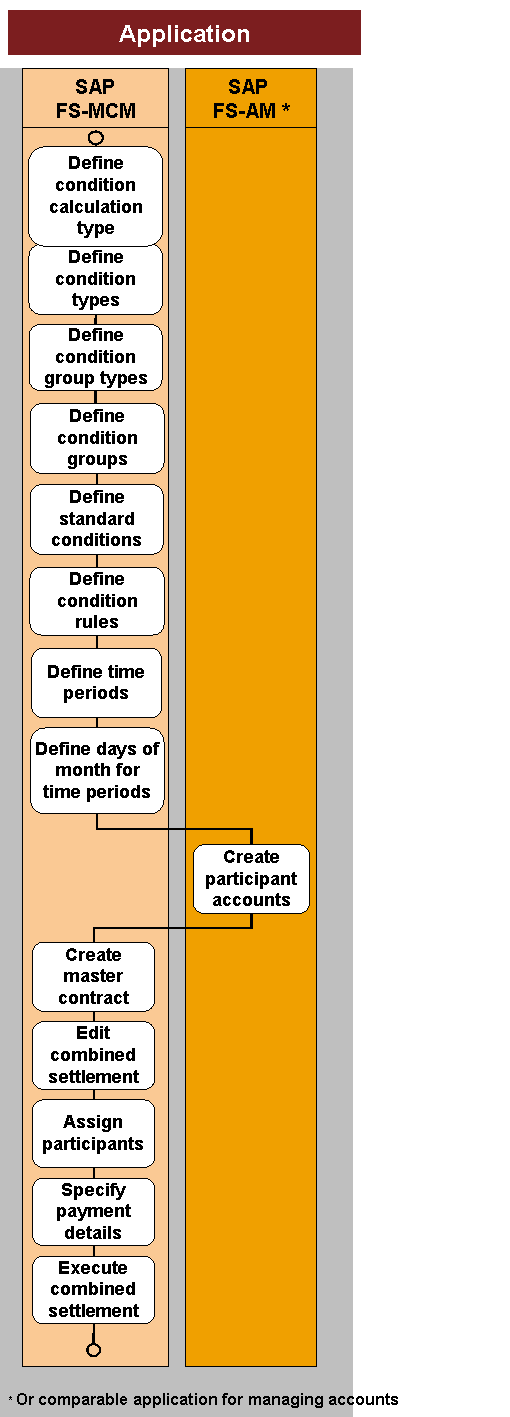
Process steps for bundle pricing calculation
Result
The system has checked the defined condition rules. If they applied, it has calculated the charges accordingly and settled the master contract. The combined settlement charge has been posted to the reference account.