
 Using a BI System as a Data
Service
Using a BI System as a Data
Service

Use
You can use queries, query views, and characteristics stored in BI systems as data services in your Visual Composer models. Inside the structure of a query or query view, you can view the variables (Variables), characteristics (Characteristics), and different formats of InfoObjects in the query result (Result) available for use while designing your model.
Prerequisites
As outlined in Work with SAP BI Systems.
Procedure
...
1. On the Find Data Services task panel, select an SAP BI data service (see Find Data). You can also access BI system favorites (see Working with Favorites).
2. Browse the InfoArea tree to identify the InfoObject you wish to use:
a. Expand InfoAreas to see their associated InfoCubes.
b. Expand an InfoCube to see all queries or query views stored in it in a structure.
c. Expand the Structure folder associated a query or query view to view available InfoObjects in a tree.
3. Expand the Variables folder. If there are any variables stored in a query or query view, you can view them here. Optional variables appear with a green equals sign. Mandatory variables appear with a red equals sign:

4. Expand the Characteristics folder. The characteristics are displayed:

5. Expand the Result folder. Available InfoObjects (characteristics or key figures) in the query result are displayed, each appended with labels indicating the format of the object. The following table describes the available formats for characteristics, key figures, or both (InfoObjects):
Result Folder
[InfoObject] and Label |
Details |
[InfoObject] |
The formatted value of the characteristic or key figure – for example, with currency and decimal notation. |
[KeyFigure]_value |
The unformatted value of the key figure – for example, without currency or decimal notation. This is the value typically used in calculations such as in formulas or charts. |
[Characteristic]_key |
The key of the characteristic. This is the internal technical identification of the object in the BI system. This value is typically used as input for a filter – for example, in controls such as drop-down boxes. |
[Characteristic]_ext_key |
This is how the characteristic is represented externally. This is usually the same as the _key value, but differs in time and compound characteristics. For example, a time characteristic's _key value for the date August 29, 2005 is 20050829, and the _ext_key value depends on the user setting configuration for date formats – for example: 08/29/2005. This value is typically used in value help as input for a variable. |
[KeyFigure]_currency |
The currency attributed to this key figure. This represents the currency symbol itself. |
[KeyFigure]_unit |
The unit of the key figure – for example, piece or pound. |
[KeyFigure]_exception |
If there are exceptions stored in the query, the exception value (or its severity grade) associated with the key figure is stored here. You can use this value in conjunction with styles to indicate exceptional conditions in a chart, for example. |
[Characteristic]_node_level |
If the query contains characteristics for which hierarchy display is enabled, this value represents the node level of the currently selected characteristic member. See Modeling Hierarchies. |
[Characteristic]_node_status |
If the query contains characteristics for which hierarchy display is enabled, this value provides a key to the hierarchy node drill state: E – Expanded C – Collapsed L – Leaf node See Modeling Hierarchies. |
Select a query, query view, or characteristic (see Using a Characteristic as a Data Service) and drag it to the workspace.
Result
The metadata is retrieved and the query, query view, or characteristic is integrated into your model as a data service, complete with any relevant ports:

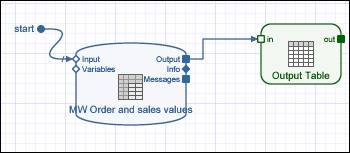
A characteristic is created with an Input and an Output port. A query or query view can have the following ports:
Query or Query View Ports
Input |
Output |
Input – accepts data |
Output – returns data |
Variables – accepts values for variables (if variables are available in query or view) (see Working with Variables) |
Info – returns the query information (text elements) associated with the query (see Adding Query Information to Your Model) |
Messages – returns query-related messages (see Using Messages) |
You can now, for example, place your BI data service in an iView and configure a start point on the Input port and a table view on the Output port:
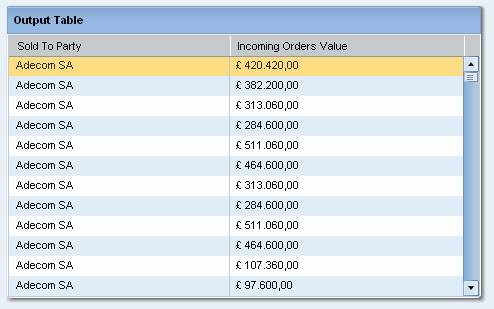
Then you can deploy to the portal to see the results of the query:
See also:
· Creating an Analytics Application, for step-by-step instructions on creating a complete analytics application using BI systems
· Using Exceptions in Your Model
· In Data Service (in the SAP NetWeaver Visual Composer Reference Guide), see the BI Query reference for properties you can configure using the Configure Element task panel.