 Filter a BI Query
A filter is a set of criteria that restricts the set of records returned as the result of a query. With filters, you define which subset of data appears in the result set.
You can filter your query's result set by providing a value in a field in an input form during runtime on the portal. You can also enter special selection syntax into the field.
Prerequisites
You have configured a BI system on the portal using the SAP BI Connector or a BI Java Connector. See Defining Portal Systems and Aliases in the SAP NetWeaver Visual Composer Installation & Configuration Guide.
Procedure
On the Find Data Services task panel, select the BI data service (see Find Data).
Select a query or query view (SAP BI systems), or cube (OLAP systems) and drag it to the workspace in an iView.
Drag from the data service's Input port and choose Add Input Form. You may also add an input form on the data service's Variables port, if variables are available in the query definition.
Drag from the data service's Output port and choose Add Table View, and select the fields to display in the table.
Deploy the model to the portal.
In runtime on the portal, enter appropriate values in the input fields and click Submit.
Input Field Values
Data Service |
Input Field Value |
Variable Field Value |
Supported Selection Syntax |
|---|---|---|---|
OLAP queries (from data services created with the BI XMLA or BI ODBO Connectors) |
[Member]_key |
[Member]_key |
Selection options type not supported |
BI queries (from data services created with the SAP BI Connector) |
[Characteristic]_key |
[Characteristic]_ext_key |
All selection options types supported |
For the available selection options types and their exact syntax, see the Field Syntax table in Working with Variables.
 Recommendation
Tip: Add value help to an input field to help you determine the proper value, its format, and selection syntax. See Value Help Configuration Wizard in the SAP NetWeaver Visual Composer Reference Guide.
Result
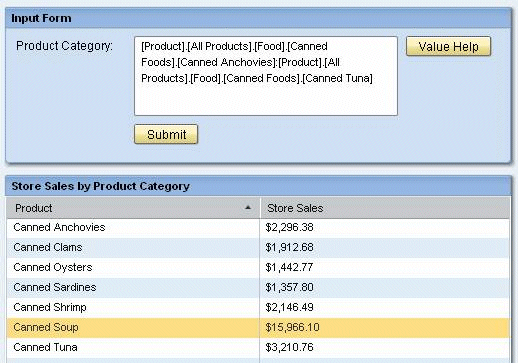
After you have configured values in the input fields and clicked Submit, your query is executed with the filter value you configured and the results are retrieved for display in the table:
More Information
You can use the BI Integration Wizard to create query filters within the context of individual query templates. See Define Filters in the SAP NetWeaver Visual Composer Reference Guide.