Using Exceptions in Your Model

Use
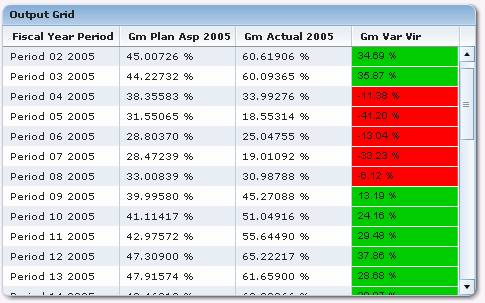
If exceptions have been stored in a BI data service, they can be retrieved in Visual Composer and used as the basis on which you build an application. For example, you can display query results in a table in which certain exceptional conditions are highlighted in color.
Prerequisites
· As outlined in Work with SAP BI Systems.
· Be sure to set your compiler to Adobe Flash format (Tools → Options → Compiler tab) to work with styles and style coloring, which is helpful when displaying exceptional conditions.
Procedure
...
1. On the Find Data Services task panel, select an SAP BI data service (see Find Data).
2. Expand the structure of the data service and navigate into the Results folder. Any key figures that represent exceptions are appended with _exception.
3. Select the query or query view that contains the exception(s) and drag it to the workspace in an iView.
4. Attach a start point to the Input port.
5. Attach a table view to the Output port, and select the fields to display in the table.
6. Double-click the table view to access the Configure Element task panel.
7. Define a virtual field to display the key figure’s exception value with color styling:
LISTNUMBERx2At the bottom of the panel, click the Add (plus) button to display the New UI Control dialog box.
Select the Expression Box control type, leave the Data type as Text, and enter a name for the field – for example, KeyFigure_Vir, where KeyFigure is the name of the key figure with the exception, and _Vir indicates that this is a virtual field – and click OK.
8. Configure conditions and styles for the virtual field:
NOTE
Be sure that your compiler is set to Flash for this next step. Style options are only available with the Flash compiler.
LISTNUMBERx3Double-click the new virtual field. The Control Properties dialog box is displayed.
Select the General tab, and in the Expression field, enter @KeyFigure (the name of the key figure preceded by an ampersand). This indicates that the virtual field should display the key figure indicated.
Create the styles and conditions under which the styles are to be applied:
NOTE
The following coloring values are standard for exceptions in BI systems:
BI System Standard Exception Coloring
Exception Value |
Color |
0 |
No color – no exception |
1-3 |
Green |
4-6 |
Yellow |
7-9 |
Red |
INDENTINDENTNUMx3On the Styles tab, click the Add (plus) button to create a new style. Call it Red.
Set its Background value to red.
Select the Condition field, and in the formula drop-down list, select Enter formula.
In the Style Selector dialog box, enter the following formula in the condition field:
BOOL(IF(@KeyFigure_Exception>=7&&@KeyFigure_Exception<=9,true,false)).
LISTCONTReplace KeyFigure with the name of your key figure. This is your actual key figure with the exception, NOT the new virtual key figure.
TIPYou can use the Data Fields list to find the exact key figure name.
INDENTINDENTNo.Repeat Step 8c to create Yellow (4-6) and Green (1-3) conditions. You should have defined the following three styles and corresponding conditions:
Exception Styles
Style |
Condition |
Red |
BOOL(IF(@KeyFigure_Exception>=7&&@KeyFigure_Exception<=9,true,false)) |
Yellow |
BOOL(IF(@KeyFigure_Exception>=4&&@KeyFigure_Exception<=6,true,false)) |
Green |
BOOL(IF(@KeyFigure_Exception>=1&&@KeyFigure_Exception<=3,true,false)) |
NOTE
Remember to replace KeyFigure in these formulas with the name of your key figure.
INDENTINDENTNO.Close the Control Properties dialog box.
9. Deploy the model.
Result
In runtime on the portal, the table displays the results, in which the virtual field is color-coded according to the exception level: