2.6 Menus 
The Business Client menu allows quick and easy access to NWBC screens. The structure and content of the various menu entries can vary slightly depending on the product and the configuration settings.
 (NWBC menu)
Favorites
The functions for adding, displaying, renaming, and deleting entries in your favorites list can be found in the Favorites menu. Under Easy Access Favorites (read-only), you can access your defined favorites in the SAP Easy Access menu in SAP GUI. Under Recent Items, you can see a list of the last objects accessed by the user. By clicking an item, you can navigate to it quickly.
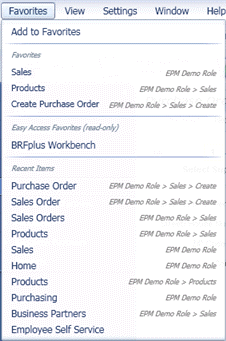 (Favorites menu)
Menu Entry |
Action |
|---|---|
Add to Favorites |
Adds the screen currently displayed in the application content area to the favorites list. |
Favorites list |
Alphabetical list of screens that you have saved as favorites. You can carry out the following actions for each entry:
|
The edit and delete icons in the favorites list only appear when you hover the mouse pointer over the entry you want to change.
The favorites are stored in NWBC.fav in the file system on your local PC:
Microsoft Windows XP: Documents and Settings\<user id>\Application Data\SAP\NWBC\NWBC.fav
Microsoft Windows Vista and Microsoft Windows 7: <drive>:\Users\<user id>\AppData\Roaming\SAP\NWBC\NWBC.fav
View
 (View menu)
In the View menu, you can specify whether navigation panels, the quick launch, and the search bar are shown or hidden. In addition, you can switch to full-screen mode. For more information, see 2.8 Navigation Panels and Quick Launch.
Menu Entry |
Action |
|---|---|
Quick Launch |
Displays quick launch for quick navigation (instead of the search bar) |
Search |
Displays the search bar (instead of the quick launch) |
Navigation Tabs |
Displays or hide navigation tabs |
Navigation Panel |
Displays or hide navigation panel |
Full Screen |
Switches to full screen |
Settings
 (Settings menu)
Menu Entry |
Action |
|---|---|
Personalize |
You can make global configuration settings for the client. For more information, see 3.4 End User Configuration and 3.5 Administrator Configuration. |
Connections |
You can configure the system connection. For more information, see 3.4.1 Configuring System Connections. |
Advanced |
You can configure the trace level. For more information, see 3.4.3 Configuring Support Information. |
If you have specified your own menu entries for the Settings menu, they appear merged with the predefined standard entries. For more information, see 5.9 Menu.
Window
 (Window menu)
Menu Entry |
Action |
|---|---|
New Window |
Opens a new window. For more information, see 2.5 Multi-Windows. |
Open Window Manager |
Only visible if you have activated the window manager. For more information, see 2.5 Multi-Windows. |
Close All and Log Off |
Closes all active windows, terminates all sessions, and closes all applications in NWBC. |
Help
 (Help menu)
In the Help menu, you can access the help system.
Menu Entry |
Action |
|---|---|
SAP NWBC Help |
Opens the NWBC documentation (PDF file) |
Show Shortcuts |
Lists all shortcuts (and the corresponding functions) that are available |
Tips & Tricks |
Opens a dialog box with tips and tricks about using NWBC. |
About NetWeaver Business Client |
The same information about NWBC version, user name, and backend system that is displayed if you double-click the SAP logo at the bottom of the screen. For more information, see 2.2 Shell Overview. |
If you have specified your own menu entries for the Help menu, they appear merged with the predefined standard entries. For more information, see 5.9 Menu.