5.9 Menu 
The Menu option in PFCG specifies that the folder, along with its entries, is rendered as a separate menu at the top of the shell. The menu is then visible and available at all times, regardless of the application that is currently running in the content area. Such folders representing menus can be configured more than once for each role, but only on root folders. This is just an alternative way to start a transaction without having to select it in the navigation tree. The folder text is either a freely defined text that is used as text for the menu, or alternatively, you can use a predefined ID. Entries with predefined IDs are merged with existing menus.
You can specify the Menu option in the Folder Options field on the Menu tab page in PFCG by choosing the Other Node Details pushbutton, selecting the relevant folder in the hierarchy, and then choosing Menu in the Folder Options field.
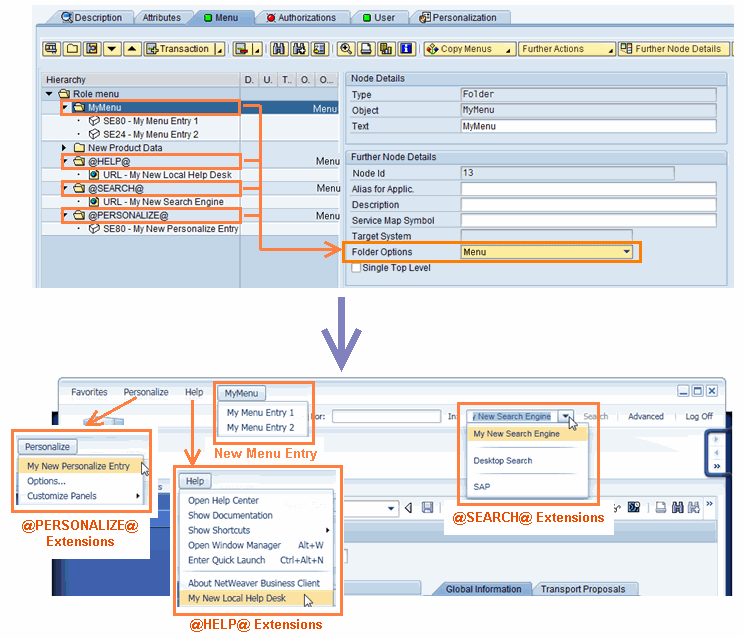 (Menu example)
Predefined ID |
Description |
|---|---|
@SEARCH@ |
Add additional search provider. This entry can be used to define an external search engine that is to be made visible in NWBC. This is typically used to incorporate external search engines into all desktop clients. The entry text of each folder node is shown within the list of search engines on the client. The application is started when used. Use the character sequence {0} to mark the place in the URL where the query parameter needs to be replaced, for example http://www.sap.com/search/index.epx?q1={0}. With this approach, you can also configure different search URLs. |
@HELP@ |
Extend Help menu. All help link entries are added in NWBC to the help menu. The display string is shown in the menu, and the value itself is an URL that is started within a browser instance. You can use this to configure company-specific help, for example, to contact the help desk that is then available in all clients. |
@PERSONALIZE@ |
Extend Settings menu. |