

 Integration of BW and EC-CS
The integration of EC-CS and the SAP Business Information Warehouse (BW) enables you to use the reporting functions of BW.
This section discusses what you need to do to enable the transfer of data into BW.

For more information about BW-specific reporting (particularly concerning the queries for Consolidation), see the corresponding BW documentation, which is delivered alongside this documentation.
Overview: Data Transfer from the Source System (EC-CS) to BW
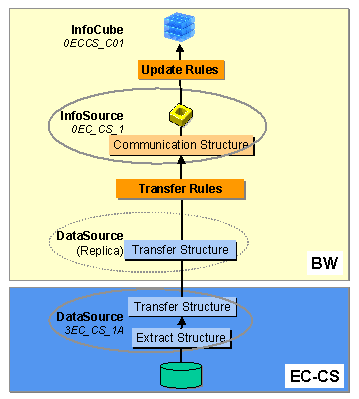
The following graphic shows how transaction data is transferred from EC-CS to BW.
Process Flow: Preparation for Periodic Data Transfers
To transfer transaction data periodically from EC-CS to BW, perform the following steps.
Initial Steps
You always perform the first three steps. Whether you perform the further steps depends on how you utilize your EC-CS System.
Go to the source system by selecting the source system and choosing Customizing for Extraction... in the context menu.
Basis Components
® Business Information Warehouse ® Settings for Application-Specific DataSources ® Enterprise Controlling ® Create Customizing for Extractors in ConsolidationIf applicable, tailor the generated DataSource in the step Basis Components
® Business Information Warehouse ® Postprocessing of DataSources ® Edit DataSources.
By default, the characteristics Ledger and Quota Arrangement Flag do not appear in the extract structure. When editing the DataSource, you can choose to have these characteristics displayed.
Further Steps
Whether you perform these further steps depends on whether you use custom subassignments and whether you set up the
transaction data extractorAn overview of the steps follows. For more detail, see the steps that follow.
Or create a new InfoCube, using InfoCube 0EC_CS_C01 as a template.

You should create a new InfoCube with the template if you: