
The Object Component List Screen
Function
In some tasks, the user is shown a list of object components for information and navigation purposes (for example, on the screen following the initial screen).

For a document in RF, the user can display a document overview listings all line items. In RP, an overview containing all info-type records can be called for a human resource master record and infotype.
By means of a function, it is also possible to get from one object component list screen to other object component list screens on the same hierarchy level.
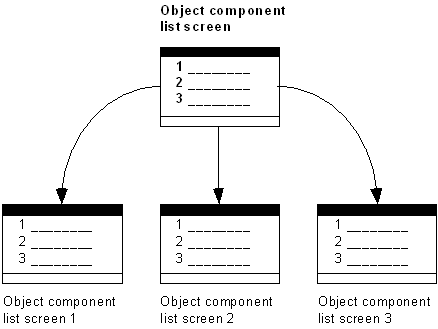
Navigation options on the object component list screen, to other object component list screens
First a list of vendors is displayed. After choosing a vendor, the purchase orders with this vendor are displayed in a list. Now the user could choose a purchase order from the list.
Navigation Options at Higher Hierarchy Levels
The user reaches the initial screen with the function Other <object>. If the object component list screen was directly displayed from the initial screen, he or she also returns to the initial screen when pressing Back (Function). With these functions, the user leaves the processing of the current object.
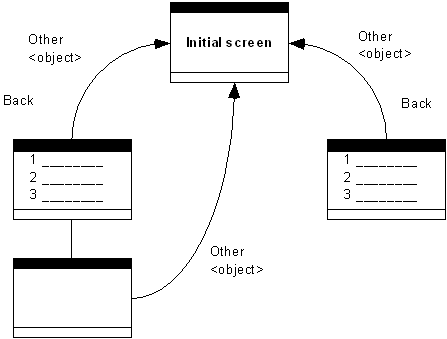
Navigation options on the object component list screen to return to the initial screen
The user reaches "the screen calling the task" using the function Exit or End <application>; this way he exits the editing of all objects in object class.
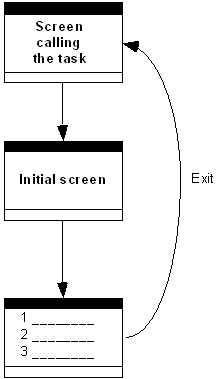
Navigation options on the object component list screen to return to "the screen calling the task"
The user has chosen Display document and entered a document number. The document overview containing all line items is displayed. With Exit, the user exits the task Display document completely to perform a different task, for example, creating vendor data.
Navigation Options at the Same Hierarchy Levels
On list screens which are themselves elements of another, higher-level list, you get to the previous list using the function Previous <object component> and to the next list using the function Next <object component>.
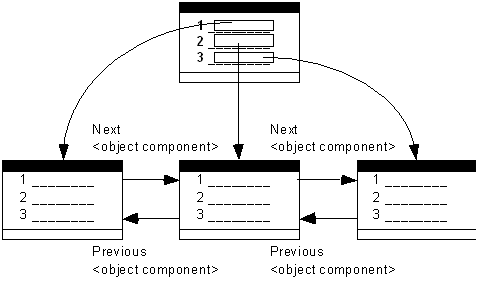
Navigation options between object component list screens on the same hierarchy level
Navigation Options at Lower Hierarchy Levels
If there is only one screen for every line of the list, the user can choose a line by positioning the cursor on the required line and by choosing the function
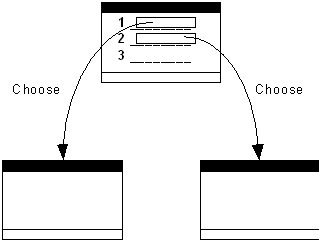
Navigation options for only one view
For the human resource master data, there is an overview of all address data of a human resource master record. With
If several views are possible for every line, the user chooses a line by positioning the cursor on the required line. The user then chooses the view by activating a corresponding function.
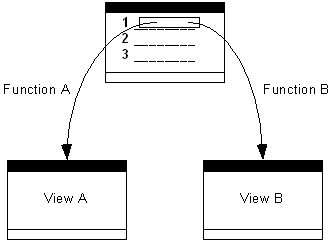
Navigation options for several views
In a vendor list, you can display e.g. the address data per list entry with one function, the sales with another function, and the bank data with a third function.

Setting of the F2 key
The most frequent or most important function should be assigned to the