
Customer Operations
Initial Registration of Customers Without a Customer Card
Initial registration is performed by customers who do not possess a customer card yet. During initial registration, customers receive a temporary customer card and registration documents at the service counter. The customer must return the registration documents within one month of filling them out, for completion and conclusion of the initial registration process.
The temporary customer card remains anonymous until the initial registration has been completed but can be used immediately. The customer goes to the terminal on the device dispensing station, scans the temporary customer card and receives a mobile self-scanning device.
Registration of Customers with a Customer Card
This type of registration is performed by customers who already possess a customer card but who have not used the self-scanning service before. To do this, customers must scan their customer card on the Wall Device Manager terminal.
After scanning the customer/loyalty card, real customer information from CPS/LS is synced, allowing access to personalized information and features such as shopping list or loyalty rewards.
Device Dispensing
The device dispensing area can consist of any number of device dispensing zones. One zone consists of at least one dispenser device and the appropriate cradles and scanners in a wall. The cradles in the lower rows are defined as a handicap zone.
The dispenser device is a touchscreen mounted near a dispensing wall, displaying the Wall Device Manager Dispenser UI. This UI is a web-based application running in a browser, which can be accessed via the following URL: https://{WDM-host}:{port}/app-wdm/#/welcome
The device is also equipped with a scanner or MSR, enabling customers to scan their customer cards to retrieve a self-scanning device from the wall.

The welcome screen of the dispenser device is set to the default store language and guides the customer through the dispensing process of a scanner. By touching the language button, the customer can select from the available languages for the Wall Device Manager, the scanner and the payment kiosk. If the customer does not press a language button, the default store language is set. Pressing the handicap button (e.g., a wheelchair symbol) overrides the default dispensing process, ensuring that a scanner is allocated from one of the lower rows in the predefined handicap zone rather than from the upper rows.
Customers can conveniently scan their loyalty or customer cards on the Wall Device Manager Dispenser to start their shopping experience. When a valid customer card or a 2D barcode on a smartphone is scanned, the Wall Device Manager retrieves the customer number along with the selected language and handicap option. The system then verifies the customer status in the database. If the customer card is locked, the terminal displays the following message in the corresponding language: “Self scanning device cannot currently be dispensed. Please contact a service person."
Additionally, the system checks whether there is an open or interrupted self scanning transaction associated with the customer number in the store. If such a transaction exists, the terminal displays the following: “Self scanning is currently not possible as the customer number is already in use." In both cases, no device is dispensed.
Once the customer number has been verified successfully, the self-scanning device dispensing process is initiated. The Wall Device Manager checks for an available self-scanning device in the dispensing wall, based on the device status and handicap zone criteria. These are:
- Battery status (configurable threshold) - only devices with a sufficient battery level are dispensed.
- Related wall
- Handicap zone
- Self-scanning device is in the status "available".
If no device with a sufficient battery level is found in the default area, one from the handicap zone will be unlocked and vice versa. The devices are dispensed according to the principle of the highest battery level, meaning the device with the highest charge in its respective zone (default or handicap) is selected. If no devices with adequate status and battery level are available in either zone, the dispensing process is halted and the following message is displayed: "No device dispensable."
The selected device initiates the start-of-trip procedure, collecting item and store master data. The device also retrieves their personalized profile, which includes their shopping list and rewards programs, all accessible on the industrial device. The mobile self-scanning device unlocks the cradle, which then lights up to indicate that the device is ready to be removed from the cradle. Upon removal, the basket is created and both the cradle and the device's LED stop flashing. The device sends status updates to WDM, changing the status updates from "available" to "shopping" in the administrator's device overview.
If the self-scanning device is not removed from the cradle within a set amount of time (configurable), the cradle automatically locks again. In this case, the customer must rescan their card and any previously read data is discarded. Additionally, if a self-scanning device is returned to the dispensing wall, the transaction is automatically canceled. If the device is in the offline state, the transaction is also canceled and the display returns to the start screen.
Device Disposal
In the standard solution, the self-scanning devices are disposed of in the disposal areas and the payment is made at the payment kiosk.

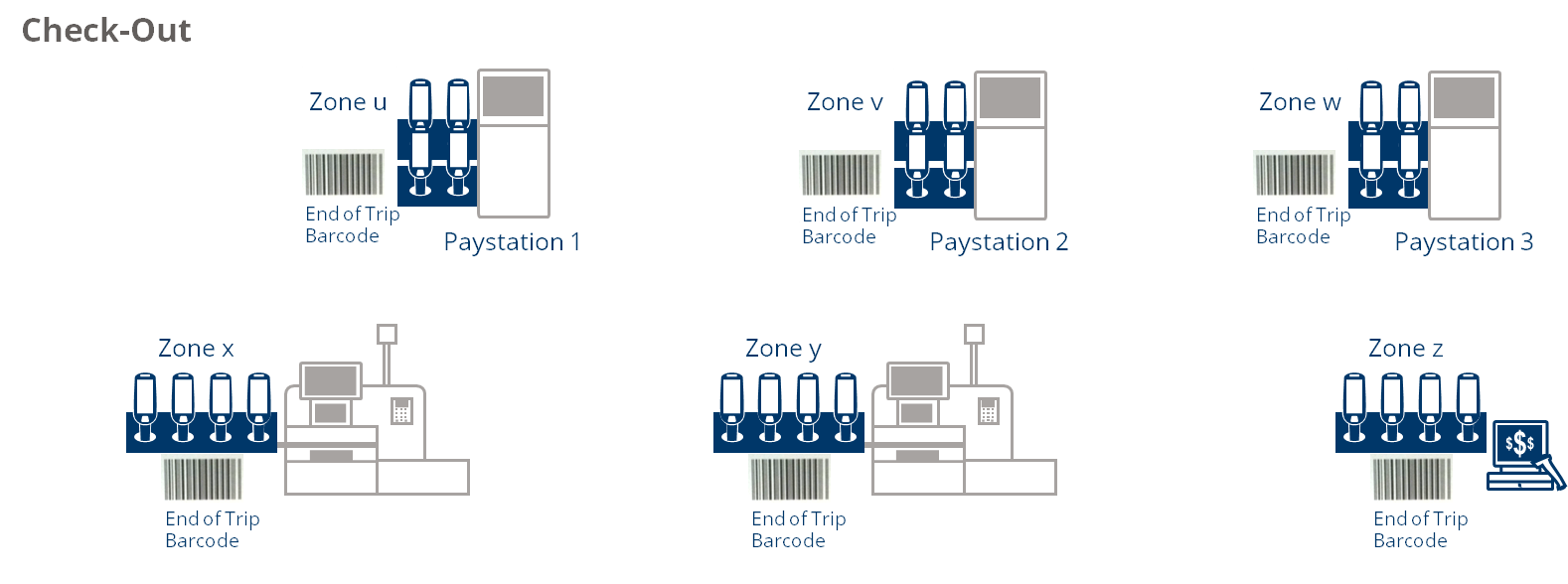
At the end of trip, there are basically two ways to finish the shopping and to transfer the transaction to the payment station:
- Scan the "end-of-trip" barcode (EAN 13 with prefix 146)
- Place the scanner in the device disposal area
- Scan the End-of-Trip Barcode
- When scanning the end-of-trip barcode, the customer must confirm by selecting "OK" that all items in the shopping basket have been scanned. This step is to check whether the customer has added any items to their basket that they could not scan (e.g. because the barcodes were missing or illegible). If the customer has added items that could not be scanned, the entire purchase must be rescanned at a self checkout (SCO) station. After completing the end-of-trip process, the transaction is suspended in the central transaction pool, making it accessible for final payment at a Paytower or SCO station. The device can then be returned to the disposal wall. Once the device is placed back into the cradle, its display returns to the start screen and its status updates to "Not available".
- Place Device in the Disposal Cradle
- The customer can return the device to the cradle without needing to provide any confirmation. When the self-scanning device is placed back into a cradle, the system determines whether it is in a dispensing or disposal area. In disposal areas, the end-of-trip procedure is triggered automatically. If an error occurs during this process or the device is placed in the wrong wall, an error message is displayed and the self-scanning device remains unlocked. After the timeout period, the device automatically locks and the cradle stops flashing, even if the issue has not been resolved. The transaction is then suspended in a corresponding state, requiring the customer to address the issue at the Paytower. The device's display returns to the start screen and its status updates to "Not available".
If the end-of-trip procedure is successfully completed, the transaction is also suspended and can be finalized at the Paytower or at the SCO station.