
Wall Device Manager
The Wall Device Manager (WDM) is a server application managing self-scanning devices and cradles and monitoring their availability based on zone, battery status and handicap flag. It interacts with the customer database and, if available, the validation engine to verify the customer number and retrieve the corresponding validation flag. It assigns a device to the customer based on its status information and provides the necessary customer details for the device's start-of-trip procedure.
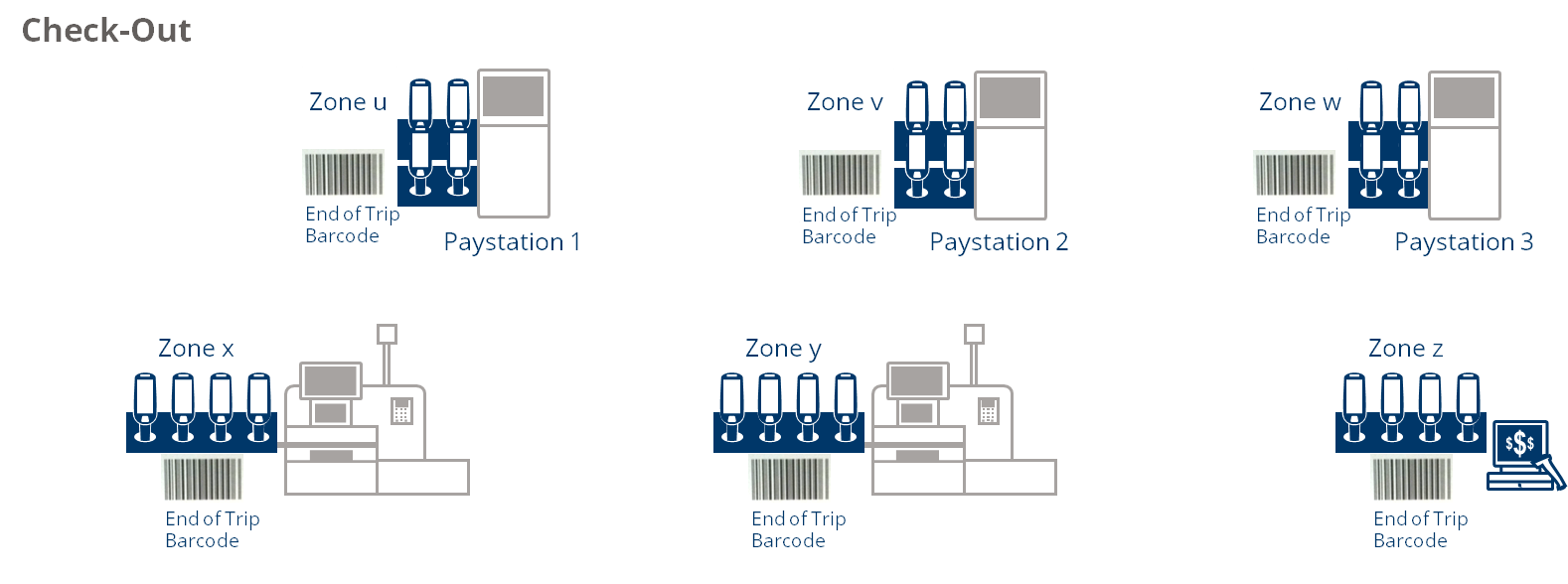
The managed cradles are organized into separate walls and zones within these walls. These walls can be either dispenser-type, allowing customers to check in and pick up a self-scanning device, or disposal-type, where customers can return the devices. The configuration of these walls is carried out using a dedicated editor on the Storemanager Server. Cradle location information must be stored in the cradles using either the model-specific tools or the service menu of the Self-Scanning Client application installed on a device.

- Communication with the customer database: check the customer number on customer database and load customer details
- Customer handling (entry process)
- Process the handicap flag
- Retrieve and process status info from all industry devices
- Check if industry devices are available on the wall (battery status – unlock only possible from a defined threshold/handicap)
- Update tables after status changes
Device Dispensing
The Wall Device Manager verifies whether there are any open or interrupted self-scanning transactions associated with this customer number in the store and checks whether the customer card is locked.
Next, the WDM determines whether a self-scanning device is available in the dispensing wall, considering the battery status and handicap zone criteria. If there is no self-scanning device with a sufficient battery level in the default area, a device from the handicap area will be unlocked and vice versa. The devices are to be dispensed according to the principle of highest battery level, i.e. the device with the highest battery level in its zone (default or handicap) will be unlocked. The availability of the self-scanning devices depends on the following parameters:
- Battery status (configurable threshold) - only devices with a sufficient battery level are dispensed.
- Cradle zone
- Handicap zone
- Self-scanning device is in the status "available"
The WDM then activates the identified device, releasing it from its cradle. The cradle of the unlocked mobile self-scanning device will light up and the self-scanning device can be taken out. After the self-scanning device has been taken out, the status changes from "available" to "shopping".
Device Disposal
There are basically two ways to finish the shopping and to transfer the transaction to the payment kiosk:
- Scan the "end-of-trip" barcode
- Place the scanner in the device disposal area
When the self-scanning device is placed in the disposal wall after the end-of-trip, its display immediately switches to the start screen and its status updates to "Not available". The device will be locked in the cradle.
If the self-scanning device is placed back into a cradle of the disposal wall without a previous end-of-trip, the device initiates this process. If an error occurs, the device displays the corresponding message and the cradle starts flashing. At this stage, the self-scanning device remains unlocked. If the issue is not resolved within the timeout period, the device automatically locks and the cradle stops flashing, even if the question has not been answered. The transaction status is then set to "interruption", requiring the customer to address the issue at the payment station. Finally, the device display returns to the start screen and its status updates to "Not available".
Service Functions
The service person can, for example, take devices from the checkout zone and take them to the check-in zone. By scanning the service barcode, the self-scanning device is unlocked and can be removed.
It is also possible to unlock the self-scanning devices of an entire zone. The bulk unlock function is triggered by scanning a specific barcode from a single self-scanning device. Only a configurable number of self-scanning devices in a zone are unlocked on command. The device pickup should be controlled for each self-scanning device. The number of devices to be removed in one step is configurable. The devices to be removed are unlocked and flashing. When the first device is removed, the next device starts until the configured number of devices have been removed. The procedure ends when the last device on the wall is removed. If a customer puts the device back in the disposal area during the bulk device pickup, then the taking of the device is not taken into account.
Hosted Applications
The WDM hosts the Wall Device Manager Administration Client (WDM Admin Client) web application, which provides store staff with management and overview functionalities. In addition, it hosts the Wall Device Manager Dispenser UI (WDM Dispenser), another web application that serves as an interface for customers to check in and pick up a device.