
Self Service Scale - Entry Functions
Item Entry
There are three ways of entering items in the Self Service Scale mode:
- Via PLUCustomers enter the PLU of the desired items.
- Via tableau screenCustomers use the predefined item buttons to enter the desired items.
- Via full text searchCustomers can enter the full name of an item to search for it.
-
Item recognition by camera
An external camera automatically recognizes the item on the scale surface.
Item Entry via PLU

- The customer puts the item on the scale.
- The customer enters the PLU and confirms this with the corresponding button.
If the PLU entry is not confirmed, it will be deleted after a configurable timeout period.
If the button is pressed with no weight on the scale, the customer will be prompted to put weight on the scale.
- The Self Service Scale processes the item search.
If an item is found, the weighing process will start.
- The Self Service Scale performs the weighing process.
In the event of any errors, the Self Service Scale displays the corresponding warning or notice dialogs.
- After the weight has been determined, receipt printing starts.
A waiting dialog is displayed until the print process is finished.
Item Entry via Tableau Screen
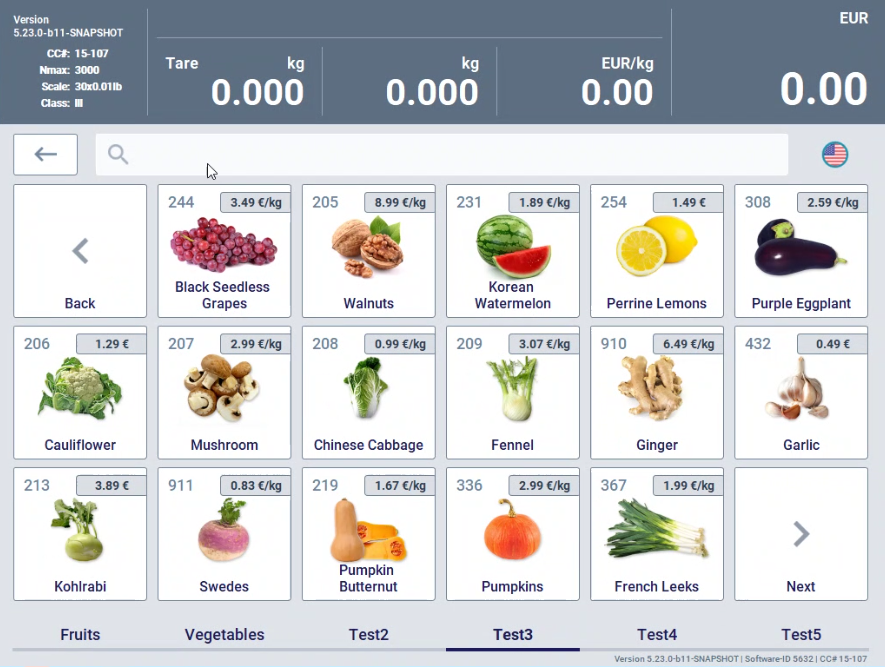
- The customer presses the corresponding item button on the tableau screen.
If the button is pressed with no weight on the scale, the customer will be prompted to put weight on the scale.
- The Self Service Scale performs the weighing process.
In the event of any errors, the Self Service Scale displays the corresponding warning or notice dialogs.
- After the weight has been determined, receipt printing starts.
A waiting dialog is displayed until the print process is finished.
Item Search by Name

- The customer presses the search input field.
An on-screen keyboard pops up.
- The customer enters the first letters of the item name.
Matching items are displayed.
- The customer selects the corresponding item button.
If the button is pressed with no weight on the scale, the customer will be prompted to put weight on the scale.
- The Self Service Scale performs the weighing process.
In the event of any errors, the Self Service Scale displays the corresponding warning or notice dialogs.
- After the weight has been determined, receipt printing starts.
A waiting dialog is displayed until the print process is finished.
Item Recognition by Camera
If the function is configured and a camera is connected, the Welcome screen is displayed and the customer is prompted to put an item on the scale.
The display language can be changed by pressing the language button on the top right corner of the Welcome screen.
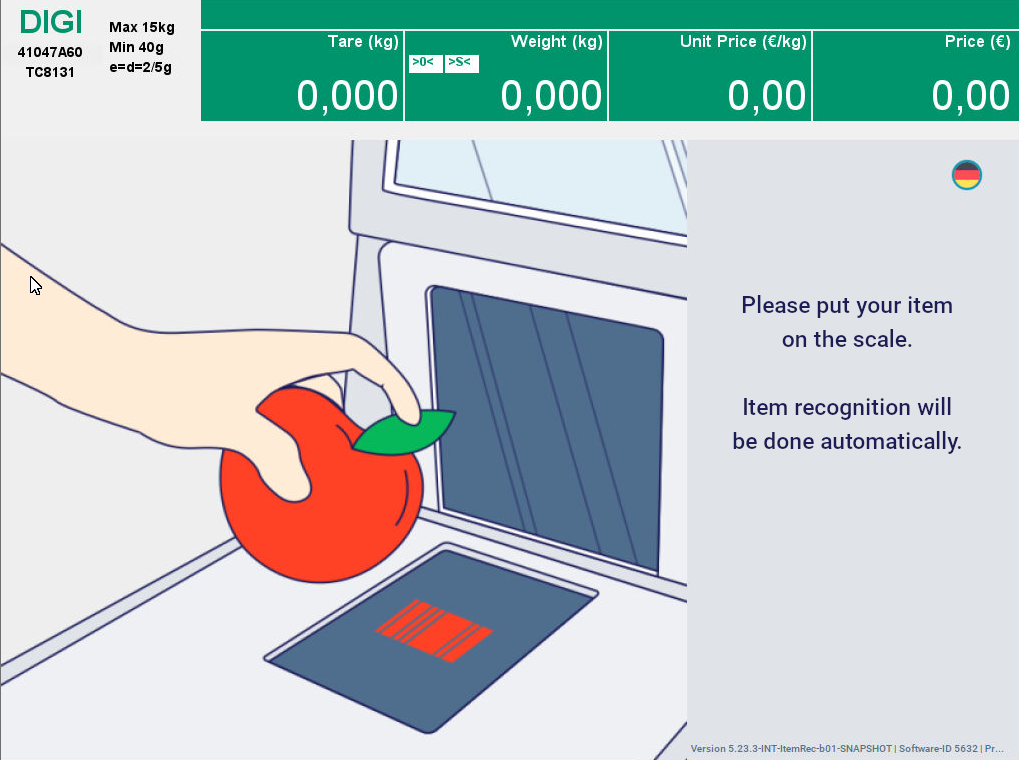
- The customer puts the item on the scale.
Once a stable weight is detected, the POS uses the connected camera to take a picture of the item. This process takes place in the background (not visible to the customer).
The POS then sends the image to the KanduAI service. The response from the KanduAI service contains the item description (e.g. tomato) and a match rate (e.g. 80).
The POS maps the item description from KanduAI to the configured PLU (e.g. the description = "tomato" is mapped to the PLU = 1392).
To get the best results, good lighting conditions for the camera and scale surface are recommended.
The POS displays the recognized items. The results are sorted by match rate (from the highest match rate on the left to the lowest match rate on the right).

- If the item has been correctly recognized by the scale, the customer taps the item button.
The receipt is printed and the Welcome screen is displayed again for the next item to be weighed.
- If the scale displays an incorrect item, the customer presses "Show All".
The tableau screen for manual selection of the item is displayed.
The customer proceeds as described in the section "Item Entry via Tableau Screen".
- If the scale could not identify the item or find a mapped PLU, an error screen is displayed.

- The tableau screen for manual selection of the item is displayed.
The customer proceeds as described in the section "Item Entry via Tableau Screen".
Entering the Quantity of Piece Items
Certain items may be calculated by quantity rather than weight.
- The customer enters the PLU or presses the item button and confirms this with the corresponding button.
The Self Service Scale processes the item search.
- If an item is found and marked as a piece item, the mask for entering the quantity is displayed.
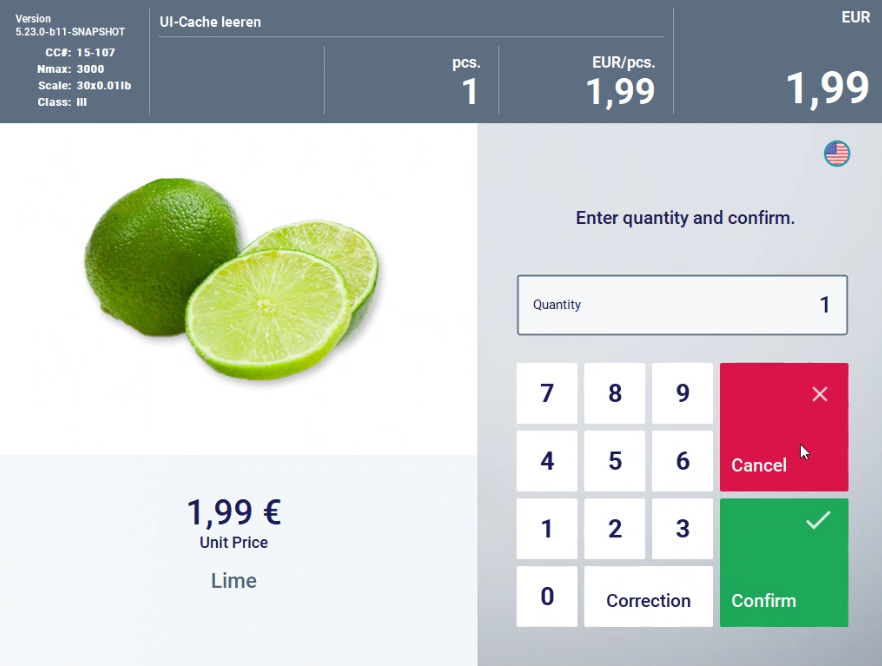
- If the customer cancels the mask, the item is voided. The mask is also canceled after a defined timeout.
- If the customer confirms the mask with the entered quantity, receipt printing starts.
A waiting dialog is displayed until the print process is finished.