
Menu Editor – Use Cases
This function is accessed via the sidebar menu. A user can prepare their own specific menu, which is applied after being automatically saved and after reloading the sidebar. It is only available for the web view. It is not possible to find it on the mobile version.
The default menu is created after importing a function pack. Currently, access to this function does not require special user rights.
Create Custom Menu Tree
- Start Employee Hub.
- Go to the Employee Hub Menu Editor function. A list of all menu trees appears.
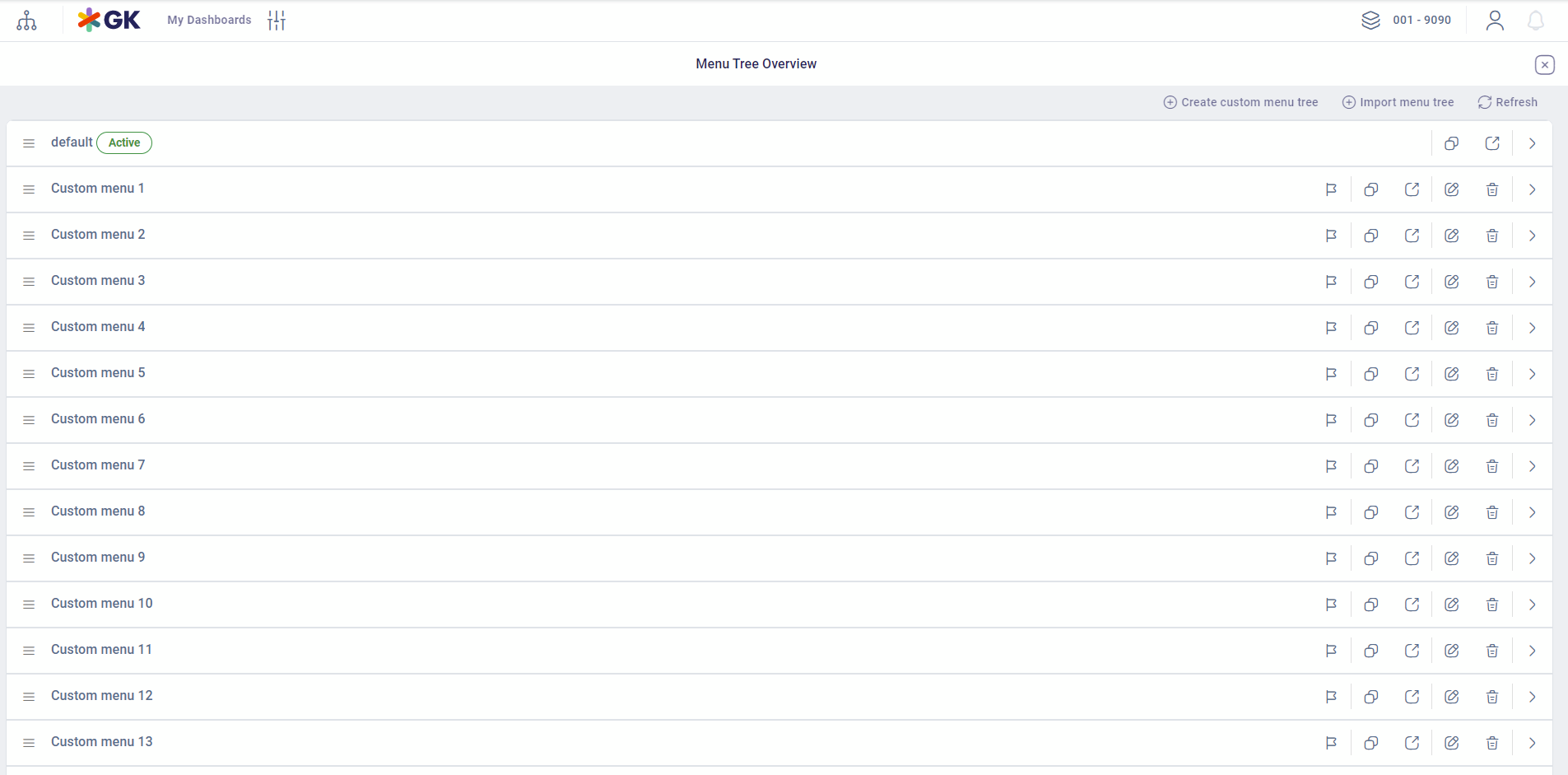
- Press the Create Custom Menu Tree button to create a new menu.
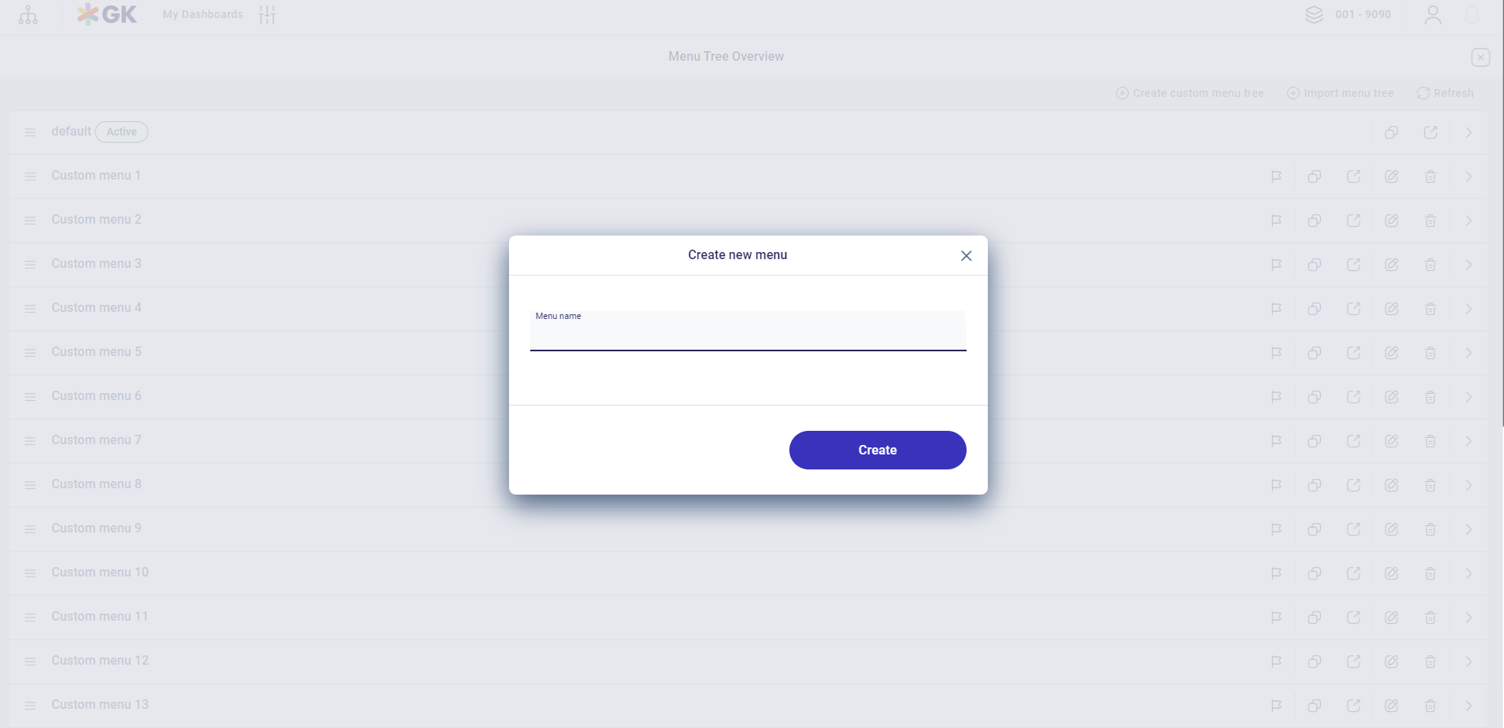
- Enter a name, e.g. "My Custom Menu" and press the button Create.
The new menu appears in the overview.

- Select the newly created menu and open it by clicking the icon
 .
.The empty menu is shown.
Now you can continue to fill in the new menu.
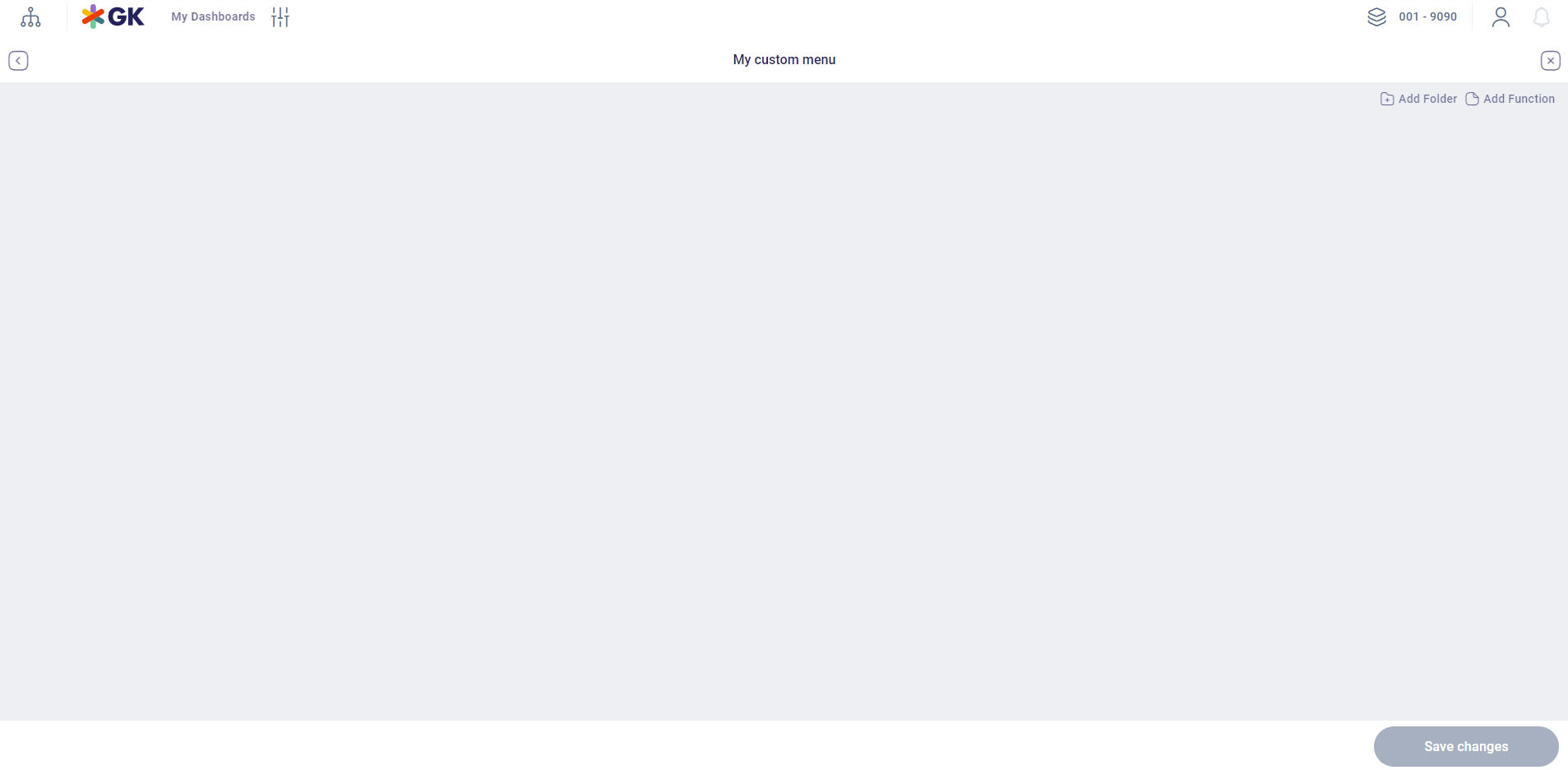
- To add a new folder, press the button New Folder and enter the folder name.

- Press the button New Function to add a new function. An overview of available functions appears.
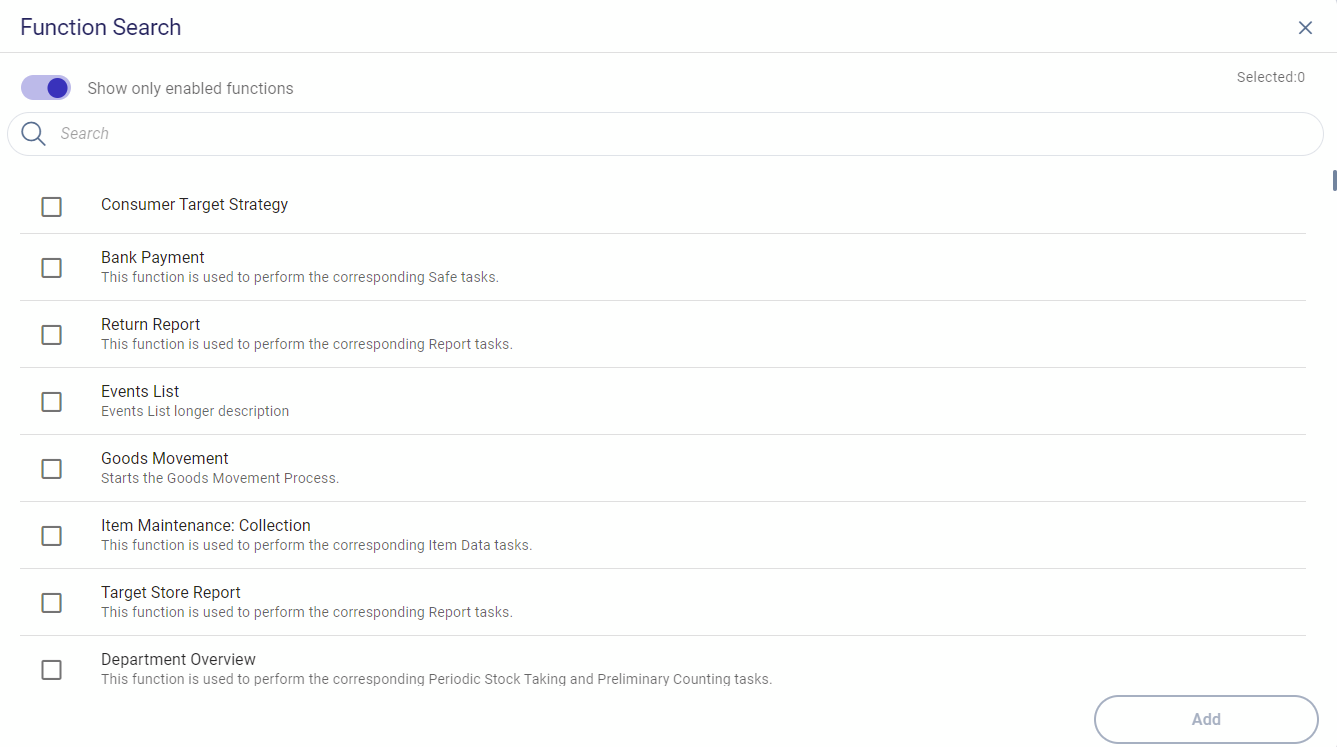
- Select the required function and press Add.In addition:
- You can select more functions.
- You can filter functions.
- You can show all functions via Show only enabled functions.
- You can close the mask.
- The function is added. Now repeat steps 6-8 to create your own menu.
- Save the menu by clicking the button Save Changes.
-
Add a function or a folder within a selected folder using the icons on the row:
 Add folder
 Add function
 - Change the order of functions or folders via drag and drop.
- Delete a folder or file from the menu using the trash icon on its row.
- Change the folder name with the edit icon.
Define the Active Menu
- Start Employee Hub.
- Go to the Employee Hub Menu Editor function. A list of all menu trees appears.
- Select a menu which needs to be active and press the flag icon on its row.
- Confirm it. The active menu is changed.

Copy a Menu
- Start Employee Hub.
- Go to the Employee Hub Menu Editor function. A list of all menu trees appears.
- Select the menu that you want to copy and press the button
 on its row.
 - The new menu appears in the overview with the name pattern <original menu>+ - Copy.
Change the Name of a Menu
- Start Employee Hub.
- Go to the Employee Hub Menu Editor function. A list of all menu trees appears.
- Select the menu for which you want to change the name and press the button
 on its row.
 - Enter a new name directly and press Enter to finish the name change.
Delete a Menu
- Start Employee Hub.
- Go to the Employee Hub Menu Editor function. A list of all menu trees appears.
- Select the menu that you want to delete and press the button
 on its row.
 - Confirm the deletion.
Export a Menu
- Start Employee Hub.
- Go to the Employee Hub Menu Editor function. A list of all menu trees appears.
- Select the menu that you want to export and press the button
 on its row.
 - A file browser appears to select the location of the export file.
The menu is saved in JSON format.
Import Menu Tree
- Start Employee Hub.
- Go to the Employee Hub Menu Editor function. A list of all menu trees appears.
- Press the Import Menu Tree button.

- Click the Browse button to open the file browser for selecting the import files or use the drag and drop functionality.
- A message indicates that the import was successful or any problems encountered during the import. Confirm with the Done button.

Order of Menus in the Overview
- Start Employee Hub.
- Go to the Employee Hub Menu Editor function. A list of all menu trees appears.
- Select the menu you want to move and drag the button
 on its row.
 - Move the menu by left-clicking in the table.
- Drop the menu at the desired place.
Function Search
If you want to add a function to your menu, you can use the search functionality:
Enter the string in the search field. It searches for all functions that contain the entered string in their name.
Use the flag Show only enabled functions to search only for functions that are not yet part of this menu.
The checkbox allows you to select the functions you want to add to the menu.
Press the button Add to assign the selected functions.