Business Workplace: Workflow Functions
You use this part of the Business Workplace if you want to use the functions of SAP Business Workflow.
The
Workflow Inbox MiniApp is available for integration into the mySAP.com Workplace. For more information about using this MiniApp, see the SAP Library under
 mySAP.com Workplace
  MiniApps Workflow Inbox MiniApp
  .
.
The iView Universal Worklist is available for use in the Enterprise Portal. For more information on using this iView, see SAP Developer Network (SDN) in the Portal Content Portfolio (https://www.sdn.sap.com/sdn/contentportfolio.sdn).
The Business Workplace is the main interface between an end user and the workflow system. The end user's Workflow inbox contains all dialog work items and missed deadline work items for which they are a specified recipient.
As a head of department, you are responsible for approving leave requests. The relevant approval process is implemented using a workflow in your enterprise.
The requests (in the form of work items) appear in your workflow inbox and must be rejected or approved there.
The rejected or approved requests (executed work items) are not only returned to the applicants after processing, but are also put into your workflow outbox (under Work items executed by me). You can therefore check the requests you have processed.
Workflow Settings
You can configure the workflow functions in the Business Workplace using the personal workflow settings.
Business Workplace Screen Areas
The Business Workplace has three screen areas, which are used in the following manner by SAP Business Workflow:
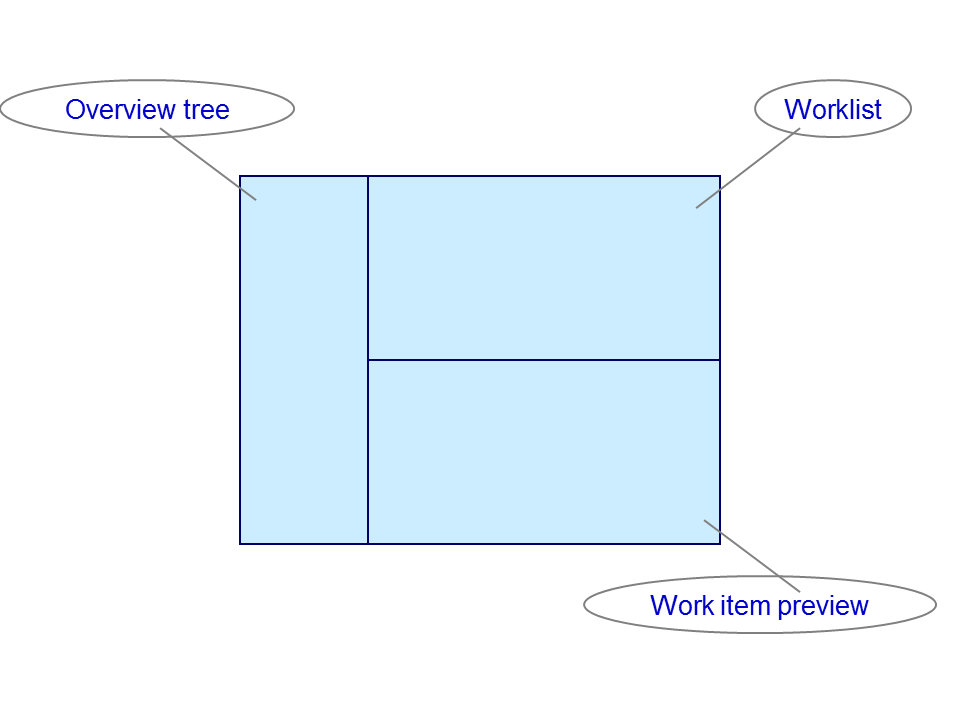
Overview Tree
The following workflow functions are available under the Inbox node, which is under the initial node Workplace:
-
 Workflow
-
 Grouped according to task
 -
Grouped according to content
-
Grouped according to content type
-
Grouped according to sort key
-
-
Overdue entries
-
Deadline messages
-
Entries with errors
For information on these functions, see Workflow Inbox.
The following workflow functions are available under the Outbox node, which is under the initial node Workplace:
-
Started workflows
-
Work items executed by me
-
Forwarded work items
For more information on these functions, see Workflow Outbox.
The following workflow function is available under the Resubmission node, which is under the initial node Workplace:
Work items can also be displayed in the mySAP.com Workplace. The Workflow Inbox MiniApp is available for this. For more information about using this MiniApp, see the SAP Library by choosing
mySAP.com Workplace MiniApps Workflow Inbox MiniApp .
Work items can also be displayed in the Enterprise Portal. The iView Universal Worklist is also available. For more information on using this iView, see Functional Package for Portal Users.
Worklist
The worklist is displayed in the upper right corner of the Business Workplace screen. Depending on whether you are in the workflow inbox, the workflow outbox or the workflow resubmissions, you have various functions available to you, which are described at the respective locations.
Work Item Preview
In the lower right corner of the Business Workplace screen, the work items selected in the worklist are displayed in a preview. Not all the functions of the work item display or the workflow log are available.
You can customize the work item preview by using a user exit.
Support for Context Menus
All workflow functions can be called using the relevant context menu.
Workflow Toolbox
SAP Business Workflow's Workflow Toolbox enables the user to access workflow functions even during a workflow-driven application transaction.
E-mail Notification for New Work Items
The new report RSWUWFML can be used to inform an employee by mail that there is a new work item in their workflow inbox.
This function is therefore beneficial to all employees who do not work with their SAP system on a daily basis.
You have the following options for going from the SAP Easy Access Menu to the Business Workplace. Choose:
-

-
Menu Business Workplace
-
Tools Business Workflow Development Runtime Tools Business Workplace .