
 Transporting Content within a Federated Portal
Network
Transporting Content within a Federated Portal
Network

Content transport is a fundamental feature in integrating modified content and newly custom-developed content in a productive environment after being thoroughly tested in a test environment, or when moving content from a development environment to a test environment for validation. The standard transport services provided by SAP NetWeaver Portal also support content which is shared across portals that are part of a federated portal network (FPN).
This topic provides you with information that you need to consider before transporting content within a federated portal network and also procedures that you need to perform to complete the transport process.

The information in this topic applies to specific portal versions. For details about supported versions, see SAP Note 1295706.

The information provided in this topic is based on the assumption that the source environment contains its own producer and consumer systems, and that the target environment contains its own producer and consumer systems. In other words, neither of the FPN systems in the source environment share content directly with FPN systems in the target environment, and vice versa.

If you need to move an entire installation, including databases, applications, and other resources, from the systems in a source environment to other systems in the target environment, use the SAP system copy protocol instead of the transport tool in the portal. SAP system copy also supports systems in a federated portal environment. For more information, see the How to Copy SAP Systems in a Federated Portal Network guide on SAP Developer Network at http://www.sdn.sap.com/irj/sdn/nw-fpn.
For more information about transporting portal content, see Transport of Portal Objects.
Remote Role Assignment
In a single-portal environment, the transport mechanism of roles does not include their user assignments. Therefore, when you transport any role that contains remotely assigned users, from one producer portal to another producer portal, none of the remote user assignments are transferred to the target producer portal.
After you transport portal roles containing remotely assigned users from one producer portal to another, the user administrator on the consumer portal must then manually reassign its users to the same remote roles residing on the new producer portal.
Remote Delta Links
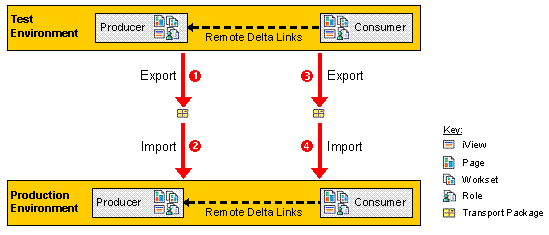
With remote delta link (RDL) usage, the standard transport services allow you to move your content from one producer-consumer portal landscape to another. To ensure that existing remote delta links remain intact on the target producer-consumer portals following the transport, you need to perform some additional post-transport procedures, which are described below.
Limitation
Any personalized data that is stored on the producer portal, such as Web Dynpro implicit personalization, is not transported to the target system after FPN-related content on the source consumer is transport to the target consumer.
Prerequisites
The exact producer-consumer relationship in the source environment must exist in the target environment. The recommended way to create identical systems with their FPN registration scopes is to use the SAP system copy protocol (for more information, see the previous link). If you did not use the SAP system copy to re-create the producer-consumer relationship on the systems in the target environment, you must ensure the following:
● The producer object in the target environment has an identical producer alias to the primary one used by the consumer portal in the source environment.
When you create a producer object, the consumer portal automatically generates an alias for the producer from the producer ID that you enter in the SAP NetWeaver Producer wizard. For more information, see Adding NetWeaver Producers.
If needed, you can configure additional aliases for each producer object. For more information, see Maintaining Producer Aliases.
● During the registration process in the target environment, use the identical consumer name as the one defined for the consumer portal in the source environment.
Procedure
Perform the following steps to transport RDL content from the source environment to the target environment:
...
1. Using the standard transport tool in the source producer portal, export the relevant content as a transport package. Include the necessary dependencies also in the transport package.
2. Import the content to the target producer portal.
3. Export the relevant RDL content from the source consumer portal to a transport package. Include the necessary dependencies also in the transport package.
Pay attention to the delta link chain below each RDL object you are transporting. If you use the delta link tracer to view delta link chain dependencies, you will notice that it also displays the logical delta links down to objects that reside on the remote producer portal. These objects on the producer cannot be accessed by the consumer's transport (export) mechanism, nor should they be. When including dependent objects, you should select all the objects in the delta link chain that reside only on the consumer portal.
We recommend you use the Dependencies action, available in the Transport Editor, on each top-most RDL object to automatically select the dependencies of each object. For more information, see Filling a Transport Package with Content.
4. Import the content exported from the source consumer portal to the target consumer portal in the new landscape.
5. Perform the following post-transport steps on the target consumer portal:
a. Analyze all imported RDL content to ensure that all the objects contain the producer ID of the current FPN connection or producer object in the target environment. If not, add the producer alias used in the source environment to the producer object in the target environment.
b. Perform a manual synchronization of RDL content or wait for the next scheduled synchronization to take place.
Besides synchronizing the properties of the imported content, this action is also critical for automatic resolving of broken delta links on the target consumer portal when the referenced content on the source and target producers contains dependencies in the com.sap.pct.* namespace (within the object ID). Since the transport mechanism prevents the packaging of objects and dependencies of content in the com.sap.pct.* namespace, missing objects on the target consumer portal result in unresolved delta links, even in areas in the Portal Content Directory (PCD) that are not visible in the Portal Catalog.
For more information, see Clearing and Synchronizing the Federated Portal Cache.
c. Use the PCD Inspector to check if there are any items whose broken delta links could not be resolved following the RDL synchronization process:
i.
Navigate to the
Pcd  fpn_information transport folder.
For more information about using the PCD Inspector, see PCD Inspector.
ii. Choose AllProps next to the transport folder to view its attributes.
iii. Take note if there are any attributes that contain the pcd:portal_content prefix.
Ignore other attributes that do not have the pcd:portal_content prefix.

The attributes of this folder are automatically removed approximately 24 hours after they are registered. Make sure you view this list as soon as possible after the import to the target consumer and the RDL synchronization. We recommend you make a record of any entries that were not resolved.
iv. If there are no pcd:portal_content.* attributes, then all unresolved entries have been fixed and you can close the PCD Inspector.
If you do find such attributes, then run the RDL synchronization process again at a later time and check the transport folder again in the PCD Inspector. If you are still not able to resolve the broken delta links, contact SAP Support for assistance.
d. (Optional) Use the delta link tracer on transported RDL content to make an additional check for broken delta links.
For more information, see Tracing Delta Link Dependencies.
e. Run the transported RDL content in the target environment to check functionality.