
 PCD Inspector

Purpose
Using the PCD Inspector tool, you can perform a thorough analysis of objects stored in the PCD in case you need support. You can also centrally modify PCD objects. However, we recommend to use the standard administration tools for content management and content maintenance, and not PCD Inspector.

The PCD Inspector change functions should only be used with great care and by persons who have expert PCD knowledge. Accidental changes (such as deleting a PCD object) usually cannot be undone and could gravely endanger or permanently damage the portal.
Integration
You access the PCD Inspector from the Support page in the portal:
...
1. Choose Support → Support Desk → Portal Content Directory.
2. In the Test and Configuration Tools area, click on PCD Inspector.
Features
The high-level capabilities of the PCD Inspector are:
· Search the hierarchy structure of the PCD
· Search for PCD objects
· Display object properties
· Visualize object dependencies and delta links
· Compare object properties
· Copy, change or delete object properties
· Display the where-used list for linked objects
· Adjust data for portal content migration
For detailed documentation on using the tool, see the PCD Inspector - Support Tool for Experts guide. For information about the location of this guide, refer to SAP Note 854937.
Constraints
The PCD Inspector can be used for a broad range of applications. Due to the large number and complexity of the functions, the risk of corrupting or losing data, and the danger of causing irreversible damage to the portal, using the PCD Inspector in change mode (read-write mode) must be done with the greatest possible care.

We recommend to use the standard administration tools for content management and content maintenance. For more information see Portal Catalog and Object Editors & Wizards in the Portal Content Studio.
Example
Displaying all iViews assigned to role super_admin_role
...
1.
Navigate to
the repository in which the role is stored:
pcd
→
portal_content
→
com.sap.pct
→
administrator
→
super_admin

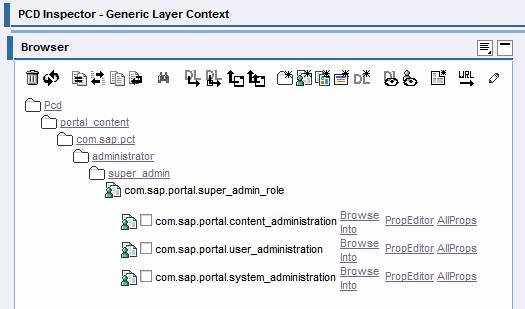
At certain points in the navigation structure, you need to click the Browse Into link next to the relevant object name to advance in the structure. At the end of your navigation sequence, your structure on the screen should resemble the contents in the following figure.
2.
Click the
Search icon  .
.
3. In the Search Settings window, define the search parameters and choose object type iViews.
In this example, the read-only value in the Object URL for Starting Search field should be: pcd:portal_content/com.sap.pct/administrator/super_admin/com.sap.portal.super_admin_role
4. Click Search.
5. Click Display Search Results.