 Planning Workbench
Use
You use the
Planning Workbench
(transaction /ISDFPS/DSP1) to process purchase requisitions.
Features
The
Planning Workbench
is used based on authorizations assigned to the
MRP controller
role.
MRP controllers use the
Planning Workbench
to process provisions for the purchase requisitions (in other words, to check, change, and reject purchase requisitions and convert them into purchase orders). As a “planning tool”, the system displays all purchase requisitions assigned to MRP controllers based on their storage location authorization.
For more information, see Requisitioning and Planning of Material and NCG Material Loans .
Selection Criteria
The system initially displays a detailed selection screen. Based on your entries, the system creates a worklist for processing the purchase requisitions.
Purchase Requisitions (PRs)
As an MRP controller, you can perform the following actions from your worklist:
Assign PRs
Release PRs
Reject PRs
Delete PRs
Assign a supplying storage location to PRs
Convert PRs into stock transport orders
Convert PRs into an assignment
Forward PRs to your standard supplier
You can also copy the stock for a selected force element to a stock transport requisition.
Handling Units
The following functions are available for processing handling units:
You can:
Find suitable handling units
Change handling units in the purchase requisition
Convert purchase requisitions into deliveries with handling units
Display the content of handling units using the display transaction
Screen Layout
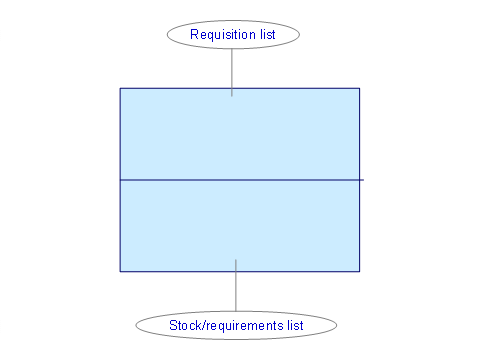
Requisition List
The requisition list contains your purchase requisition worklist. From the worklist, you can call the different functions for processing the purchase requisitions (see Editing Purchase Requisitions and Plans ).
You can choose between the following types of purchase requisitions:
Purchase requisition (record type
PurRqs
)Loan requisition (record type
LN Req
)Return delivery requisition - loan (
RD Loan
)Return delivery requisition (
RD Req
)
Additional functions are also available with the following pushbuttons:
Stock Situation (Stock List)
Displays the stock situation of the purchase requisition supplier.
Determine Supplier Based on Supply Relationship
Displays the stock and requirements list for the standard supplier of the supplying force element
Additional Functions
Branches to the display of documents and calls other applications
Stock/Requirements List
In addition to the worklist, the Planning Workbench also integrates detailed information about the stock and requirement situation in the requisition list to support MRP activities.
As an MRP controller, you use the stock list as a tool for creating plans and converting plans into purchase orders:
By extending the stock list, you can trigger supply source determination : To do so, select a purchase requisition and choose
Stock Situation
. The system displays the stocks and movements for the issuing force element.By choosing the
Standard Supplier
pushbutton, you can display the stock and requirements list for the supplying force element. This force element is determined either through an existing supply relationship or the special procurement key defined in the material master.You can display details such as reserved receipts and issues, stock types, and serial numbers for each movement.
You can also display totals (such as total stock types) or subtotals at batch level.
By choosing
Aggregate Movements
orMovement Details
, you can switch between two views: the detailed view with all stock and requirement records and a view summarized by record type, material, batch, or WBS element level.By choosing
Display Serial Numbers
orDisplay Material Number
, you can switch between two views: one that displays the material number only or both the material number and serial number (if one exists). If a serial number exists, the system displays theSerial Numbers
icon in theSerial Numbers
column for each purchase requisition item. By choosing this icon, you can display the serial numbers for this item. The system displays the number of serial numbers for each item in theNo. of Serial Numbers
column
.You can use the
Additional Functions
pushbutton to branch to the display of documents and call other applications.You can use the
Unit of Measure
pushbutton to switch the display of the unit between the units of measure that are stated in the related material master record. If only the base unit of measure is available, conversion is not possible. Via theSelect Unit of Measure
menu entry, all units of measure from all material master records are determined and provided in a list for selection. However, only those rows for which the chosen unit from the list is maintained are converted.For an existing purchase requisition for a material managed in serial numbers, you can copy serial numbers that you selected via the stock situation to the purchase requisition. Choose the
Copy Row
pushbutton and then when changing the purchase requisition, choose theInsert Reference Information
pushbutton.
Report
You can use the following report to help you as an MRP controller:
Report /ISDFPS/ORDER_FROM_PLANNINGS
You call the report using transaction /ISDFPS/UPLN1.
It converts all material plans for a selected force element into stock transport orders.
Indicators
The following indicators are used:
Cmpl
This indicator means “completed”. You select this indicator if the order quantity of the original purchase requisition has been met by the follow-on requisitions.
FPReq
A follow-on requisition exists for the purchase requisition.
PPReq
This purchase requisition is a follow-on requisition.
Customer-Specific Adjustment with Business Add-In
You can use the Business Add-In
BAdI: Customer Enhancement for Planning Workbench
(BAdI /ISDFPS/BADI_MATPLN_CUST_SEL in the enhancement spot /ISDFPS/ES_MATPLN_CUST_SEL) to adjust the Planning Workbench to meet your requirements. For more information, see the BAdI documentation.