 Working with iPPE Workbench and Product Designer
Use
If you use iPPE in SAP Discrete Industries and Mill Production (SAP DIMP) or in SAP Supply Chain Management, you edit and manage all iPPE objects in iPPE Workbench Professional. From here, you can access all the functions that iPPE uses.
If you use iPPE in SAP Enterprise Resource Planning (SAP ERP), use the Product Designer instead of iPPE Workbench Professional. In Product Designer, you have the same editing functions available as in iPPE Workbench Professional.
Prerequisites
To use iPPE Workbench Professional, you must be assigned to an iPPE user profile
Features
Every action that you perform in a screen area results in the information being updated in the other screen areas.
All changes that you make in the navigation area to individual objects or structures are displayed in the detail area for the appropriate object.
Changes you make to objects in the detail area are also displayed in the navigation tree, as far as the graphical display of the structures allows.
The structures are displayed as hierarchies in the navigation area.To display sequences, the network graphic is available.
The navigation tree and the menu are the central tools for editing objects. You can use the context menu to edit structures and objects that are loaded in the navigation area. The operations available in the context menu depend on the object that you right-click.
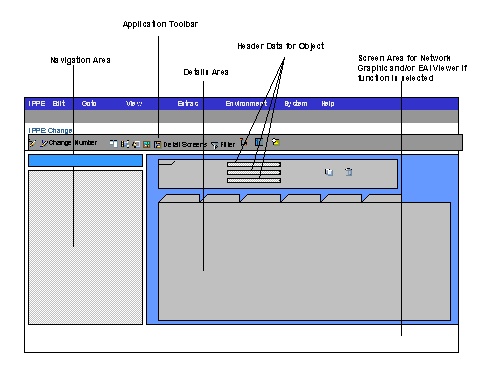
Screen Setup

The following settings determine the screen layout and which objects you can load or create:
Change mode or display mode
Current profile
Active/inactive filter
Active/inactive work context
Active/inactive change number
Activities
See iPPE in SAP DIMP, SAP SCM, and SAP ERP for more information about how you can access the functions in Integrated Product and Process Engineering in each application.
Icons in the Application Toolbar |
Explanations and Links |
F-Key Setting |
|
Load or find existing objects |
Shift + Ctrl + F2 |
|
Switch between display and change mode |
F7 |
|
Create iPPE object: Create access node, create structure node, create color scheme, create view node Create assembly node Create routing header and activities Create grouping nodes and operations Create line network, create line, create line segment, create work area |
Shift + Ctrl + F3 |
|
No change number active / Change number XXXXXXX active |
Shift + F12 |
|
Hide/show navigation area |
Shift + F5 |
|
Hide network graphic |
|
|
Shift + F7 |
|
|
Shift + F9 |
|
|
Switch to the tab pages with object data in the detail screen |
Shift + F9 |
|
Access data for the filter in the detail screen See also: Filter in iPPE |
F8 |
|
Switch to the tabular display in the detail screen |
Shift + Ctrl + F11 |
|
List of iPPE objects and associated icons |
|
Icons in the Navigation Area |
||
|
Expand / collapse structure |
|
|
||
|
Refresh data in the navigation area |
|
|
Keyword search in the navigation area |
|
|
Shift + F4 |
|
|
Print hierarchy in navigation area Print preview |
|
|
Add up quantities |


