 Configuring the Rule-Based Workflow
This document explains how to configure the rule-based workflow for a change request process that you have described using a process diagram as explained in Designing the Change Request Process.
Prerequisites
You have completed the Customizing settings as described in Workflow Set-Up.
You have created a diagram of the change request process that you want to configure as described in Designing the Change Request Process.
Process
Enhance Process Diagram
Enhance the process diagram with further information required by the rule-based workflow. For each non-user agent change request step, determine the appropriate Process Pattern and add the information to the diagram.

To activate the change request, you need to use the process pattern 06/Activation.
For each arrow pointing to a change request step, choose a 3 digit identifier for the condition alias. It is common to use abbreviations of the step’s meaning for better readability, for example
APP
for an approval step.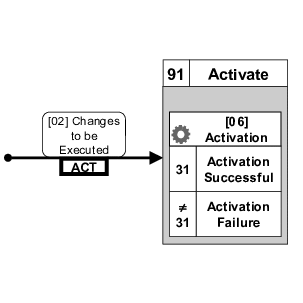
The arrow pointing to the change request step Activate is labeled with the condition alias ACT.
For information about an example of a process diagram that is enhanced for the rule-based workflow, see Add User-Agent Steps.
Create Change Request Type
In Customizing activity
Create Change Request Type
under
General Settings

Process Modeling
Change Requests
 , create the change request type for which you want to define the process flow. Assign the rule-based workflow template
 WS60800086
to the change request type.Define Change Request Steps
In Customizing activity
Define Change Request Steps for Rule-Based Workflow
under General Settings
Process Modeling
Workflow
Rule-Based Workflow
, define the process steps that are used in the process diagram of your change request type.Service Names
In the case of a complex workflow scenario, for example, when using a handler to merge the results of parallel processing, you need to define service names for the BAdI implementations that you need to use. For more information, see the documentation of Customizing activity
Define Service Names for Rule-Based Workflow
under General Settings
Process Modeling
Workflow
Rule-Based Workflow
.Build Decision Tables
Start Customizing activity
Configure Rule-Based Workflow
under General Settings
Process Modeling
Workflow
Rule-Based Workflow
and enter your change request type to open the BRFplus workbench and to enter the values for the decision tables. Note
NoteIf you perform this activity the first time for this change request type, the BRFplus application is generated. Depending on the settings of the client, you are asked to assign a transport request and a software component.
End of the note.For each arrow in your process diagram, enter a row in the
Single Value Decision Table
DT_SINGLE_VAL_<change request type>
. Use the step numbers on each end of the arrow as the values forCR Previous Step
andNew Chng. Req. Step
. The action code of the previous step that triggers this connection is the value forPrevious Action
. The labels on the arrow provide the values forCondition Alias
andNew CR Status
.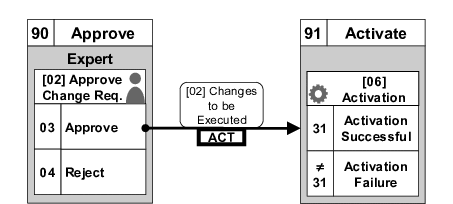
The arrow of this diagram leads to the following values in the decision table: CR Previous Step = 90. New Chng. Req. Step. = 91. Previous Action = 03. Condition Alias = ACT. New CR Status = 02.
NoteYou can use the condition columns
Chng. Req. Priority
,Chng. Req. Reason
,CR Rejection Reason
,CR Parent Step
, andParallel Agt Grp No.
as additional parameters to make the process flow more specific.End of the note.You can enter a time limit for the processors of the next change request step in
Hours to Completion
. This uses the feature of therequested end
deadline monitoring of the SAP Business Workflow. The rule-based workflow will send a notification to all processors of this change request step as a reminder to complete this task.The result columns
Merge Type
andMerge Parameter
are used for parallel processing. For further information, see Parallel Processing.Instead of providing values for the result columns in the decision table, you can provide a service name in
Dyn Agt Sel Service
to link to an implementation ofBAdI: Dynamic Selection of Agent in Rule-Based Workflow
. For more information, see the documentation ofBAdI: Dynamic Selection of Agent in Rule-Based Workflow
in MDG Customizing under General Settings
Process Modeling
Workflow
Rule-Based Workflow
Business Add-Ins
.For each user agent step in your process diagram, enter a row in the
User Agent Decision Table
DT_USER_AGT_GRP_<change request type>
. If you followed the recommendation in Designing the Change Request Process to use the same condition alias for all arrows that point to a change request step, use this value for the columnCondition Alias
. If you use different aliases, you need to create multiple rows, one for each alias.Transfer the values for
Step Type
,User Agent Type
, andUser Agent Value
from the diagram into the table. The valid values forUser Agent Type
andUser Agent Value
are defined by your organizational structure (for example, see Customizing activityEdit Organizational Plan
) and identify an organizational object, for example, the purchasing department. If you useSU
forUser Agent Type
you can useINIT
(Initiator) asUser Agent Value
to select the requester of the change request as processor. Furthermore, the valueLAST
forUser Agent Value
selects the processor of the previous step as the processor.If the overall group of processors for the change request step consists of multiple organizational objects, create a row for each object. In this case and unless you want to configure parallel processing of the change request step, use the same value for
User Agt Grp No
. for this condition alias.You configure parallel processing of the change request step by using different values for
User Agt Grp No.
for the same condition alias. For further information, see Parallel Processing.
The information from this diagram leads to the following values in the decision table: Condition Alias = APP. User Agt Grp No. = 001 (arbitrary value). Step Type = 02. User Agent Type = AG. User Agent Value = MD Experts (assuming there is a PFCG role named MD Experts and all users assigned to this role should be processors).
For each background step in your process diagram, enter a row in the
Non-User Agent Decision Table
DT_NON_USER_AGT_GRP_<change request type>
.If you followed the recommendation in Designing the Change Request Process to use the same condition alias for all arrows that point to a change request step, use this value for the column
Condition Alias
. If you use different aliases, you need to create multiple rows, one for each alias.Transfer the value for
Process Pattern
from the diagram into the table. If required by the chosen process pattern, specify theService Name
. Unless you want to configure parallel processing in this change request step, choose any value forAgent Group
, for example001
. For more information, see Parallel Processing.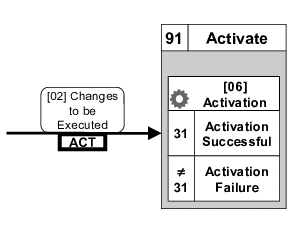
The information from this diagram leads to the following values in the decision table: Condition Alias = ACT. Process Pattern = 06. Service Name = <not required>. Agent Group = 001 (arbitrary value).
 Caution
The decision tables are processed in sequence Therefore, the table entries should be arranged starting with the most specific ones, followed by more general ones.
End of the caution.
More Information
For information about examples of process diagrams related to the rule-based workflow, see Creating a Basic Change Request Process and Add User-Agent Steps.