 Creating a Basic Change Request Process
This document describes how to enable a basic change request process using the MDG rule-based workflow. This basic change request process only activates the change request after it was submitted. The process does not include any dialog step. To provide data governance capabilities, you need to enhance the process adding further change request steps such as approving the change request.
The figure in this document shows a complete process.
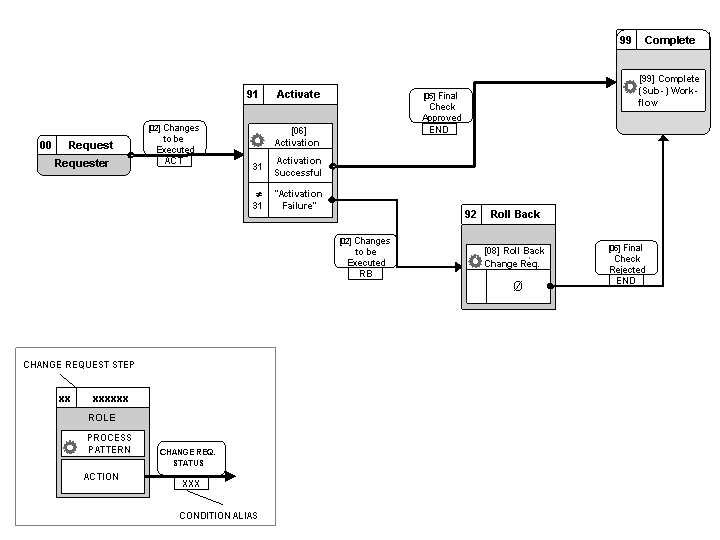
Basic MDG Change Request Process
The process starts with step 00 when the requester submits the change request. The next step 91 is the activation of the change request. If the change request is successfully activated, its status is set to Final Check Approved
and the process ends with step 99. If the activation fails, the change request is rolled back in step 92, the change request status is set to Final Check Rejected
, and the process ends.
Prerequisites
You have created a change request type and you have entered the template for rule-based workflow WS60800086 in Customizing activity Create Change Request Type
under 
General Settings

Process Modeling
Change Requests
 . In the following example configuration, the change request type
 CR_TYPE
is used.
Process
You need to perform the following steps in order to configure the rule-based workflow for the basic change request process:
Create necessary change request steps.
Define the change request steps 00, 91, 92, and 99 as shown in the figure in Customizing activity
Define Change Request Steps for Rule-Based Workflow
under General Settings
Process Modeling
Workflow
Rule-Based Workflow
.Change Request Type
Change Request Step
Description of Change Request Step
CR_TYPE
00
Request
CR_TYPE
91
Activation
CR_TYPE
92
Roll Back
CR_TYPE
99
Complete
Define decision tables.
For every change request type, there is a separate set of BRFplus decision tables that contain the configuration of the change request process. You can start the configuration of the rule-based workflow in Customizing activity
Configure Rule-Based Workflow
under General Settings
Process Modeling
Workflow
Rule-Based Workflow
.In the
Single Value
table of change request typeCR_TYPE
, you define the sequence of the steps. If a column is not mentioned in the tables below it is not relevant for this process configuration. You have to add a row in theSingle Value
table for each arrow in the figure to connect two change request steps and use the following information from the figure:Previous Change Request Step
New Change Request Step
Change Request Status
Change Request Action
Condition Alias
The first row of the
Single Value
table corresponds to the arrow from step 00 to step 91 in the figure: The columnCR Previous Step
contains 00 and the columnNew CR Step
contains 91. Since the first change request step is the request step that produces no action result, the columnCR Previous Action
is left empty. The columnNew CR Status
contains 02 as the status of the change request in step 91. Finally, the columnCondition Alias
contains the identifierACT
that you need to assign and that is used to connect this row with rows in the other decision tables.Single Value
tableCR Previous Step
CR Previous Action
Condition Alias
New CR Step
New CR Status
00
n.a.
ACT
91
02
91
31
END
99
05
91
31
RB
92
02
92
n.a.
END
99
06
The basic process contains only steps with background steps. Therefore, you only have to configure the
Non User Agent
table and theUser Agent
table is left empty. In the figure all arrows pointing to the same change request step have identical condition aliases. These condition aliases have been chosen to match the process pattern of this step.You have to add a row in the
Non User Agent
table for each change request step and use the following information from the figure:Condition Alias
Process Pattern
 Note
NoteThe column
Agent Group
is only relevant for parallel processing. Use the value 001 to create one work item for a change request step.End of the note.If you look at the arrow with condition alias
ACT
from step 00 to step 91 with process pattern 05, the first row in theNon User Agent
table contains the condition aliasACT
, agent group 001 and process pattern 05.The following rows are needed in the
Non User Agent
table for the configuration of the complete basic process:Condition Alias
Agent Group
Process Pattern
ACT
001
05
RB
001
08
END
001
99
After you have saved and activated the new entries for the
Single Value
table and theNon User Agent
table, you can use the new change request type.