

 UPS Status
Use
The UPS represents a cross-system process that is made up of several business transactions. After a transaction has been executed, the affected
ALE Distribution Unit takes on a status that describes the progress and status of the process. The transactions and statuses together form a status network. The status network maps the release and approval process that ensures the data security of both systems, and the distribution and posting process for object messages.The overall process of the UPS consists of one subprocess each for source and target system. Each subprocess has its own status network.
The status network of the source system concerns the current
ALE distribution packet of an ALE distribution unit.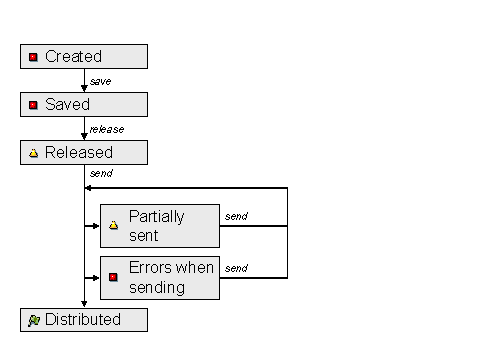
The statuses for outbound processing in the source system are:
|
Icon |
Status |
Description |
|
|
UPNW |
Created |
|
|
UPSV |
Saved |
|
|
UPRL |
Released |
|
|
UPSP |
Partially sent |
|
|
UPSE |
Errors when sending |
|
|
UPSD |
Distributed |
The target system sends confirmations to the source system to make status changes known there. Using this confirmation, the status in the source system is updated. You define which status changes are relevant per packet type in Customizing for product data distribution ® Uniform Packaging Service (UPS) ® Packet Types under Confirmation to Sender.
The status network of the target system concerns the overall ALE distribution unit. All statuses of the target system can be transferred to the source system using the
confirmation, making them relevant there: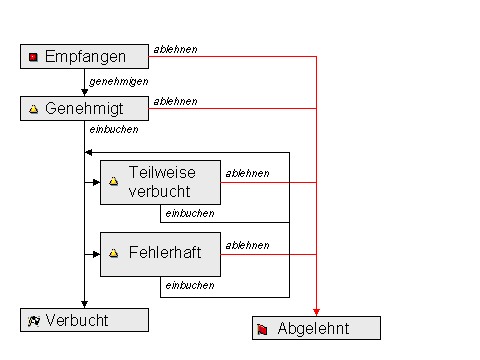
The statuses for inbound processing in the target system are:
|
Icon |
Status |
Description |
Confirmation |
|
|
UPRC |
Received |
Can be set in Customizing |
|
|
UPAP |
Approved |
Can be set in Customizing |
|
|
UPIN |
Partially posted |
Can be set in Customizing |
|
|
UPER |
Contains errors |
Can be set in Customizing |
|
|
UPRJ |
Rejected |
Default |
|
|
UPPO |
Posted |
Default |
Prerequisites
You have defined statuses for confirmation in Customizing for the UPS, under Define Packet Types, Confirmation to Sender.
In Customizing for the UPS, under Define Packet Type, you have defined whether individual business transactions are to be automated. This allows completely automatic processing of an ALE distribution unit in the source and target systems, provided that no errors occur and the messages are processed directly by ALE middleware.
Transactions in the source system
|
Transaction |
Option for Automation |
Trigger |
|
Save |
Only runs automatically in API |
API call |
|
Release |
Can be automated in Customizing |
Status changes to saved |
|
Send |
Can be automated in Customizing |
Status changes to released |
Transactions in the target system
|
Transaction |
Option for Automation |
Trigger |
|
Approve |
Can be automated in Customizing |
Status changes to received |
|
Post |
Can be automated in Customizing |
Status changes to approved |
Integration
The status describes the current status or progress of the UPS process. Each status allows specific business transactions that cover the functions necessary for process progress:
|
Transaction |
Description |
Prerequisite |
|
Save |
When an ALE distribution unit is created, the data is saved to the buffer first. The data is saved to the database with this transaction. |
none |
|
Release |
This transaction releases all objects in the current ALE distribution packet for publishing to the recipient. Changes to the ALE distribution packet are completed and fixed. Subsequent changes can only be made using a correction. |
Before release, serialization of the objects in the current ALE distribution packet must be executed. |
|
Send |
When sending, messages are set up for all the released ALE distribution packets and all their objects, and are transferred to the ALE middleware. The setting up of the messages updates the replication table (see Filtering). |
Only released ALE distribution packets can be sent. |
|
Transaction |
Description |
Prerequisite |
|
Approve |
With this transaction, the target system accepts the object list of the ALE distribution unit and the data included in it, and allows subsequent posting. Since the object list changes with each correction, this transaction must be repeated in this case. |
All messages for the objects in the object list must be identified in order to ensure that not only the object list, but also the object data, can be checked. |
|
Reject |
If the object list cannot be accepted, the entire inbound process of the ALE distribution unit can be rejected. All object messages are set to obsolete (IDoc status ‘68’) and the process is ended. A confirmation ends the process in the source system, too. |
none |
|
Post |
This transaction posts the objects to the database of the target system. To avoid errors, posting follows the serialization of objects. Several posting strategies are available. |
The ALE distribution unit must be approved. |
Activities
Changing the Status of an ALE Distribution Unit
Before you can run distribution, you must release the data of the ALE distribution packet. To do this:
 .
. to change the status of the packet.
Displaying an Overview of Existing Statuses
To display an overview of existing statuses, choose Goto ® Status Icons.
Result
You can send your released ALE distribution packets by choosing Outbound ® Send Packets.


