
Cancel (Function)
Cancel
is a navigation function which allows the user to go to the nearest screen possible without having the system to perform any checks.Like Back (Function), Cancel returns to the previous level in the structure of the task. The navigation option should be as close to the cancelled screen as possible.
Differences to Back
The basic difference to the function
Back (Function), is that no checks are performed with Cancel. With Cancel, the user can leave a screen without having completed all required fields and corrected any input errors.Differences to Exit
A significant difference to the function
Exit or End <application> (Function) is the navigation option, which can to a large extent be absolutely defined for a task. With Cancel, the navigation option has to be specified relative to the current screen.There is another distinction between Cancel and Exit: if data may be lost with Exit, the system displays a confirmation prompt which allows the user to save the data. With Cancel, the system displays the confirmation prompt in a dialog box to alert the user to the critical situation. However, the user is not offered an option in the dialog box to save the data. The user can only confirm or take back the Cancel request.
Data Loss
All unsaved data entered between leaving the screen on which Cancel was executed and reaching the destination are (possibly after the display of a prompt in a dialog box) "forgotten" by the task.
If the user returns to one of the screens, unsaved data will not be there.
Repeated Use of Cancel
If the user chooses Cancel and navigates to another screen, Cancel
no longer needs to be supported. Support of the repeated use of Cancel is not required.Cancelling a Pull-Down Menu
If a pull-down menu is opened, the function Cancel disappears and the cursor is positioned in the work area. In the case of a multi-level pull-down menu, however, only the last level disappears (see Technical Notes).
Cancelling a Dialog Box
If a dialog box is cancelled, it disappears from the user interface. Any data entered there is lost; the system does not display a confirmation prompt.
Cancelling a Primary Window
If cancelling a primary window causes a loss of data, the user is to be informed in a dialog box about the critical situation. If the user still wants to execute Cancel without saving data, the system should navigate to the nearest screen; the user is not required to
correct errors or complete required fields . All in all, the following navigation options are possible:
Access
The function should be always active (unless not possible for technical reasons)
Function Key |
Pull-Down Menu |
Pushbutton |
Access Character |
Icons |
F12 ( F12 must not be assigned to any other function) |
Last option in the menu Edit |
Standard toolbar (position is determined automatically) |
A for Cancel |
|
Technical Notes
To have
no checks performed on incorrect data, you have to provide the function Cancel with a function code, which is specified in the Menu Painter as type "E". In addition, first define a MODULE x AT EXIT-COMMAND in the flow logic of the screen at the event PAI. This module will be processed before all checks of the DYNP are performed. This way, the user has control and can execute Cancel, although data might be incorrect and other PAI modules no longer have to be processed.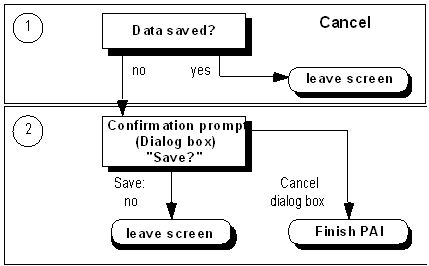
Cancelling a
pull-down menu is automatically provided by the system and therefore does not have to be implemented by the task developer.Cross-References
