Customer Sign-in
To use the Self-Scanning Client on the industry scanning device or on the personal device, the customer can either sign up for a customer account and sign in to the Self Scanning Client using the customer card, or sign-in as an anonymous user (without an account).
Store-Specific Check-In
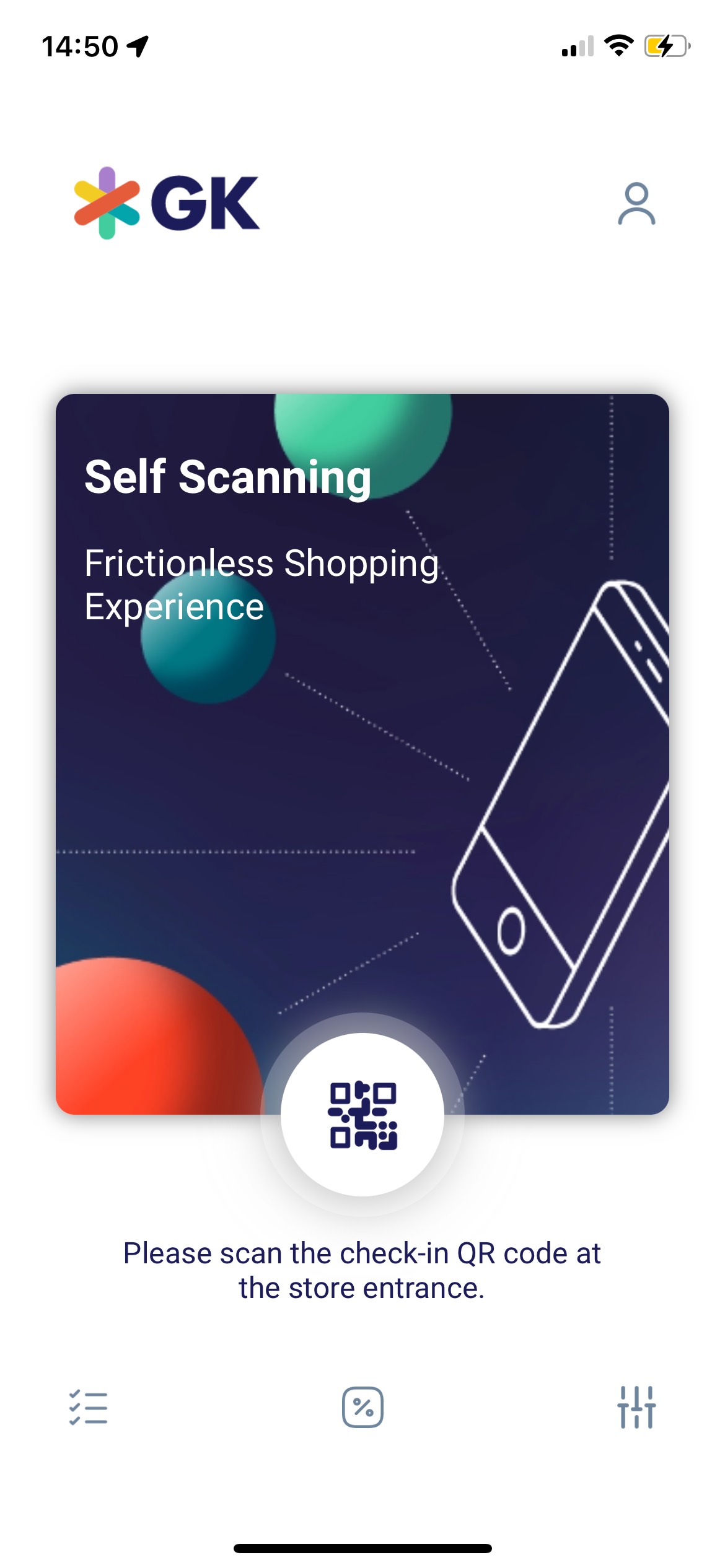
Upon entering a store, the customer must scan a QR code with their app (regardless of whether they are registered or anonymous). This QR code will share the "tenantId", "businessUnitId" and "businessUnitName" with the SSC BYOD. The QR code is planned for the entrance area of the store, so the tenant can be defined specifically for the store. If the check-in code contains a tenantId, all business process-related services need to use this one (instead of the default tenant defined in the bundle). Some requests should not use the specific tenant (especially if they are made after scanning a check-in code). These are CPS-related requests (in particular: Login, registration, fetching profile information).
Initial Sign-in for Customers without a Customer Card
Customers who do not have a customer card yet must get a temporary customer card in order to sign in to the Self Scanning Client application. The customer can get a temporary customer card after filling out the required general terms and conditions documents at the service counter inside the retailer stores. The customer must return the documents within one month after the initial sign-up, for completion and conclusion of the initial capturing process. The temporary customer card remains anonymous as long as the customer is on their first shopping trip and can be used immediately. The customer goes to the device dispensing area, scans the temporary customer card with the Self Scanning Client.
It is possible to register a new customer directly in the application via the registration process. The customer has to enter all required fields, such as username, password, email, and phone number as well in the case of SMS verification. It is possible to verify the registration via email or SMS code. This depends on the master CRM system.
Sign-in for Customers with a Customer Card
Customers who already have a customer card must scan their customer card in the device dispensing area to activate the Self Scanning Client and connect their customer account to the virtual shopping basket. The customer must scan their customer card only once for their personal device.
Shop Finder
The Shop Finder in the Standalone Self-Scanning App helps you easily locate stores. Search for stores in a map or a list, browse details, such as address, distance and opening times and even set favorites for quicker selection next time.

Anonymous User
Customers who do not have either an account or a temporary customer card can still use the devices as anonymous users. Their data is neither processed nor stored and functionalities relying on customer data (such as loyalty programs) are not accessible.
Welcome Screen on the Self Scanning Client
The Self Scanning Client shows a welcome screen after launching the application, prompting the customer to scan the check-in barcode.