Link DMN elements and diagrams
Link a DMN diagram to a BPMN diagram
You can link DMN and BPMN diagrams so that processes can be viewed separately from decisions, with the advantage that the process is streamlined and the decision is traceable.
Follow these steps:
-
Open your BPMN diagram and select the task to which you want to link the decision diagram.
-
In the attribute panel, set the Task type attribute to Business rule.
-
In the task element, click
 .
.The configuration dialog to create a link opens.
You can also open this dialog via the Decision reference attribute in the attribute panel.
-
You can either create a new DMN diagram or link an existing one.
-
Confirm with Link diagram.
The DMN diagram is linked. To open a preview of it, click
in the business rule task again.
Once the BPMN process is published to SAP Signavio Process Collaboration Hub, users can open the decision diagram in via the BPMN process. With Run decision, they can then add data to the rules defined in the decision diagram and determine the result of the decision. For more on simulation, read DMN simulation.
Link the logic of another decision
Instead of adding decision rules to a decision of a DMN diagram, you can integrate the decision logic from another DMN diagram.
To link a decision of another DMN diagram, follow these steps:
-
Open the decision table and click Link on the left side of the dialog.
The configuration dialog to create a link opens.
-
Navigate to the DMN diagram and select the decision you want to link.
-
Confirm with Link diagram.
The decision of the DMN diagram is linked.
Reuse decision logic via business knowledge models
If you want to run a decision multiple times with different data input, you can link it to a business knowledge model. If you then link the business knowledge model to other decisions, they can reuse the logic of the linked decision. This is called a boxed invocation.
Boxed invocations provide decision logic and input type information as a generic function, whereas decisions directly linked to other decisions provide not only the input data types, but the specific input data objects.
In the following example, an insurance premium is calculated based on the applicant's and their spouse's risk level. For each person, the same decision logic determines a different risk level. A link via a business knowledge model allows calling the linked decision model with different data inputs. In contrast, a direct link to a decision diagram will fail to distinguish between the two data sources.
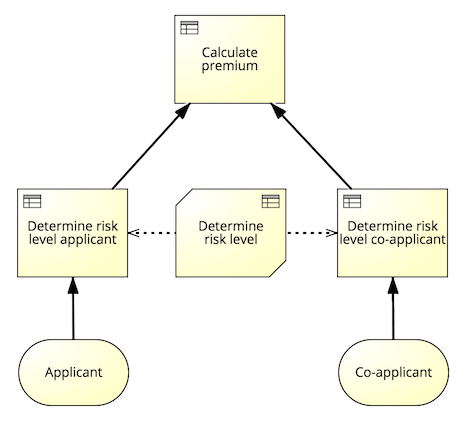
To link a decision to a business knowledge model, click in the business knowledge model and select the decision you want to link from the configuration dialog.
To reuse the logic of the decision linked to the business knowledge model, follow these steps:
-
Open the decision table and select the Invocation tab on the left side.
-
Map the linked and the invoked decision's input data.
-
Confirm with Apply.
The boxed invocation is set up.
You can find more information on boxed invocation in the DMN specification at https://www.omg.org/spec/DMN/1.1/ .
.