DMN Simulation
The decision management extension allows you to model, manage and better understand complex business decisions. In the DMN simulation tool, you can simulate business decisions by applying data to the rules that are defined in a decision diagram. The simulation tool helps you to understand dependencies between sub-decisions and to identify scenarios for which no rules have been established.
To open the DMN simulation tool, select the diagram in the explorer and choose Edit - Simulate DMN diagram.
Alternatively, you can open the diagram in the editor and use the drop-down menu deom the User Profile Menu to switch from the Graphical Editor to the Simulation tool.
Now, you can start using the simulation tool.
Select a decision in the diagram, either by selecting it or by using the dropdown menu in the top right corner. Then, scroll to the Inputs section and fill in the data of your simulation scenario. The Outputs section shows the decision output as computed by the simulation tool. The Wildcard mode toggle affects the evaluation semantics. Wildcard mode turned on means that empty input values are replaced with wildcards, which will, for example, match all conditions in decision tables. When turned off, empty input values will remain undefined during evaluation.
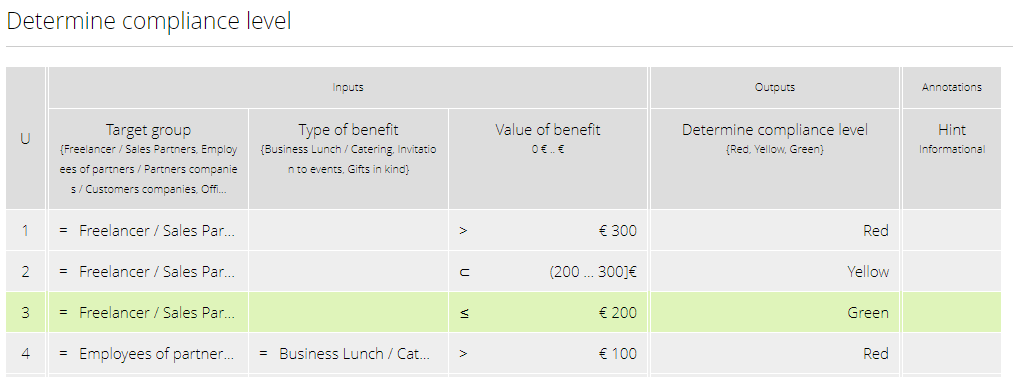
The progress bars in the decision elements indicates the extent to which data inputs are defined so far. When scrolling down, you can see a decision table overview that highlights the rules that apply in the current scenario: