Set BPMN Attributes
Modeling elements have several properties you can edit. These properties are called attributes. You can use attributes to change the appearance of an element (for example the background color or label). Attributes can also be necessary to execute a process, for example the decision logic in a DMN diagram is an attribute.
You edit attributes in the attribute panel on the right side of the editor.
-
To change the attributes for one element, select the element and open the attributes panel.
-
To change diagram-wide attributes, choose any empty space on the canvas and open the attributes panel.
You can change attributes for one element and diagram-wide attributes.
Frequently Used BPMN Attributes
BPMN includes a range of attributes. The following table lists the most important attributes.
|
Attribute |
Elements |
Default |
Use |
|---|---|---|---|
|
Loop type |
task, subprocess |
None |
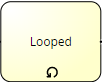
Standard: task is is executed multiple times
MI Parallel: task is executed multiple times in parallel
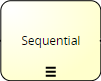
MI Sequential task is executed multiple times sequentially
|
| Task type |
task |
None |
Specifies the task
|
|
Is for compensation |
task, subprocess |
false |
A compensation activity is used to cancel the result of another activity that has already been completed.
|
|
Is a transaction |
subprocess |
false |
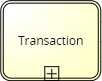
A transaction contains several activities that must be completed successfully for the flow to continue. If any of the activities was not completed successfully, all of them must be reversed to their original state.
|
|
Is ad hoc |
subprocess |
false |
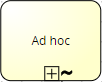
In an ad hoc subprocess, you define the steps, but not the order.
|
|
Is a call activity |
task, subprocess, event-subprocess |
false |
A call activity links to a globally defined process or subprocess. The called process controls the flow. Non-standard start events are ignored.
|
|
Subprocess reference |
subprocess, event-subprocess |
none |
The subprocess linked to the element is listed as the reference. Usually, a BPMN diagram in the same workspace is linked. |
|
Is multi instance participant |
pool |
false |
Multiple similar organizations or process participants can be contacted during a process. For example, project proposals can be requested by multiple companies. |
|
Condition type |
sequence flow |
Standard |
After a gateway, one sequence flow can be the default flow that is followed in case no other condition is true.
|
|
State |
data object |
none |
States can further refine the life cycle of data objects. You can use any label for your states. For example, you can distinguish between 'new', 'completed' and 'rejected'. |
|
Input/Output |
data object |
none |
Data objects can be read (input) or written (output) during a process.
|
|
Instantiate |
task |
none |
Use this when a Receive Task should start a process instance by waiting for an incoming message.
|

 Send,
Send,  Receive,
  User,
User,  Manual,
  Service,
  Business rule,
  Script task


 input,
  output
Subprocesses, event-subprocesses and pools can be collapsed and expanded.
Add Documentation to an Element
You can add documentation to an element to include more details. For example, if a rarely executed task requires instructions, you can add these instructions as documentation.
To add documentation to an element, follow these steps:
-
In Main Attributes, choose Documentation.
-
Choose
 (more options). The documentation editor opens.
 -
Enter and format the documentation.
-
Save with Ok.