Comparing DMN diagrams and revisions
The SAP Signavio diagram comparison tool allows you to easily compare two diagrams, as well as different revisions of one diagram. In the revision comparison, details about all changes in a diagram over time are documented.
To open the comparison tool, select a diagram (or, in case you want to compare two different diagrams and not revisions: two diagrams) and click Edit, then Compare revisions/diagrams in the top drop-down menu of the explorer.
The diagram comparison view opens. The drop-down menu allows you to switch between diagram revisions:
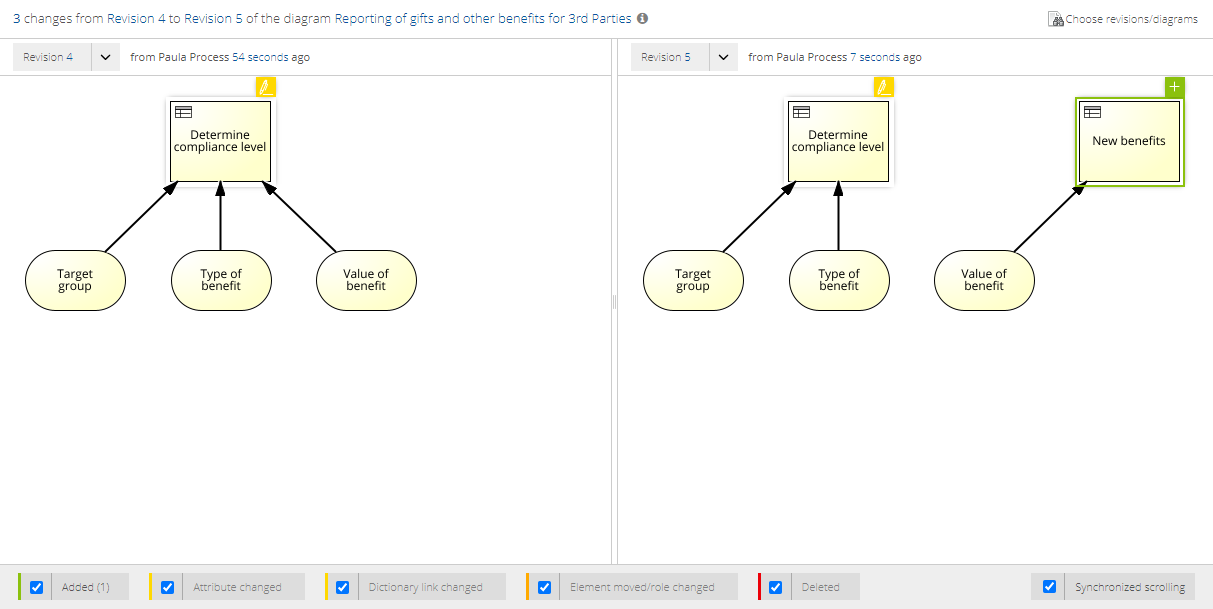
To load a different diagram for comparison, click Choose revisions/diagrams in the upper right corner of the tool and select both diagrams to be compared in the dialog.
Clicking the pen icon of a changed element gives you detailed information about the adjusted element properties.
To narrow down the changes, you can deactivate one or multiple check boxes in the panel below the canvas and exclude changes made to attributes or to specific element types:

To learn more about the basic usage of the diagram and revision comparison tool, read the section Comparison view. The following section explains how to extract DMN-specific information from the comparison tool.
Comparing Data Inputs
To view the changes made to a Data Input element, select the element to see the exact changes.
Comparing Decision Tables
To view the changes made to a Decision Table, select the element to access an overview of the changes.
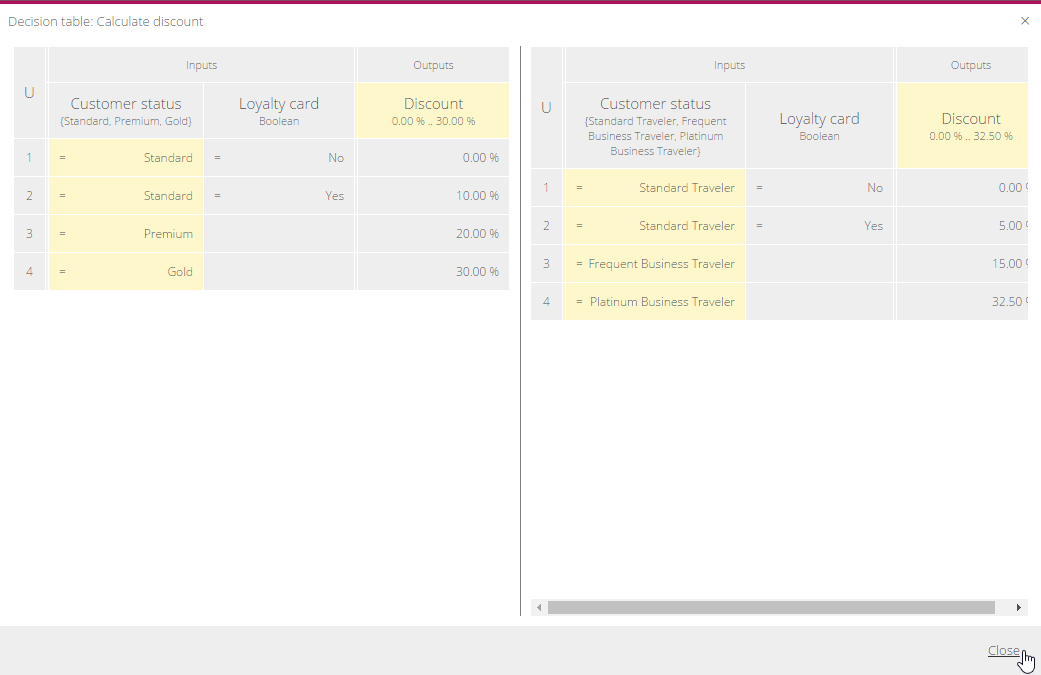
Then, click the compare link to compare the tables:

In the tables, all changes are highlighted.