
 Defining Input Parameters and Form
Elements
Defining Input Parameters and Form
Elements

Prerequisites
● You have created a model as described in Creating an iView.
● The model is open in Storyboard.
Procedure
...
1. To define input parameters for the iView, which are later automatically exported to GP as input parameters of the callable object, select the start connector on the Design board and click the Add Field (plus) button in the Input Parameters table at the bottom of the Configure Element task panel. You have to enter the name and type of the parameters, for example:
¡ Name – Text
¡ Request – Text
¡ Date of Request – Date
2. Select the Required? check box to show that parameters are required and need to be specified in advance. Required parameters are marked with the asterisk (*) symbol after their name.

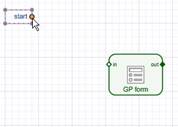
3. Map the input parameters by connecting the start connector and the form. Drag out from the end port of the connector to the in port of the form. The line snaps automatically to the in port and changes color to red.
 .
.
4. To be able to display input parameters by means of user interface elements, you have to edit their properties. Click the GP Form element on the Design board and in the Configure Element task panel choose the field you want to modify.

Choose Date of Request and click in its Control field. From the menu that is displayed, choose Properties.
On the General tab, open the Control type drop-down list and choose Date Picker.


You can now specify more field-relevant settings, for example, you can disable the field so that it cannot be edited by the user that views the form.
5. Repeat this step to modify the properties of the other two parameters.
Their control type should be Input Field and you can also disable them.
6. Next, you should add more fields to the GP Form.
In the table at the bottom of the task panel, click the Add Field (plus) button.
7. Choose Pushbutton from the Select Control Type list and enter Approve in the Field Name box below.
8. In the same way, create a Reject pushbutton and a Date of Approval date picker.
The date picker control must be set to Required.

9. To view the layout of the form and reorder elements if necessary, open the Layout board. Use this board to improve the visual appearance of the iView by just dragging elements on the screen.

Result
You have defined input parameters for the iView and the way they are represented in the form view. To specify output parameters and result states, see Defining Output Parameters and Result States.