
 Finding and Correcting Errors with
CCMSPING
Finding and Correcting Errors with
CCMSPING

Use
If problems occur during the availability monitoring with CCMSPING, work through the points below.
Prerequisites
The following points apply for CCMSPING agents, which are actively reporting to the central monitoring system (registration with the –push option).
Activities
What do I need to do, if CCMSPING does not provide availability values with the required frequency?
In the case of very large IT landscapes to be monitored, it is possible that CCMSPING cannot perform the entire check in one minute. In this case, you have two options:
○ Have the availability monitoring performed less frequently (see Changing the Monitoring Frequency and Timeouts of CCMSPING).
○ Have the availability monitoring performed by multiple CCMSPING agents (see Using Multiple CCMSPING Agents).
What do I need to do, if the logon check fails, although it is possible to log on to the application server?
Check whether the following steps improve the situation:
○ Increase the timeout for the logon check (see Changing the Monitoring Frequency and Timeouts of CCMSPING).
○ Check the host name resolution.
I want to activate debug tracing. What options do I have?
You have two options for activating tracing for a CCMSPING:
○ During the registration (see Installing the CCMSPING Availability Agent), instead of setting the value for the Trace Level to 0, you can set it to 1, 2, or 3. The agent writes the trace to a file in its working directory (\\host\saploc\prfclog\CCMSPING_<InstNo>\ccmsping). The actions of the CCMSPING agent itself are written in this trace.
○ There is an entry in the table ALAVLCTRL in CEN for each registered CCMSPING (see also Changing the Monitoring Frequency and Timeouts of CCMSPING). Call up this table in transaction SE16, and set the TRACE entry for the desired CCMSPING.
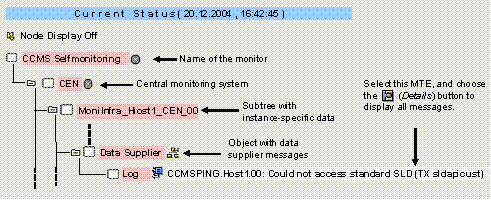
If
TRACE=1, the trace information is written to the
Log log attribute of the Data
Supplier monitoring
object. You can find this in the CCMS Selfmonitoring
Monitor, in the instance-specific subtree of the server with which
CCMSPING is registered. Select the MTE and choose  (Details) to
display all of the messages of the trace. Actions of the ABAP infrastructure
for availability monitoring are written in this trace.
(Details) to
display all of the messages of the trace. Actions of the ABAP infrastructure
for availability monitoring are written in this trace.
If TRACE=5, the function module for collecting the availability values of the relevant CCMSPING starts an endless loop, so that you can start debugging the ABAP processing using transaction SM50.
I have changed the configuration of the availability monitoring. How do I determine whether the responsible CCMSPING has received these changes?
The table ALAVLCTRL (see above) has a TIMESTAMP entry. The row CCMS_SYSTEM_PING_DEST contains the timestamp of your last change to the monitoring configuration in this entry, that is, the last time at which you changed the monitoring settings. For each registered CCMSPING agent, the TIMESTAMP entry contains the status of its worklist, that is, the systems and instances that this CCMSPING is to monitor.
Every CCMSPING monitors this timestamp every minute. If the status of the agent is currently older than the status of the last configuration change, the agent downloads its current worklist from CEN and updates its timestamp. The TIMESTAMP entry of the agent is then the same as the corresponding entry in the row CCMS_SYSTEM_PING_DEST. You can therefore use the timestamps to check whether the agent is working with its current worklist.
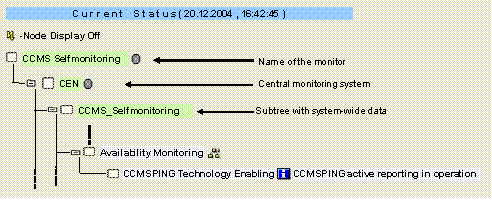
How do I determine whether a CCMSPING agent is actively reporting availability values to CEN?
If you have registered a CCMSPING agent with a CEN with the –push option, the following monitoring object is displayed in the CCMS Selfmonitoring Monitor for System-Wide Data there:
How do I determine which CCMSPING agents are registered with CEN with the –push option, and whether these agents are running correctly?
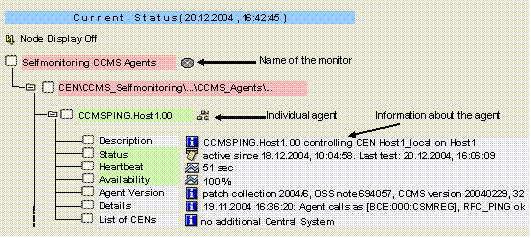
Agents that are registered with CEN with the –push option are monitored by the monitoring architecture. The results are displayed in two places:
○ Technical Topology of the Monitoring Architecture
On the tab page Agents for System <SysID> → CCMSPING Destination of the technical topology display, you can execute the following functions (see also Monitoring CCMS Agents in the Topology Display):
■ Connection test
■ Display the working directory and therefore the log and trace files
■ Go to the CCMS Agents Selfmonitoring monitor (see below)
■ Deregister the CCMSPING
○ CCMS Agents Self-Monitoring Monitor.
The following data is displayed there:
 Availability
Monitoring with CCMSPING start page
Availability
Monitoring with CCMSPING start page