
 CCMS Selfmonitoring Monitor for System-Wide
Data
CCMS Selfmonitoring Monitor for System-Wide
Data

Use
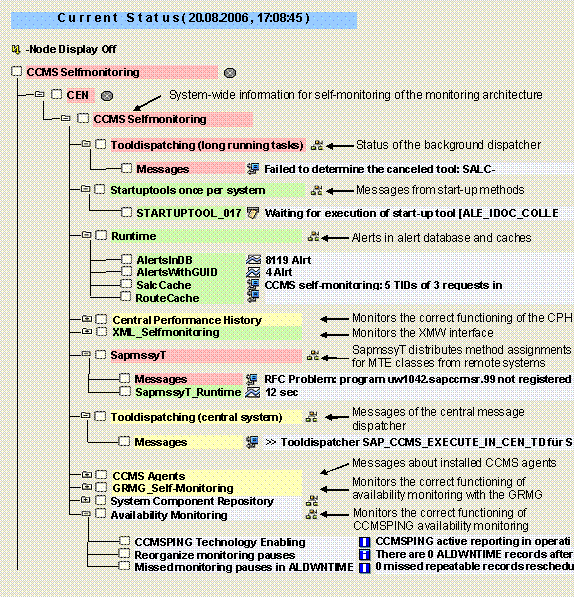
The SAP CCMS Technical Expert Monitors monitor set contains the predefined CCMS Selfmonitoring monitor, which displays the status of the monitoring architecture and of the Alert Monitor. The monitor displays, among other things, whether the Alert Monitor was able to perform the following actions:
● Start the data collection methods for which it is responsible
● Assign and access the shared memory
● Set up the RFC connections to remote systems and components
Both
 agents and
individual alert monitor
methods (data collection methods and auto-reaction methods) can display
problems and their status in the Selfmonitoring tree.
agents and
individual alert monitor
methods (data collection methods and auto-reaction methods) can display
problems and their status in the Selfmonitoring tree.
 NOTE
NOTE
The monitor consists of multiple subtrees; on the one hand, the system-wide subtree with the title CCMS Selfmonitoring below the relevant system (in the example above, the system CEN), on the other hand, the instance-specific subtrees for the monitored servers and active CCMS agents (more information: CCMS Selfmonitoring Monitor for Instance-Specific Data). This section provides an introduction to the monitoring tree elements (MTEs) of the system-wide subtree.
Features
The subtree consists of the following monitoring objects:
● Tooldispatching (long running tasks) (MTE class CCMS_Tooldispatching)
Methods can run in dialog or in background processing. The latter are started in the monitoring architecture by the background dispatcher (SAP_CCMS_BATCH_DISPATCHER), which runs periodically. The dispatcher runs once system-wide, rather than on each individual instance, which is why the associated monitoring object is in the system-wide subtree. The dispatcher messages are displayed under Messages.
○ STARTUPTOOL_<number> (MTE class CCMS_Tooldispatching)
If a method that is to be run in background processing is marked as a start-up method (more information: Methods), the system creates status attributes at system startup with the name STARTUPTOOL_<number>, to which precisely this method is assigned as the data collection method. This ensures that the method is automatically started, even if there are no other nodes with this method. Once the method has been successfully started, these status attributes are deleted, meaning that the only nodes that remain visible are those for which an error occurred when calling the method.
The most common errors in this monitoring object are related to release problems, that is, the method is not released as a data collection method. In this case, a warning (yellow alert) is assigned to the node. You can ignore this warning. In this case, deactivate the indicator Execute method immediately after monitoring segment start on the Control tab page.
● Startuptools once per system (MTE class CCMS_Tooldispatching)
You can also have methods that run in background processing started by the background dispatcher for startup methods (SAP_CCMS_STARTUP_TOOL_BATCH_DP), which runs the methods immediately after the start of a monitoring segment. Methods that are started by this dispatcher can add their own status MTEs in this subtree, meaning that you can also find runtime and error messages here.
○ STARTUPTOOL_<number> (MTE class CCMS_Startup_Tools)
Errors during the execution of start-up methods are also reported as status attributes for this monitoring object. The messages for the node STARTUPTOOL_<number> correspond to those in the monitoring object Tooldispatching (long running tasks) (explained above).
● Monitoring Pause Status (Central View) (MTE class SDTS_Moni_Status_Obj)
If you set up monitoring pauses (more information: Administration of Monitoring Pauses in the Alert Monitor), a log attribute is created in this monitoring object for each monitored system for which monitoring pauses are active. Messages for the scheduled monitoring pauses are displayed in this log attribute.
● Runtime (MTE class CCMSSelfMoniRunTime)
○ AlertsInDB (MTE class CCMSSelfMoni-AlertsInDB)
This performance attribute displays the total number of alerts in the alert database. When you complete an alert, it is stored in the database. If the system generates an alert here, the monitoring architecture starts an auto-reaction method that reorganizes the completed alerts and deletes older alerts. You can use the threshold value for this alert to control how many completed alerts are retained.
You can reorganize the completed alerts at any time using the analysis method assigned to this MTE, irrespective of alerts. When doing so, you can specify the date before which all completed alerts are to be deleted.
○ SalcCache (MTE class CCMSSelfMoniSalcCache)
The monitoring infrastructure includes various caches in which the assignment of MTEs to MTE classes is stored. These caches accelerate the creation of the monitors and minimize the number of RFC calls required.
○ AlertsWithGUID (MTE class CCMSSelfMoni-AlertsWithGUID)
This node contains the number of alerts in the table ALALRTGUID. Alerts are stored there for the MTEs to which the sending of alerts to the central alert framework is assigned (more information: Forwarding Alerts to Alert Management (ALM)) as an auto-reaction method. The alert data of table ALALRTGUID is required to allow communication between the CCMS and the Alert Framework when sending the alerts.
The table ALALRTGUID is regularly automatically reorganized. Automatic reorganization is assigned to this node as an auto-reaction method, and manual reorganization is assigned as the analysis method.
○ RouteCache (MTE class CCMSSelfMoniRouteCache)
Contexts and segments of remote monitored systems are stored in this cache. You can also check this in the Topology Browser of the monitoring architecture.
● Central Performance History (MTE class CPH_SELFMONITORING)
The Central Performance History (CPH) allows you to save performance values of the monitoring architecture long-term, and to output these values in reports to compare the current performance data with its earlier development.
This subtree contains the nodes for the self-monitoring of the CPH. A detailed description of this subtree is available in Selfmonitoring of the Central Performance History.
● XML_Selfmonitoring (MTE class XML_SelfMonitoring)
You can transfer data to the monitoring architecture using XML documents with the XMW interface. This data is displayed like all other data in the alert monitor. This subtree contains the nodes for the self-monitoring of the XMW interface. A detailed description of this subtree is available in Selfmonitoring Monitor for the XMW Interface.
● SAPMSSYT (MTE class CCMSSelfMoniSapmssyT)
SAPMSSYT is a data collection method of the monitoring infrastructure that runs as a job on the monitored systems. During its runtime, the job occupies a work process on the monitored system. SAPMSSYT runs once an hour.
The main tasks of SAPMSSYT are:
○ Distribution of the method assignments to MTE classes on remote systems in the context of the central auto-reaction; it also determines data for the self-monitoring of all CCMS agents.
○ Checking the CCMS agents
You can find SAPMSSYT messages under Messages (MTE class CCMSSelfMoniSapmssyTMessages); SapmssyT_Runtime (MTE class CCMSSelfMoniSapmssyTRuntime) gives the runtime of the job.
NOTE
Alerts in this subtree relate primarily to communication with CCMS agents. Therefore, if you receive alerts of this type, check the communication status of the CCMS agents in the topology browser (more information: Monitoring CCMS Agents in the Topology Display).
● Tooldispatching (central system) (MTE class CCMS_Tooldispatching)
This subtree displays messages from the central method dispatcher (RSAL_CENSYS_TOOL_DISPATCHING) under Messages. This dispatcher makes central auto-reactions possible when alerts are triggered on remote systems. The process of this is as follows:
a. An alert occurs in the monitored system to which a central auto-reaction method is assigned.
b. A CCMS agent recognizes the alert and sends the MTE and the alert data to the central system using RFC.
c. In the central system, the event SAP_CSM_TRIGGER_CENSYS_DISPATCH is triggered, which starts the dispatcher RSAL_CENSYS_TOOL_DISPATCHING. This job calls the corresponding central auto-reaction method in the central system and transfers the information about the MTE and the alert to it. It also adjusts the method runtime status in the monitored system using the agent.
NOTE
If problems occur with central auto-reaction methods, use transaction SM37 to check the log of the job SAP_CCMS_CENSYS_DISPATCHER.
For more information about central auto-reactions, refer to SAP Note 0429265.
● CCMS Agents (MTE class CCMSSelfMoniAgents)
This subtree corresponds to the Selfmonitoring CCMS Agents monitor.
NOTE
Alerts in this subtree are especially critical for the functioning of central monitoring; we therefore recommend that you set an auto-reaction with automatic alert notification for this area (more information: Forwarding Alerts to Alert Management (ALM), for example). The node Availability (MTE class CsmTaskCcmsAgent.Availability), which monitors the availability of the agents, is particularly suitable for this purpose.
● GRMG_Self-Monitoring (MTE class GRMG_SelfMonitoring)
You can use the Generic Request and Message Generator (GRMG) to monitor the availability of technical components or steps in business processes. A detailed description of this subtree is available in GRMG Selfmonitoring Monitor.
● System Component Repository (MTE class CCMS_SCR_SelfMoni)
This subtree contains the version of the CCMS System Component Repository.
● Availability Monitoring (MTE class Availability_Push_Enabled)
This subtree contains information for self-monitoring of the availability agent CCMSPING; it is created if an availability agent with the option –push is registered with this system.
○ CCMSPING Technology Enabling (MTE class Availability_Push_Enabled)
This monitoring attribute can contain two different values; refer also to SAP Note 904593 in this context.
Value |
Meaning |
CCMSPING active reporting enabled |
The agent has the push option, but operation has not yet begun, since the data conversion has not yet run in the background dispatcher. |
CCMSPING active reporting in operation |
The agent is now independently transferring availability values to CEN. |
○ Reorganize monitoring pauses (MTE class Availability_ALDWNTIME_Reorg)
With availability monitoring with CCMSPING, you can set up monitoring pauses (more information: Creating and Changing Monitoring Pauses). Each pause is stored in the table ALDWNTIME. This text attribute contains information about the last reorganization of this table. By default, entries are stored for 60 days; you can change this value with the parameter KEEP_PAUSES_X_DAYS of the method CCMS_ALDWNTIME_REORG.
○ Missed monitoring pauses in ALDWNTIME (MTE class Availability_ALDWNTIME_Resched)
With periodic monitoring pauses, when one pause is activated, the next corresponding pause is scheduled. It is therefore possible that periodic monitoring pauses are not automatically rearranged if the monitoring system is not operating during the period in question when it should be executed. This problem has now been solved (more information: SAP Note 887586). However, pauses of this type are still logged in this text attribute.
● Monitoring Pauses (MTE class SDTS_SelfMoni_Obj)
This subtree contains information about jobs that you require for monitoring pauses in the Alert Monitor. If alerts occur here, reactivate the dispatcher job or the data collector job (more information: Administration of Monitoring Pauses in the Alert Monitor.
Activities
To start the monitor, follow the procedure below:
...
1. Start the Alert Monitor using transaction RZ20 or choose CCMS → Control/Monitoring → Alert Monitor.
2. On the CCMS Monitor Sets screen, expand the SAP CCMS Technical Expert Monitor set.
3. Start the CCMS Selfmonitoring monitor from the list by double-clicking it.