
 Creating Tasks

Purpose
You can create tasks using the task wizard. This takes place in a simple one page screen allowing for creation of a task for which the workflow controls the lifecycle of the task.
You may issue the task to a group of users as a whole or each individually. Alternatively, you can define a sequence of separate multiple step tasks (see Task List) that can be assigned to a single user of separate users. Once created, additional properties can be set up using the task Details page. Completed tasks my require an additional approval step or the process can be finished by a task completion step.
Some of the frequently used terms which are present on the collaboration task user interface, which are also listed in this guide, are listed below:
Task
A task is a request for a work process to one or more users. These users are called nominees. In this document the user creating the task has also been referred to as the creator or initiator of the task.
Trackers
A task also has users responsible for tracking the progress of the work item, these users are called the trackers. The user creating the task is a tracker by default. For a simple one step task, also known as a quick task, the tracker is an approver for that task as well.
A tracker can:
● Monitor the progress of the task
● Receive notifications on the updates/about the completion of the task
Nominator
User who designates work to other users.
For information about the nomination process, see Request for Nomination.
Nominees
Nominees are users who have been nominated to act on a task.
Process: Create Task
...
1. In the UWL view, choose Create Task.
2. Select Task from the Task Type dropdown list.
4. Choose Send to send the task to the nominees.
Wizard Details
Description of Parameters
Parameter |
Description |
|
Title |
Title or subject to identify the task. It is a required field. |
|
Assigned To |
Select the IDs of the users you want to assign the task to. You also have an option to decide whether the nominees can decline the tasks, and also decide if you want to separate the tasks for each nominee. |
|
Priority |
Specifies the priority of the workflow. This affects the urgency of the tasks that will be generated by the workflow. |
|
Due |
Define the deadlines for the process step by entering due date and time. Choose the calendar icon to select the due date or enter manually in mm/dd/yyyy format. Select the time from the dropdown selection or enter manually in hh:mm format. (Note: the date and time you enter here refer to the date and time on the server machine). You can also select the ASAP option. The ASAP option indicates that the task has to be completed as soon as possible. No dates are specified. |
|
Description |
An overall task description. This information will be visible to all process participants. |
|
Trackers |
Tracking and final approval are performed by the user in this field. You can also nominate more than one user to track and approve the task. The nominated trackers can view and participate in the task progress from their task list. |
|
Task Requires Final Approval |
The task consists of a task completion step or is a combination of task completion and approval of task completion. This is an optional field. |
|
Allow Nominees to Decline Task |
Nominees can decline a task. |
|
Separate Task for Each Nominee |
In case of multiple nominees, each nominee can be assigned a different task. |
|
Notification |
None |
No notification is sent. |
When Complete |
A notification is sent on completion of the task. |
|
On Updates, Completion, and if Overdue |
Notification is sent when the task is completed, updated, or when the task due dates are reached. |
|
Edit Attachments |
Launches the Attachment view. You can attach arbitrary documents to workflow instances. These documents are visible to all workflow participants. You can also delete attachments. Choose Upload to upload items from your local PC. To add documents or links within in the portal, choose Add. Follow the instructions on the screen to add documents. |
|
Task Actions
A nominee (user to whom a task is assigned) can confirm or decline a task.

A user can decline a task only if the Nominees Can Decline Task option is selected by the task creator.
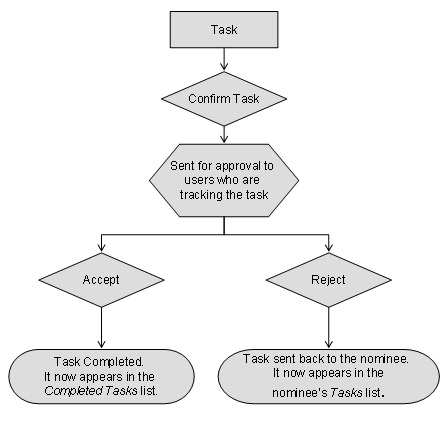
The following figure shows the possible steps a task nominee can perform after the task has been assigned.
Confirm Task
Rejecting a Single Step Task
When a single step task is rejected by a tracker it is sent back to the task nominee(s). The progress of the task is automatically set to 50% and its status is set to In Progress. The task nominee can then submit the task again to the tracker by choosing Complete Task. The status of the task changes to Completed. To break the cycle the tracker can either delete or approve the task.
Delete Tasks
Once a task is deleted, all related tasks are also deleted. See example below for further clarification.

User 1 creates a feedback task, assigns it to user 2 and user 3.
User 2 completes the task.
User 3 declines the task.
User 1 receives the task declined by user 3. User 1 deletes the task.
At this point, the task (item) from user 2 is also deleted, user 1 is not able to see it from tracking anymore.
...
Rejecting a Task Versus Declining a Task
The terms rejecting and declining a task can be confused in the context of collaboration tasks.
An approver of an approval step in a task may choose to reject - this means that they do not approve of the previous action item(s) and require these previous steps to be redone and resubmitted for approval.
When a nominee declines a task, this means that the nominee refuses to participate in the task. That is, the nominee has (probably) not examined any steps in the task or has not performed any of the work on his assigned step. In this case, the task trackers are notified of the declination, and must reassign the task to another user.
Result
The approvers/recipients/nominees see the workflow item in their task list.
Depending on the notifications selected in the creation wizard, the workflow's users tracking the task will receive status notifications as the workflow nominees perform work or respond to approve/reject tasks. The workflow creator can also view the status of an active workflow by going to the Tasks screen in the Universal Worklist and viewing details of the appropriate process. All steps that have been executed in the process so far are displayed.
After completion of a process all steps along with the comments entered by the process participants are displayed under Completed Tasks in the Universal Worklist of the initiator of the workflow.
More Information:
For descriptions of the UWL user interfaces, see: Using the Universal Worklist.