
 Developing a Room Extension

Use
First step to develop an extension is to setup a new portal project, which also means to include the extension API and to add a service entry. Then the extension is configured in the extension registry. Next is to create a Java class for the extension, e.g. SampleExtension.java. The extension is provided with a resource bundle to make it displayable. The extension points and the input- and output parameters are listed and at last the methods validate, process, rollback and commit are added to make the extension executable.
Prerequisites
Although some steps can be performed in pure Eclipse also, it is strongly recommended to use the SAP NetWeaver Developer Studio for the development. Only the studio creates the correct par files for the portal deployment. The studio is part of your SAP NetWeaver package.
Procedure
...
a.
In the
Developer Studio, define a new classpath variable.
Go to Window ® Preferences ® Java ® Classpath Variables ® New and add the deployment path of the
portal:
|
This path may differ between portal versions; you will find details in the portal documentation.
b. To create a new Java project, select File ® New ® Project ® Portal Application.
c. Open the properties of the project and go to Java Build Path.
You will notice that the studio has automatically added some portal libraries. For the extension development, additional libraries are required.
d. Take the required libraries from an installed portal (EP 6.0 SP2 Patch 5 or higher). To add the libraries, click New Variable ® PORTAL_HOME ® Extend and take the libraries listed below:
|
e.
To
access the API, a service reference in the portalapp.xml file of the project is also
mandatory:
|
f.
Because the extension is a portal service, a service
entry in the portalapp.xml file of the project is
required. The service name can be chosen freely as long as it fulfils the Java
naming conventions.
|
For at least one service in a portalapp.xml file the generic_classloader_registration must be activated, and there
must be a generic_service_key defined which can be a GUID,
the class name or anything else that is unique. See 3 how the extension uses this information.
The development project containing the extension
must also deploy a Configuration Framework based configurable to the
extension registry, which is located in the configuration path
Collaboration -> Extension -> Registry. In this configurable, the
extension id is defined. A common choice is
to take the name of the class for the id. The property service is a combination of the par file name of your project plus the
service name defined in the file
portalapp.xml. Please note that the par file
name and the service name may differ from the package name and the class name.
It is a common mistake to use the package name and the class name
here.
|
The configurable additionally defines a
category, which must be
“room” for room related extensions or “common” for
unspecific extensions, that are used in the room. An extension is room
related, if it accesses the Room API. The Concat extension e.g. is not room
related, because it just concatenates two strings and does not access the Room
API.
There is also an active flag in the configurable that
is used to disable the extension. Disabling should be handled with care,
because it corrupts templates using this extension. Early versions of the room
do not validate the templates, so that there will be exceptions if they are
used. Later versions (EP 6.0 SP10 or higher) validate the templates so that
they are no longer used.
An extension runs as a portal
service and therefore must implement the IService interface that is documented in the PRT User
Guide. For simplification the extension can inherit the IService implementation from the GenericService class, which is part of the KM. The
GenericService applies the attributes generic_service_key and generic_classloader_registration from the portalapps.xml. The class loader registration is required to use
the resource bundles the extension needs to be displayed via name and
description in the UI (see 4).
To further implement the extension, an
IExtensionBuilderFactory provides specific objects like IParameterInfo and IExtensionResult. In the extension class, this factory is retrieved
from the extension runtime:
|
To get more information about extension objects, methods and parameters consult the Java Documentation of the Interfaces.
4. Make the extension displayable
Because an extension is displayed in the template creation wizard, it needs a resource bundle to translate name and description into the required language.
|
The bundle is located in the same project as the extension. The entries in the bundle file look like this:
|
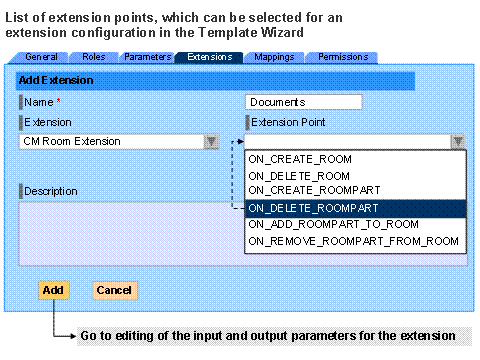
Extension points are steps in the life cycle of a room, where the
extension is executed. There is no need for an extension to react on each
extension point of a room; it depends on the purpose of the extension, which
extension points are useful. For rooms, only the points provided in the class
RoomExtensionPoint from the Room API can be used.
The extension
provides a list of points it can handle.
|
In the template wizard, this list of extension points is exposed to the template creator, who uses it to define the parameter mappings.

The extension developer should provide documentation to give the template creator an understanding of the extension and its best use.
6. List the input and output parameters
An extension also defines a list of input- and
output parameters. For example, an extension that creates a folder may require
a parent path and output a folder id. The parameter list depends on the
extension point: if the folder is created in ON_CREATE_ROOM,
the
mentioned parameters are listed only for that point, while other parameters
may be required for other points.
For the input parameters of an extension only available parameters can be used. The available parameters divide into two kinds:
¡
System parameters are contributed by the room. See Extension Points and
Context to learn, which system parameters are available at which extension
point. For example NEW_OWNER_OF_ROOM is
available only when ON_SET_OWNER_OF_ROOM is processed.
¡
Template parameters are defined in the template. Only string
parameters are allowed.
In Room
Extensions – Design Time you find more information about the design
time of an extension, specifically about the mapping of the input and output
parameters of an extension to the set of available parameters in the template
wizard.
The sample code shows how the input parameters are
defined: The extension uses the extension factory to build up a list of
IParameterInfo. All required input parameters
must be listed, because only the listed parameters will be available for
processing. This also holds for system parameters. It is a common mistake not
to list the system parameters. Even if system parameter sounds like something that
comes automatically, the listing is definitely mandatory.
|
To build up the IParameterInfo for a system parameter
requires:
¡ A parameter id.
¡ The class of the parameter value, e.g. it can be validated if a user input is an integer. It also defines how the parameter is shown in the template wizard. A Boolean for example may be shown as checkbox.
¡ A Boolean to define if the parameter is mandatory or optional. The extension is expected to execute correctly, even if optional parameters are missing.
Because template parameters are used in the template, additional information is required:
¡
A
displayable to show the parameter in the template wizard (see graphic below).
In the sample template the displayable is created from the parameter id. Note:
setting the resource bundle to null causes the displayable to show
the keys instead of the translated text. Use this for testing only, keep in
mind that the resource bundle is mandatory for translation.
¡ An optional value set provider id, to show the value set in a drop down list box. This exposes the possible values to the template creator and avoids typing errors or excluded values that cannot be computed. See Developing a Value Set Provider.
The set of available parameters in the template wizard encloses constants, external parameters and output parameters of extensions. While the mapping of a constant directly assigns the value, the mapping of external parameters or extension output generates a reference to a variable that is filled at run time, e.g. when the room or room part is created. The following table give syou an overview on the parameters available in the template wizard.
Parameter |
Description |
Constants |
Constants are fixed by the template creator at design time. For example the parameter Access can be set to private or public. These values are offered in a drop down list box that is filled by a value set provider. Usually the extension developer knows, which input the extension can compute, and therefore will also develop the value set provider. |
External parameters |
These parameters are defined at design time, but the value is filled in manually at run time. The user who creates a room is prompted for the value. |
Extension output parameters |
These parameters are filled by the extension results. To use output parameters requires an overview over the whole template, because the availability of these parameters depends on the extension points at which they are computed. An extension can even use its own output as input for a later extension point. But attention: expecting an output as input for an earlier extension point necessarily causes an error. |
See Room Extensions – Design Time for more information about how to avoid deadlocks and how to plan the parameter mapping.
7. Make the extension executable
When a room or a room part is created, the constant values as well as the parameter references are copied from the template to the room or room part context. During the lifetime of the room, the values and references are taken from the context and exposed to the extension, which processes the input and returns the result. The room or room part adds the result to the context, so that it is available when another extension point is processed.
Extensions implement methods to approach the described transactional behaviour. When an extension point is processed, first the validate method of all extensions is called. If one extension fails, the processing of the extension point terminates on error. If all extensions can validate, the process method is called in a second step. If one extension fails to process, all extensions are rolled back, otherwise all commit. See Room Extensions – Run Time for more information about the run time behaviour of an extension.
The sample code below shows, how the process method
works. Dependent on the extension point, first the input parameters are drawn
from the context, and then the output parameters are processed and added to
the result. It is important, that the extension should throw the
ExtensionException only, if the execution would
cause irreversible damage to the room. If it throws an exception, this
causes that a user action cannot be performed, e.g. a room cannot be created,
a room part cannot be added or a user cannot be invited to the room. If a
minor problem occurs that should not stop the user action, the application
must handle it by itself. For example, it could copy a document to its folder
that describes how the problem can be healed manually.
|
The validate, rollback and commit methods are implemented in a similar way, no extra sample code is shown here.
See also:
· Developing a Value Set Provider
· Extension Points and Context
· Connecting a Company-specific Backend System via Room Extensions