 Work with Mirrored Tasks
If tasks or phases of a project are influenced by another task (see original task) in a different project, the project leader of the dependent project must be informed about changes made to the original task. For this purpose, you can include the original task as a mirrored task in the structure of the existing project.
The following graphic explains the scenario:
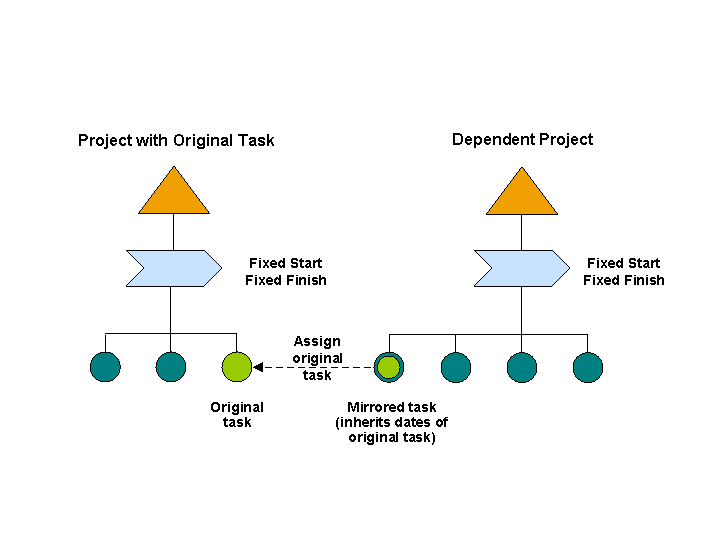
The system transfers the earliest start date of the original task from those determined by the system as the fixed start date for the mirrored task and the latest finish date of the finish dates determined by the system as the fixed finish date for the mirrored task.
For transfering additional data from the original task to the table view of the mirrored task, you have the following options:
If you implement the method TRANSFER_ORIG_TASK_DATA of
BAdI: Check/Change Fields in Project Management
, the system transfers additional data from the original task to the mirrored task in the respective project.If you implement the method CHANGE_DESCRIPTION_MIRR_TASK of
BAdI: Check/Change Fields in Project Management
, you can change the description that the system transferred from the original task to the mirrored task.
 Example
Earl./Latest Start: 7th March / 4th March
Earl./Latest Finish: 1st April / 29th March
Fixed dates of the task: 4th March - 1st April
If the dates for the mirrored task are outside the limits of the superior project element, the system issues a warning.
If you create relationships between the mirrored task and other tasks, the mirrored task dates influence the dates of the linked tasks when scheduling.
Prerequisites
Your system administrator has permitted the use of mirrored tasks for the current project type in see Customizing for
Project Management
underDefine Project Types
.You have at least display authorization for the original task to be able to create a mirrored task. To display the original task, you also need display authorization for the project definition to which the original task belongs.
Note the prerequisites under Alerts if you want the system to be able to inform the responsible persons about changes.
Features
You can make the following changes to the mirrored task:
Enter a name
Change authorizations
Set a severity manually
Edit the relationships with other tasks (see Edit relationships with other tasks)
Delete mirrored tasks
This also deletes the link to the original task.
The data of the original task is visible in the dependent project but you cannot change it. Even if you have authorization to make changes in the original task, you still cannot change the data.
If the original task has subtasks, they are not visible here.
If the dates of the original task change or if the original task is deleted, the person responsible for the project element to which the mirrored task is assigned is informed. The person responsible for the original task is only informed when the mirrored task is created and deleted.
Activities
To create a mirrored task, proceed as follows:
In the project structure, navigate to the project element below which you want to create a mirrored task.
In the dropdown box above the structure tree, choose
Mirrored Task
.Choose
Create
.Assign an original task.