 Selecting Collections
You must select collections so that you can perform the following tasks in a translation system:
Assign collections to translation graphs
Assign collections to translators
Globally lock collections for translation (ensure that objects from these collections are excluded from translation)
Display statistics for specific collections
Create an object list for specific collections
Call up a worklist for specific collections in transaction SE63
This section explains how the Collections dialog box enables you to select the collections you require for one of the purposes listed above.
Prerequisites
To access the Collections dialog box, your translator profile must include the authorization object COSE with value 01.
Procedure
Selecting collections in the Collections dialog box consists of 1 or 2 steps:
Selecting a group of collections according to one or more selection criteria.
Fine-tuning the selection you made in step 1 (this step is optional).
At first sight, this dialog box can seem confusing, due to the large number of options and functions. The graphic below aims to simplify this:
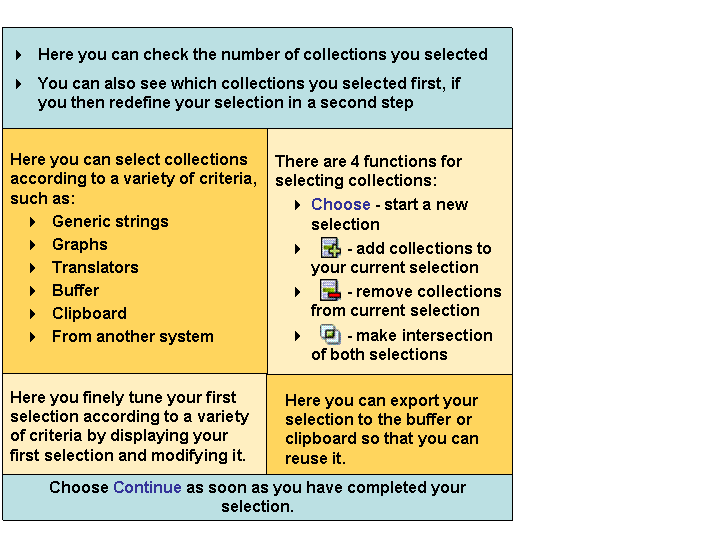
Understanding the Collections Dialog Box
Step 1: Selecting a Group of Collections
Here are the options for making a simple selection of collections according to one criterion:
Selection Option |
Procedure |
|---|---|
Select all collections in the system |
Simply choose Choose next to Total. |
Select all collections that have a specific text string in their name |
Enter the generic string in the Generic field and choose Choose next to Generic.
To select all collections whose name starts with the string ZFIN, enter ZFIN* in the Generic field. Take care as this field is case-sensitive! End of the example. |
Select all collections that are assigned to a specific translation graph |
Choose Choose next to Graph , then double-click the graph(s) you require in the dialog box that appears. |
Select all collections not yet assigned to a specific translation graph |
Choose Choose next to Without Graph.
If you assign every collection to a graph, this is a good way of finding out whether new collections have arrived in the system, which you now need to assign to an active graph. End of the recommendation. |
Select collections assigned to one or more translators for a specific target language |
Choose Choose next to Translators.
Expand the node of the target language you require, then double-click the
Translator(s) whose collections you want to select. Choose |
Selects collections that you previously added to the buffer |
You first need to have added collections to the buffer. See Adding Collections to the Buffer for more information. Choose Choose next to Buffer. |
Select collections from the clipboard |
Either copy a list of collections to the clipboard from an external application (e.g. an email or document) or export a selection of collections to the clipboard from this dialog box (see below under Result for more information). Choose Choose next to Clipboard. |
Select collections according to criteria defined in another system (e.g. translator assignment, graph assignment) |
First maintain an RFC connection to the system in question. Enter the name of the system in the field Other System and choose Choose next to Other System. This takes you to the Collections dialog box of this system, where you can select collections according to the criteria defined there. After you have defined your selection, choose Continue. This takes you back to the system where you started the selection. All collections from the other system that exist in this system are selected. |
 Recommendation
 (Execute)
You can also use the other selection functions to make more complex selections. Below are a few examples:
Complex Selection |
Procedure |
|---|---|
Select collections assigned to a specific translator, then add collections that belong to a specific graph |
|
Select collections belonging to a specific graph, then remove collections already assigned to a specific translator from this selection |
|
Select collections that belong to a specific graph and are assigned to a specific translator |
|
 (Insert Rows)
 (Delete Rows)
 (Intersection AB)
Step 2: Fine-Tuning Your Selection (Optional)
After defining your selection in step 1, you can now fine-tune it by displaying it according to a variety of criteria and then removing collections that you do not require by double-clicking them to deselect them.
 Example
After making your initial collection selection, you can then fine-tune the selection so that it only contains collections that belong to a specific graph or domain.
The fine-tune functions are a good way of finding out which graph(s) or domain(s) the collections in your selection belong to.
Here are the options for fine-tuning your collection selection:
Fine-Tuning Option |
Procedure |
|---|---|
Standard |
Displays the selection in a hierarchy, sorted by domain. |
Graphs |
Displays the selection sorted by translation graph. |
List |
Displays the selection in an alphabetical list. |
Translators |
Displays the selection results sorted by the translators to whom these collections are assigned for a specific target language. This is the best way of finding collections that you still need to assign to translators, as follows:
|
Result
You have now selected a number of collections. Simply choose Continue to leave the Collections dialog box and continue with the activity you are performing (for example, displaying statistics, assigning collections to a graph / translator, and so on). For more information, see:
Assigning Collections to a Translation Graph
Assigning Collections to a Translator
If you want to make use of this selection again (for example to assign the same collections to a translator for a different target language), you can export it as follows:
After defining your selection, choose Buffer under Export in the Collections dialog box.
You can access this selection again when you choose one of the selection functions next to Buffer under Selection Basis in the Collections dialog box.
After defining your selection, choose Clipboard under Export in the Collections dialog box.
You can access this selection again when you choose one of the selection functions next to Clipboard under Selection Basis in the Collections dialog box.
You can also use Paste to insert an alphabetical list of the collections in this selection in an external application (such as an email or document) for future reference.