
 Configuration Check Log

Use
Within the Configuration Control-Workbench the result of the overall configuration check, which was performed for a particular technical object, is displayed in the check log. As the actual configuration of the corresponding object is also displayed underneath the actual configuration, you can directly analyze and verify the check result.
Structure
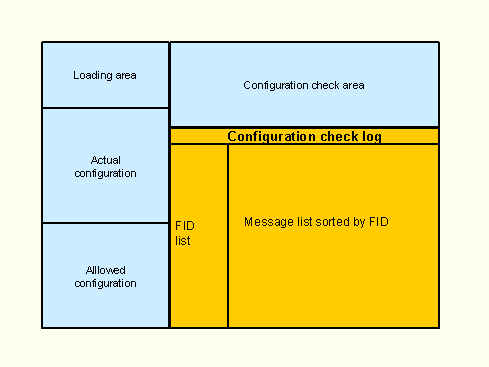
On the right of the screen in the Configuration Control Workbench, you find the main log with all the notifications that were issued during the configuration check.
On the left side of the log is a list of all the function identifiers (FID) that were involved in the respective check. The list is displayed in the form of a structure tree.
On the right side is a list of all the notifications grouped by function identifier. Objects that are not assigned to any FID belong to the No FID group.
· For each FID group, first all the individual objects of the actual configuration and then the corresponding objects of the allowed configuration are listed together with the notifications issued.
To display the detail data for the
equipment concerned or the iPPE nodes concerned, choose  in
the next column.
in
the next column.
· There is also the option of double-clicking on an FID in the structure tree to display only the notifications that refer to this FID group.
· The notification category is indicated by different symbols.
¡
 Check for the relevant FID was
terminated
Check for the relevant FID was
terminated
¡
 Error message
¡
 Warning
¡
 Information/Success message

In Customizing you can change the attributes of the individual notification categories. For this, choose Define Attributes for System Messages in the implementation guide (IMG) for Plant Maintenance and Customer Service.
·
If a message states that a
material is not valid for a particular piece of equipment, you can display all
the messages that relate to the assigned iPPE node of the allowed
configuration by choosing  beside the relevant message.
· The assigned material is displayed in a separate column for all the objects identified.
You can change the list layout. Choose
 Select Layout to do this. The message
list supplies all the standard functions of the SAP List Viewer and can be
adjusted to your individual requirements, if necessary.
Select Layout to do this. The message
list supplies all the standard functions of the SAP List Viewer and can be
adjusted to your individual requirements, if necessary.
The
allowed configuration of the object that is subjected to a check is displayed
on the left of the screen in the form of a structure tree. You can use the
navigation menu to display a second log. Choose  Display Log to do this. This full
screen log contains only messages from the explosion of the allowed
configuration. The messages are sorted by iPPE nodes.
Display Log to do this. This full
screen log contains only messages from the explosion of the allowed
configuration. The messages are sorted by iPPE nodes.