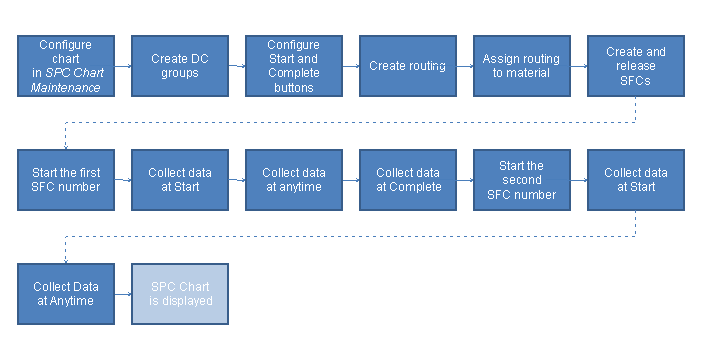
Example: Collecting Environmental Data for SFC Numbers
The following procedure includes steps that the operator might perform collecting environmental data for SFC numbers at the start and end of an operation.
Prerequisites
You have configured Data Collection and SPC and defined the following objects:
SAP ME Object
Object Name
Comments/Configuration
ACME_WIDGET
associated with the
WIDGET
routingMAKE_WIDGET
WIDGET
Contains the operation
MAKE_WIDGET
; assigned to theACME_WIDGET
materialSPC Chart
PART_TEMP_XBAR_R
Main
tab page ofSPC Chart Maintenance
:Chart Type
—Xbar & R
Subgroup Size
— 3Max Plot Points
— 30Max Data Age (Days)
— 365
Primary Chart Details
tab page:Control Limit Options
—Calculated
Sigma Coefficient
— 3Upper Spec Limit
— 72Target
— 70Lower Spec Limit
— 68Display Spec Limits on Chart
— selectedEnable Trend Rules
— selectedTrend Rules
—AT&T Rules
Secondary Chart Details
tab page:Control Limit Options
—Calculated
Sigma Coefficient
— 3All other fields are blank or deselected.
ENV_PARMS_START
Collection Type
—SFC
Collect Data At
—Start
Collection Method
—Manual-Single
Data parameters:
PART_TEMP
(Part Temperature
)associated with the
PART_TEMP_XBAR_R
SPC chartHUMIDITY
(Ambient Rel. Humidity
)attached to the operation
MAKE_WIDGET
; unit of measure —Percent
ENV_PARMS_COMPLETE
Collection Type
—SFC
Collect Data At
—Complete
Collection Method
—Manual-Single
Data parameters:
PART_TEMP
(Part Temperature
)associated with the
PART_TEMP_XBAR_R
SPC chart; unit of measure —Deg. F
HUMIDITY
(Ambient Rel. Humidity
)attached to the operation
MAKE_WIDGET
; unit of measure —Percent
TEMP_ANYTIME
Collection Type
—SFC
Collect Data At
—Anytime
Collection Method
—Manual-Single
Data parameter
PART_TEMP
(Part Temperature
)associated with the
PART_TEMP_XBAR_R
SPC chart and attached to the operationMAKE_WIDGET
; unit of measure —Deg. F
For more information, see Setting Up Data Collection and Setting Up Statistical Process Control (SPC).
You have created a new
Operation
type POD and associated theStart
andComplete
buttons withDC Group List
(DC_LIST_DISPLAY
) (see Operation PODs and DC Group List).You have created and released 2 SFC numbers for the material
ACME_WIDGET
(see Create and Release SFC).
Procedure
Open the
Operation
type POD configured for data collection.Enter the
MAKE_WIDGET
in theOperation
field.Enter the first SFC number.
Choose
Start
.The
DC Group List
plug-in appears.Select a row for the DC group
ENV_PARMS_START
.Choose
DC Collect
.The
Data Collection Entry
plug-in appears.Enter 70 for
Part Temperature
.Enter 45 for
Ambient Rel. Humidity
.Save your entries.
Choose
Close
in theDC Group List
plug-in.The SFC number's status changes to
Active
(see SFC Number).Choose
DC Collect
in the POD.The
DC Group List
plug-in appears.Select a row for the DC group
ENV_PARMS_COMPLETE
.The
DC Collect
button in theDC Group List
plug-in is not enabled.Select a row for the DC group
TEMP_ANYTIME
.Choose
DC Collect
in theDC Group List
plug-in.The
Data Collection Entry
plug-in appears.Enter 71 for
Part Temperature
.Save your entries.
SPC Display
pop-up window appears.Close the
SPC Display
pop-up window.Repeat steps 14 –17 two times with the values of 71.3 and 71.5.
Choose
Close
in theDC Group List
plug-in.Choose
Complete
in the POD.The
DC Group List
plug-in appears.Select a row for the DC group
ENV_PARMS_COMPLETE
.Choose
DC Collect
in theDC Group List
plug-in.The
Data Collection Entry
plug-in appears.Enter 71 for
Part Temperature
.Enter 43 for
Ambient Rel. Humidity
.Save your entries.
Choose
Close
in theDC Group List
plug-in.The SFC number's status changes to
Complete
(see SFC Number).Enter the second number of the SFCs created.
Choose
Start
.The
DC Group List
plug-in appears.Select a row for the DC group
ENV_PARMS_START
.Choose
DC Collect
.The
Data Collection Entry
plug-in appears.Enter 71 for
Part Temperature
.Enter 45 for
Ambient Rel. Humidity
.Save your entries.
Choose
Close
in theDC Group List
plug-in.The SFC number's status changes to
Active
.Choose
DC Collect
in the POD.The
DC Group List
plug-in appears.Select a row for the DC group
ENV_PARMS_COMPLETE
.The
DC Collect
button in theDC Group List
plug-in is not enabled.Select a row for the DC group
TEMP_ANYTIME
.Choose
DC Collect
in theDC Group List
plug-in.The
Data Collection Entry
plug-in appears.Enter 71 for
Part Temperature
.Save your entries.
Repeat steps 38 – 40 two times with the values of 72 and 73.5.
The
SPC Display
pop-up window appears.The SPC chart
PART_TEMP_XBAR_R
contains an alarm indicator that a trend rule has been matched.