Editor (Edit Control)
Summary
In the new ABAP Debugger, there have at your disposal an efficient ABAP front-end editor for displaying source code. You also have the classic Backend-Based Editor.
The most important additional features of the ABAP front-end editor in the Debugger are:
-
Syntax Coloring
-
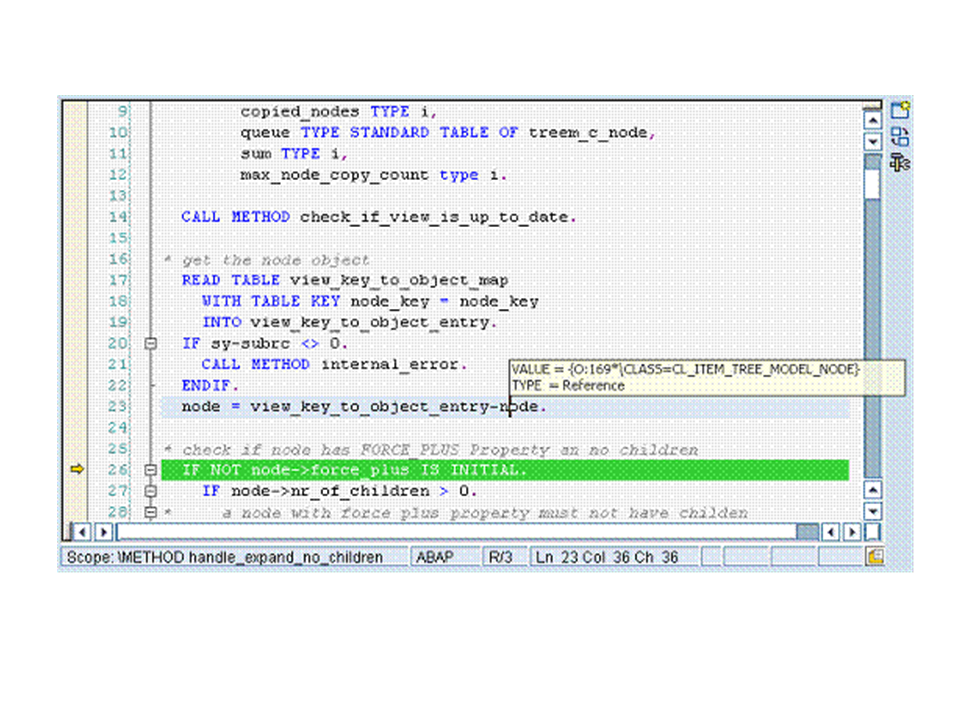
Standard editor functions such as vertical and horizontal scrolling in the source code, display of current scope, opening and closing source code blocks.
-
Display of the current variable content and variable type in a quick info text as soon as the mouse cursor is on a valid variable.
Detailed Description
The ABAP Front-End Editor Control function is available with the 640 GUI (Patch Level >= 10).
If the Control function is available and has been selected as the required editor variant in the workbench settings (ABAP Editor: Menu: Utilities->Settings), by default the source doe will be displayed in the ABAP front-end editor whenever you start the new Debugger.
The ABAP Front-End Editor is located under "Standard Tools".
In addition to the standard front-end editor functions, the Debugger version also provides the following functions:
-
If you double-click a variable name in the source code, this is transferred to the Variable Overview (Quick Variable Display) or to the respective detailed display. In contrast to the back-end editor, however, no breakpoint will be set if you double-click a word that does not represent a valid variable.
-
In the context menu of the ABAP front-end editor, you have the option of setting, deleting, activating, or deactivating breakpoints in the current line -in addition to the standard tool functions. In addition, you can jump to the selected line using the context menu entry "Goto Statement". (Alternatively use the menu path: Debugger -> Goto Statement) The context menu entry "Display Variable in the Data Explorer" transfers the selected variable to the tool "Data Explorer".
-
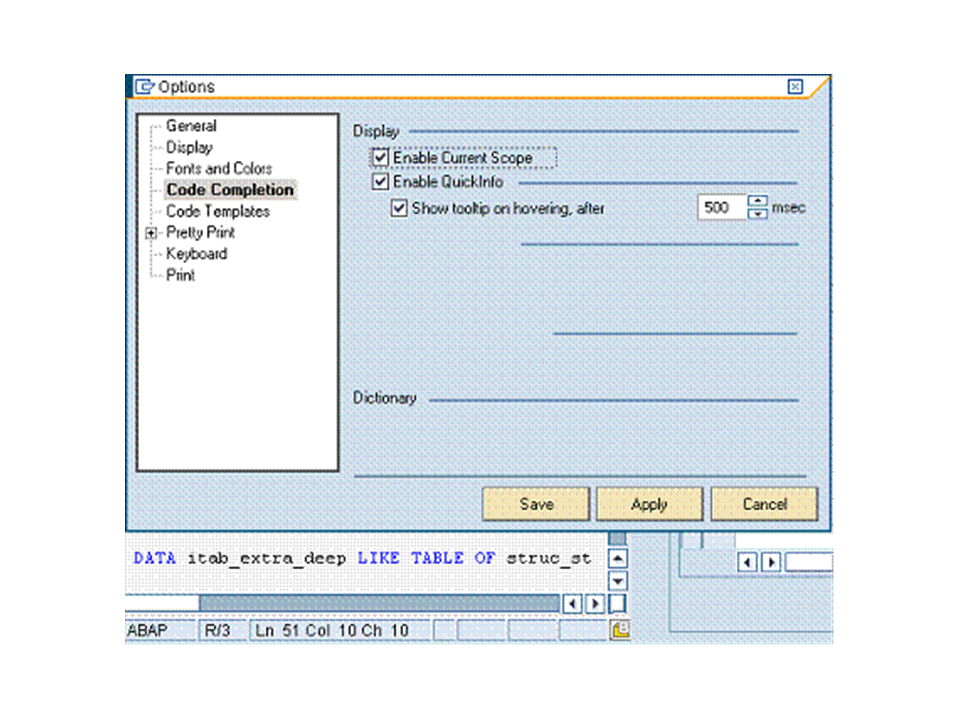
If the mouse cursor is positioned over a valid variable in the source code, a quick info text displays the type and the value of this variable. Using the settings (
 icon in the lower right corner) of the ABAP front-end editor, you can set the reaction time of the quick info display.