Overview of Variables (Variable Fast Display)
Summary
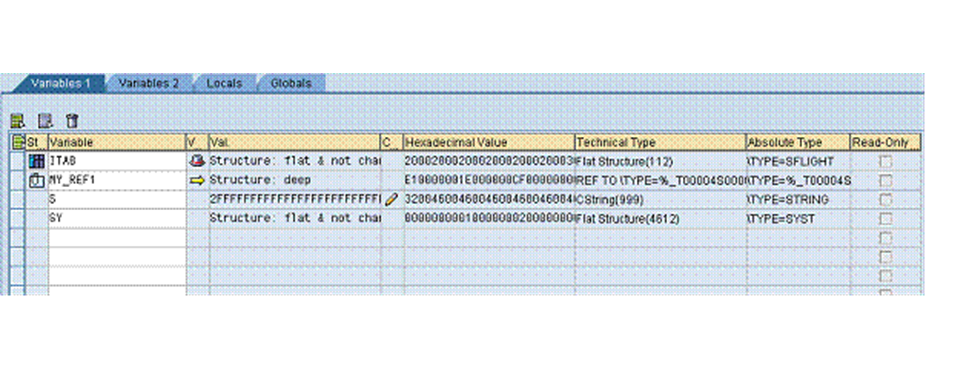
The tool Overview of Variables (Variable Fast Display) allows you to display data objects, together with their current contents and technical attributes.
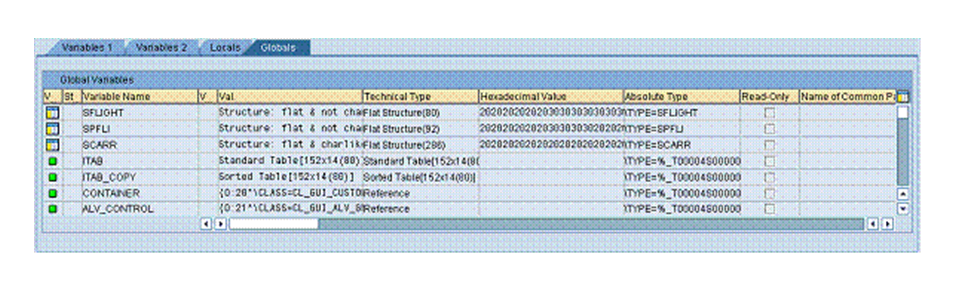
You can choose between two input-ready lists of variables via the corresponding tabs. Furthermore, the tabs Locals and Globals allow you to display all local variables/parameters of the current procedure and all global variables of the current program.
Detailed Description
All variable lists contain the following information about the selected variables:
-
Status, possible forms:
 Variable does not exist in the current context
 Field symbol not yet assigned
 Header, double-click to navigate to corresponding internal table
 Data references, double-click to navigate to referenced data object (ref->*)
 -
Name
-
Value/variable contents
-
Edit variable contents (edit icon
 ): If the variable can be edited, the relevant icon is displayed. Double-click to open the value field for input (edit icon changes to
 ) Confirm (Return) to change the value. Any other action or double-click of
discards any unconfirmed changes.
) Confirm (Return) to change the value. Any other action or double-click of
discards any unconfirmed changes. -
Hexadecimal value
-
Technical type
-
Absolute type (type in declaration)
-
Read-only flag: Changeability in with regard to ABAP. For example, constants or IMPORT via reference parameters of a method cannot be changed.
Variable Lists 1 and 2
You can enter any number of variables in the two input-ready variable lists.
You can use the buttons
 to select variables and delete them from the display.
As in the classic Debugger, double-clicking a valid variable in the Editor transfers it into the Variable Fast Display. If the quick display does not yet exist on the active desktop, it is created automatically.
However, this behavior is not always desirable, particularly when using the ABAP Front-End Control for displaying source code. As it is possible to display the value and type of a variable directly in the Editor (in a quick info), you may want to see detailed information about a variable after double-clicking it. Displaying the variable in the quick display is unlikely to provide any new information. For an internal table, for example, you may want to go directly to the table view to see the table contents. In the options (Menu: Settings -> Options), you are thus able to set the navigation so that double-clicking a variable in the Editor displays it in the relevant detail view: On the General tab, choose the entry Display Variable Directly in the Relevant Detail View for the field Variable Navigation from the Editor.
Globals and Locals
For technical (performance) reasons, the Globals and Locals are hidden by default. The button Change Settings takes you directly to the Variable Fast Display options. Here you can display all required tabs. (You can also Save your settings by choosing the corresponding button.)
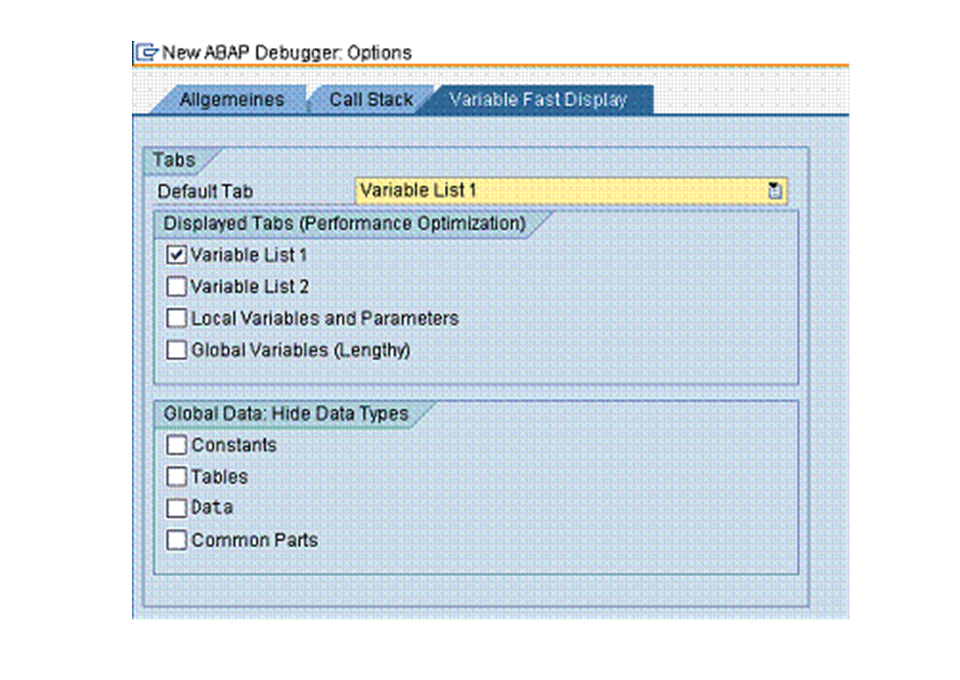
If there are large numbers of global or local variables, this can affect debugging performance. (However, you can explicitly filter out variable types from the global variables in the Options dialog box of the variable fast display.)
As of Basis Support Package 5 (NetWeaver04s), the Locals and Globals are always displayed and no settings can be made under Options.
Locals includes all local variables as well as the parameters of the current procedure.

In addition to the above information, the following attributes are available for the displayed variables:
-
Variable type: Import parameter, export parameter, ... local variable
-
Pass by value: This flag specifies whether the parameter was passed by reference or by value.
Globals comprises all global variables of the current program (global variables of other loaded programs -> Loaded Programs Tool).
In addition to the above information, the following attributes are available for the displayed variables:
-
Variable type: Global variable, tables work area, common part, constant
-
Name of common part
You cannot make any changes to variables in Locals or the Globals view. You must use the variable views 1 or 2 or the relevant detail view for this.
Navigating to the Detail Views
All views ( Locals, Globals) of the Variable Fast Display are fully integrated in the variable navigation.
Double-clicking a variable name opens the corresponding detail view (for example, the table display for an internal table).
In the options ( Settings-> Options) you can set whether the detail view is to be generated on the active desktop or whether to navigate to the relevant detail desktop (for example, desktop tables) for clarity and overview reasons ( General tab: Navigation to Detail Views). In the latter case, you can return to the initial desktop by choosing Back (F3).
Services of the Variable Fast Display
Any tool in the new ABAP Debugger that offers services features the button
 Services.
The services of each tool are also available in the local context menu.
Services of the variable fast display
-
Standard services: Search, download variables, sort by selected columns, navigate to options
-
Save parameters as test data (SE37): In a function module, this service allows you to save all import parameters with their current values as a test case in the text environment of the Function Builder (SE37).