
 Message Mappings

Use
In message mapping, different message structures are mapped to each other. The mapping is supported by a graphical mapping editor. The editor enables you to design a structure mapping between any two XML structures.
The mapping editor generates Java source code from the graphical mapping description that is then compiled and packed in a JAR file that the PCK executes at runtime.
For examples of
message mappings, see
 Example Message
Mappings.
Example Message
Mappings.
Features
The mapping editor can load the following schemas into the structure overview:
● XML schema definitions (XSD) or XML files from a local file
● Schemas from another PCK
In the case of XSD files, the mapping editor generates an XML representation for both the source structure and the target structure. If the XSD file contains more than one global element, use a dialog box to select one global element as the root element.

If you want to load several XSD files that reference each other using the import and include XSD statements, you must first pack the files into a Zip file. If the file contains more than one global element, you must select one global element as the root element in this case as well.
Main Function Area of the Mapping Editor
Once you have created a message mapping, the system navigates to the mapping editor Design tab page. The figure below shows the screen areas of the mapping editor (the tab page was detached from the PCK beforehand):
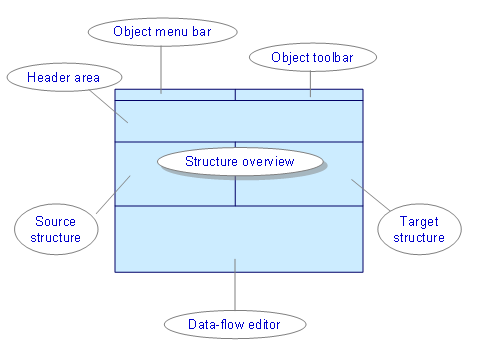
You have the following options when defining a message mapping:
● The functions in the Object Toolbar relate to the entire mapping. You can assign fields with the same name to each other automatically, for example.
● When you create a new message mapping the Structure Overview in the mapping editor is initially empty. You must import an XML or XSD file for both the source structure and the target structure. The mapping editor reads the data and displays an XML representation for the mapping in the Structure Overview: In this screen area, the source structure is on the left and the target structure is on the right. Source structure fields then have to be mapped to target structure fields. You have various options for displaying the source and target structure (Tree View, Tabular Tree View, display as a text document, or display in the browser).
● The structure overview is closely linked to the Data-Flow Editor, which you use to describe the mapping of one or more source fields to one target field. This type of mapping is also referred to as a Target-Field Mapping. If a field in the target structure has already been mapped, you can navigate to the relevant mapping by double-clicking the corresponding target field in the structure overview.
A message mapping consists of various target-field mappings. Once you have defined a mapping for each mandatory target field, the message mapping is complete. To test your message mapping, navigate to the Test tab page (see Test Environment).
Functions of the Object Toolbar
Function |
Use |
|
Loads schemas for source and target messages into the structure overview. |
|
Before you execute this function, first select one node in both the source and target structures that belong to each other. You can then automatically assign subnodes that have identical names (names are case-sensitive here). This function is particularly useful for simple mappings. |
|
Deletes all target-field mappings. |
|
Use these buttons to switch between the data-flow editor and the text preview in the lower area of the data-flow editor: ● In the data-flow editor, you edit target-field mappings. ● You use the text preview to display all target-field mappings and the functions that they use, as text. Lines in red indicate missing target-field mappings. The quick info for a green target field displays the corresponding mapping.
|
|
|
(Show |
Use this function to display graphically which source fields are assigned to which target fields in the structure overview. The colors have the following meanings: ● Red: The source field is directly assigned to the target field. ● Green: A subnode of the source field is assigned to the target field. ● Blue: The source field is assigned to a subnode of the target field. ● Black: A subnode of the source field is assigned to a subnode of the target field. |
|
Use this function to specify global variables and additional Java sections for all Java functions. The mapping runtime first includes the Java packages specified under Imports. You can enter the same packages entered for a user-defined function. Then the mapping runtime declares the variables entered as global variables and executes the sections in the following order: ... 1. Initialization section 2. Message mapping 3. Cleanup section
|


Functions in the Message Mapping Object Menu
Function |
Use |
|
Imports schemas |
|
Exports schemas |
|
Deletes the message mapping object and all receiver agreements in which the mapping object is specified |


Additional Functions
Within the structure overview and in the data-flow editor, you can call functions in the context menu. For all fields (in the data-flow editor and in the structure overview on both the Design and Test tab pages), you can copy the path for a field to the clipboard by choosing the context menu option Copy Path.
Activities
To define a mapping between two XML structures, proceed as follows:
...
...
1. In the mapping area in the PCK, create a message mapping (see Creating an Object).
2. Load a source structure and a target structure by using the search help in the mapping editor.
3. Using the structure overview and the data-flow editor, assign one or more source fields to a target field. A mapping of this type is also referred to as a target-field mapping. It is also possible to assign one source field to multiple target fields (see Assigning a Field).
4. If necessary, enhance the target-field mapping in the data-flow editor. To do so, connect the source fields to the target field by using the standard functions of the mapping editor. You can also create user-defined functions in Java in the mapping tool and then use them in the data-flow editor (see also Data-Flow Editor).
5. Carry out the last two steps for all mandatory target fields at least.
Result
The mapping is complete and ready for testing when all the fields in the target structure have either green or white icons. A yellow icon indicates that a target-field mapping is incomplete, whereas a red icon indicates that target fields are unassigned.