
 Object Editors

Use
To display or edit an object, open it in an object editor.
Integration
The object editors are displayed to the right of the navigation bar and beneath the main menu bar and the standard toolbar (see: Application Window: Overview). If you have opened multiple objects, the different object editors are displayed as tab pages. The tab page index (with the names of the objects and icons for the object types) is positioned at the bottom of the window.
Prerequisites
You can open an object by
· Selecting it in the navigation area and either
¡ Double clicking the selected object
¡
Choose Open ( ) from the context menu
· Dragging the object from the navigation bar to the work area of the application window by using Drag&Drop
· Double clicking (in another object editor) on an object reference

This means that you can open a message type from the object editor for a message interface.
General Structure of the Object Editors
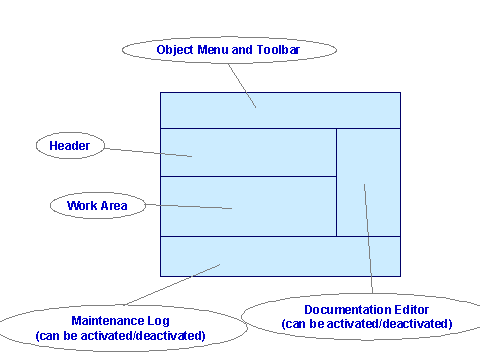
All object editors have the same basic structure for all object types (see graphic). The header area contains the object key and a description. In design objects, the object key comprises the software component version, the namespace, and the name. The object key of configuration objects depends on the respective object type.
The work area contains the object-type-specific functions and information.
Functions of the Object Menu Bar
Each object editor has an object menu bar, which you can use to access all functions that relate to the object you have opened. You can call the most important functions in the object menu bar from the toolbar as well.

The following table lists the functions that you can call in all object editors. Functions that are only available for particular object types are described in the documentation for the relevant object type.
<Object> Menu
Function |
Description |
|
Switches between display and edit mode |
|
Saves the object |
|
Deletes the object |
|
Checks the object |
|
Copies the object |
|
|
History |
Displays the object history |
|
Calls the where-used list |
|
Calls the online help for the relevant object type. |
|
Closes the object editor |


The Copy Object function is not available for imported objects (Integration Repository).
Edit Menu
Function |
Description |
|
Cuts out the selected text |
|
Copies the selected text |
|
Inserts the selected text |


View Menu
Function |
Description |
|
Shows/hides the header area of the object editor |
|
Shows or hides the documentation editor |
|
Shows/hides the processing log (see: Checking an Object) |
|
Detaches the object editor from the application window |
|
Attaches the object editor back onto the application window |


Header
The header displays the following information about the object.
· Object key
The object key depends on the object type and is defined when you create an object
· Description
In change mode you can enter a language-dependent short description for the object (see also Original Language).
· Status
Displays the status of the object (see: Change Lists)
Work Area
In this area you can display and edit the object.
The work area is specially adapted to the individual object type. For more details, see the documentation for the object type.
See also:
For an overview of the object types in the Integration Repository, see Navigation Area (Integration Repository).
For an overview of the object types in the Integration Directory, see Navigation Area (Integration Directory).
Documentation Area
· This area displays the documentation for the object. You can show or hide this area as required.
Maintenance Log Display Area
· This area displays the maintenance log. You can show or hide this area as required. For more information, see: Checking an Object.