
 Screen Structure

Use
The modeling environment for Variant Configuration provides an overview of an existing product configuration model and also allows you to edit and test the model.
Screen Structure of the Modeling Environment
The modeling environment is divided into four main areas:
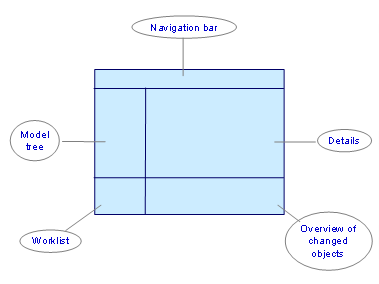
Navigation Bar
The navigation bar shows the material number and entry date for the selected model and contains the following pushbuttons:
Pushbutton |
Function |
|
Navigate to open detailed views |
|
Key of model tree icons |
|
Start the configuration simulation (test) |
|
Full screen on/off |
|
Explodes the entire model in the background and copies all the elements to the worklist |


Model Tree
The model tree shows the model in the form of a tree structure with the material as the root node in addition to the configuration profiles, classes, and knowledge-base objects that belong to the model. Expand the objects (for example, a class) if you want to see the elements below it, such as characteristics and characteristic values.
To display a list containing an explanation of the icons used in the model tree, choose Extras → Legend Icons…
To search
for texts, names, or other character strings in the model tree, choose
 . You can also start the
search function from the context menus of the objects.
. You can also start the
search function from the context menus of the objects.
By double-clicking an object, you can display a detailed view of its properties.
To open the context menu for an object, click the secondary mouse button (alternatively the context menu button or Shift+F10).
See also Modeling.
Worklist
You can use the worklist to load objects that do not belong to the model into the modeling environment. These objects are then shown in a structured list (Environment) along with the objects in the model.
You can group objects that you use frequently in a separate Favorites list.
See also Worklist and Favorites.
Detailed View
A detailed view of each object is displayed to the right of the model tree. You can open the detailed view by double-clicking the object in the model tree.
See also Modeling.
Overview of Changed Objects
The objects that have changed since the last time you saved the model are shown here. To view these objects, choose Goto → Overview of Changed Objects.
See also Overview of Changed Objects.