 Committing Business Transaction Items for Delivery
Use
It may be necessary for a vendor to commit to the customer that the goods are delivered by a certain date.
 Example
For example, the customer orders some technical equipment that takes a long time to manufacture, and relies on the fact that the equipment is delivered by a certain date. Perhaps the customer plans the production based on this date, or has in turn, promised the customer to deliver by a certain date. Every day that the customer does not receive this equipment, the customer is losing money. In some cases, the vendor has to pay penalties to the customer, if the goods have not arrived by this date.
To work out the commitment date , you agree with the customer on a maximum time period starting from the posting date of the business transaction. This is called the agreed delivery time . The system calculates the commitment date using the agreed delivery time together with a setting in Customizing, and records the result in the commitment schedule line for the business transaction item. Of course, you can change the commitment date manually.
Integration
Availability Check
When the system carries out availability check for an item, goods can be confirmed for a certain date. This confirmation date is displayed in the confirmation schedule line for the item. In the schedule lines you can compare the confirmation date with the commitment date to see whether the goods can still be delivered on time without jeopardizing the commitment to the customer. This is especially important if a subsequent availability check is carried out – either because someone changes the business transaction manually, or because it has been changed by backorder processing. In such cases the confirmation date could change.
Status
If the confirmation date of the item is changed so that this date comes after the commitment date (for example, during backorder processing), then this item is overdue.
Prerequisites
The following settings are necessary in Customizing:
You maintain the agreed delivery time in the
Agreed Delivery Time
field in both the header and the item of the business transaction.To display this field for a particular transaction type and item category, the following settings are required in Customizing under

Basic Functions

Date Management
 :
:
The technical name
DLVTIME
is defined in the standard system as a durationunder Define Date Profile Types, Duration Types and Date Rules
Duration
.
You assign the duration to a date profile under
Define Date Profile
. Select the relevant date profile and chooseDurations
.You can specify a default value for the agreed delivery time by double-clicking on
DLVTIME
and entering the value in theDuration
field in theDefault Values
section.To see the screen area where the duration is to be displayed, select
DLVTIME
and chooseScreen Areas: Duration
.The date profile is assigned to
The business transaction type under
Assign Date Profile to Transaction Type
The item category under
Assign Date Profile to Item Category
You control how the system should calculate the commitment date under
Assign Date Profile to Transaction Type
in theCommitment Date
field.For more information on Date Management, see the SAP Library under
mySAP Customer Relationship Management
Enterprise
Enterprise Sales
Quotation and Order Processing
Order Processing
Basic Functions
Date Management (CRM-BF-DAT)
.
If you need to carry out pricing based on the commitment date, you need to make this data available for the Internet Pricing and Configurator (IPC). You do this in the IMG under
Customer Relationship Management
Basic Functions
Pricing
Pricing in the Business Transaction
Date and Duration Types
and then
Assignment of Durations
. The relevant entry isDLVTIME
.You also need to customize the pricing in the IPC to take the agreed delivery time into consideration. For more information, see the SAP Library under The Pricing Process
.
Features
The system calculates the commitment date and creates a commitment schedule line with the commitment date for the relevant item.
Example
Figure 1 shows an example of a quotation with a commitment schedule line.
The posting date of the quotation is June 1. The system adds the agreed delivery time of 2 weeks to calculate the commitment date of June 15. It creates a commitment schedule line for item 10 with the commitment date of June 15.
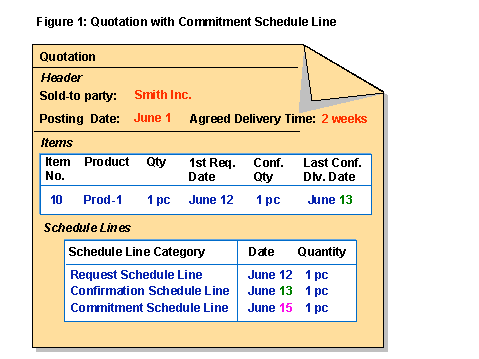
The date of the commitment schedule line depends on settings in Customizing This is explained under Activities below.
Restrictions
The agreed delivery time and the commitment schedule lines are not transferred to SAP ERP.
If a business transaction is created in SAP ERP and transferred to SAP CRM, the agreed delivery time and the commitment schedule line are not transferred to SAP CRM.
Activities
You Specify an Agreed Delivery Time
You specify an agreed delivery time , that is, the time period that the customer grants the vendor from the date the business transaction is posted (posting date). The system calculates the commitment date by adding the agreed delivery time to the posting date of the business transaction.
You can enter the agreed delivery time for the business transaction
In the header in the
General
tab in theAgreed Delivery Time
fieldIn this case the agreed delivery time is the same for all items.
In an item
In this case the agreed delivery time is valid for the specific item.
The System Calculates the Commitment Date
The system calculates the commitment date for each item based on
The posting date of the business transaction item
The setting in the
Commitment date
field for the business transaction type in Customizing under Customer Relationship Management
Transactions
Basic Settings
Define Transaction Types
Example
For examples on how the system uses the settings to calculate the commitment date, see: