 Setting Up the Employees Component

Setting Up the Employees Component
Purpose
You use this process to set up the Employees component for the Mobile Sales System or the Mobile Service application.
Process Flow
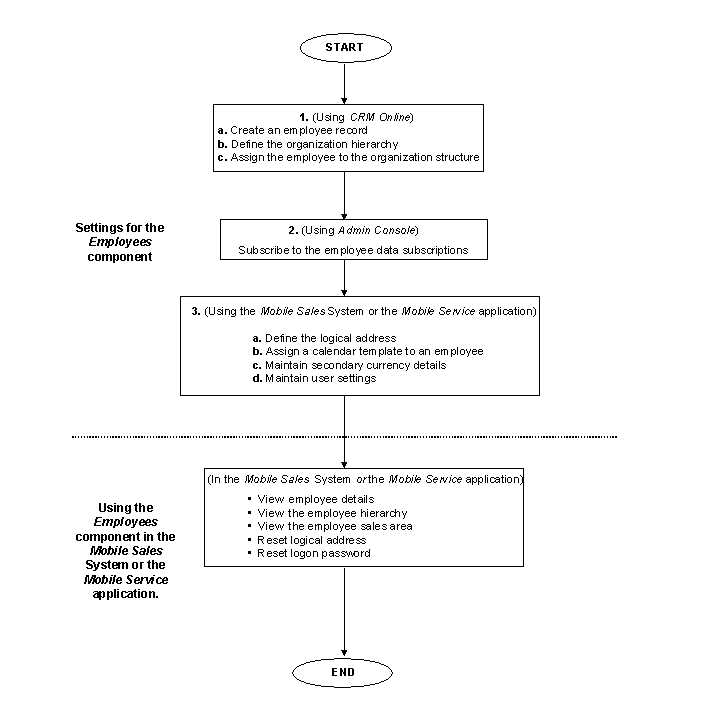
Settings for the Employees Component
You create an employee record by entering the employee’s personal and work related details.
An organization hierarchy depicts the order in which various organizational units and positions are arranged in your company. You define an organization hierarchy by creating organizational units and positions and then creating relationships between them.
 Organizational Unit.Positions.
 The employee hierarchy in the Mobile Sales System or the Mobile Service application will be displayed only if you have assigned an employee to a specific position in the organization structure. This position can either be a:
By assigning an employee to a position, you can show how an employee is placed in the organization. All the employees associated to an organization unit report to the employee in the Header position in the organization hierarchy.
If a Site ID is not available, you need to create one. For more information, see Creating, Changing or Deleting Sites.
A site is a physical dataset that exists outside the consolidated database (CDB). It is a receiver or supplier of data for the replication defined on the CRM Server. There are different site types one such is a mobile client.

Sites must be first created in the Administration Console.
Only a bulk subscription for Employees is possible. Only those mobile clients that have subscribed to the respective publication can receive employee data.
During customization, you can customize the Mobile Sales System or the Mobile Service application to automatically generate the sales document number for any sales or service document created.
This number generation is done using Cross-Component Settings ® Number Generation of the Mobile System Maintenance application.
The logical address of an employee is prefixed to the number generated for the sales or service document. This acts as a unique identifier for the sales document created by a specific employee. Each employee can only have one logical address. You may change the address at any point of time. The sales or service document considers the latest logical address that is defined for an employee.

There are two employees in a given sales area, who sell different products. If there is a customer who orders both products, each employee will have the same customer’s details on their mobile client (e.g. prospective customers, activities, etc.). However, the sales document number enables you to identify the individual orders created by the employee.
The calendar template enables you to define the employees working and non-working time-range. You may or may not assign an employee to a calendar template.
Only one calendar template can be assigned to an employee.
A calendar template is created and maintained in Calendar Template function of the Cross-Component Settings component of the Mobile System Maintenance application.
You may maintain specific settings for a sales or service document.
Result
Using the Employees component in the Mobile Sales System or the Mobile Service application
For more information, see Maintaining Employee Details.
For more information, see Password Maintenance for User Profiles.
For more information, see Maintaining Sales Areas for Employees.